
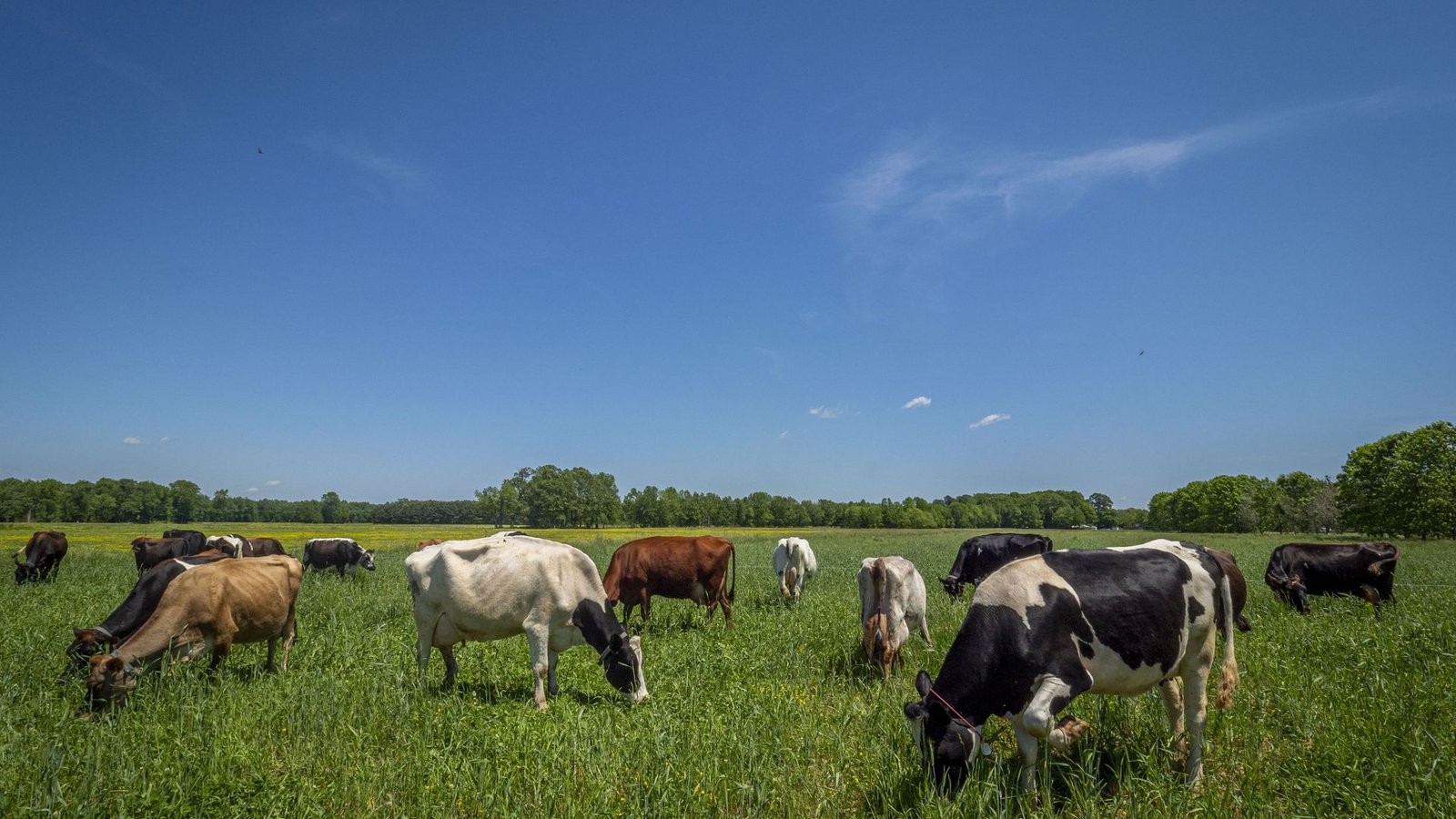
A cattle farming app that keeps the whole herd book on your phone.
A full walk-through of Invoiceror's cattle farming app — the AgriBiz module for dairy, beef and mixed herds that handles cattle IDs, QR ear tags, weight gain, milk production, breeding and calving, pasture moves and sales by live weight. Screen by screen, using the live app.
Where this lives: Cattle Farming is a module inside AgriBiz, part of Invoiceror's set of industry add-ons, reached from More → Industry Solutions → AgriBiz. It works like the goat and rabbit farming modules, with extra tools cattle need: milk production, weight gain and selling by live weight.
Most cattle records still live in a calving book in the truck, a weight sheet by the scale and a separate spreadsheet for milk — and the sale itself gets invoiced somewhere else again. This cattle farming app puts all of it in the Invoiceror Android app, so a heifer's ear tag, her breeding date, her weight gain and the invoice for the steer you sold sit in the same place. The fifteen steps below cover every screen in the module, following the year a working cattle farmer actually runs: tag the animal, weigh it, breed it, calve it, move it between pastures and sell it.
Why use a cattle farming app for herd record keeping?
Cattle are the biggest investment on most farms, and every decision about them runs on records: which cows are open or bred, when each one is due to calve, which calves are gaining well, and which steers have reached sale weight. A cow carries her calf for about nine months, so a breeding date written on the wrong scrap of paper costs you a season.
A cattle management app on your phone keeps every animal's ID, breed, purpose, location, weights, breeding and calving history with you in the yard or out on pasture. Because it lives inside Invoiceror, the money side is right there too: log feed, vet and fencing costs, scan the receipts with AI, track milk revenue, and invoice every animal you sell.
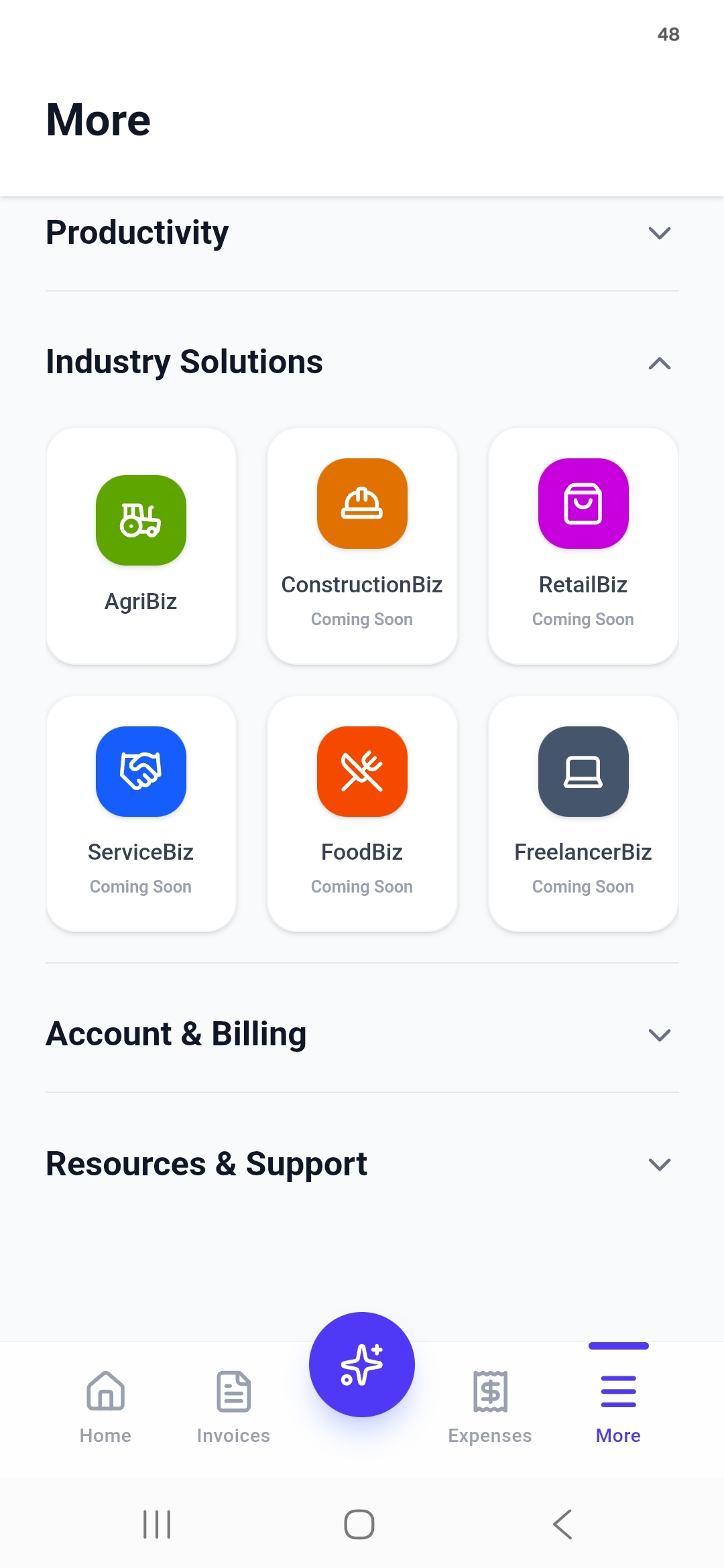
More → Industry Solutions → AgriBiz
Cattle Farming doesn't sit on the main tab bar. From any screen, tap More, open the Industry Solutions group, and tap the green AgriBiz tile.
Inside AgriBiz, tap Cattle Farming. The first time in, give your farm a name — the examples in this guide use Godi Cattle Farm — and rename it any time with the pencil icon on the dashboard.
Herd, milk and growth on one dashboard
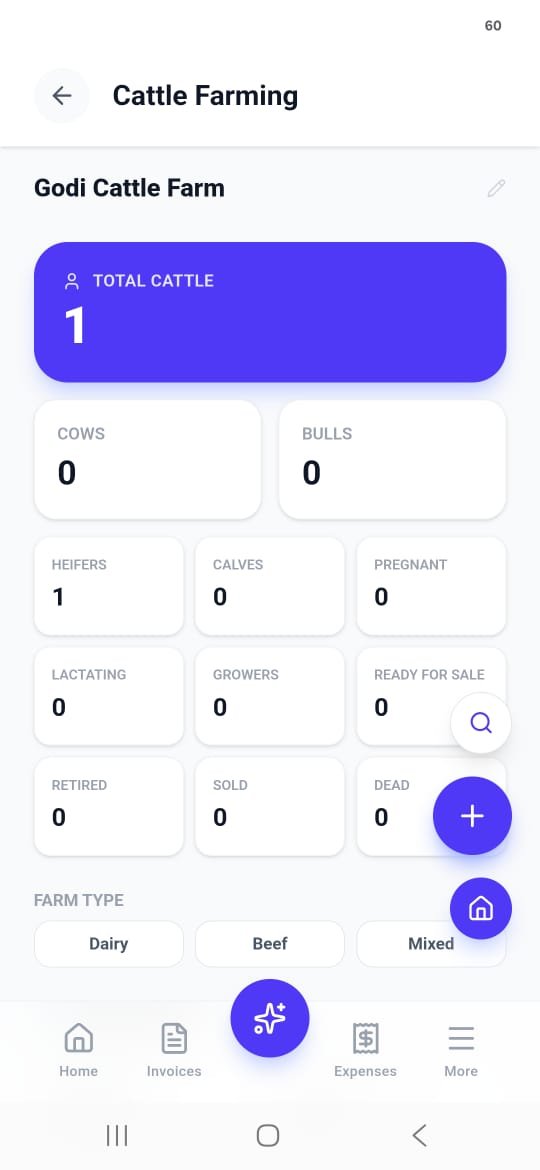
The dashboard opens on a Total Cattle count, split into Cows and Bulls, then a status grid — Heifers, Calves, Pregnant, Lactating, Growers, Ready for Sale, Retired, Sold and Dead — so the state of the herd reads at a glance, like the main Invoiceror dashboard does for your business.
Set the Farm Type to Dairy, Beef or Mixed. Further down, Milk Production shows milk today, milk this month, the average per lactating cow and this month's milk revenue; Weight & Growth shows average weight, average daily gain (kg/day) and how many animals are ready for sale; and Upcoming Calvings lists which cows are due and when.
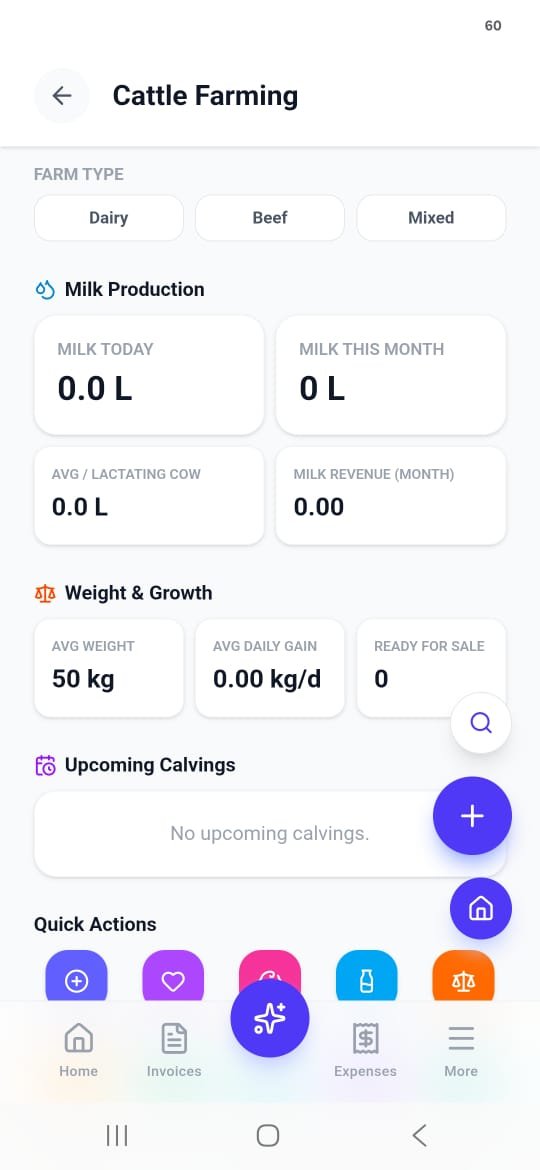
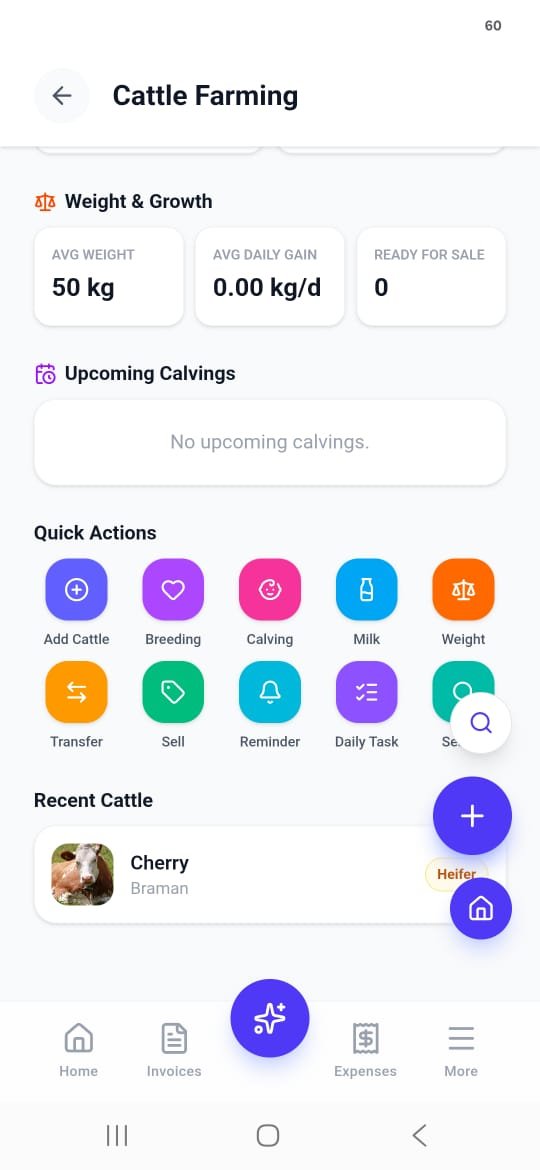
Ten actions cover a day on a cattle farm
Below the dashboard sits the toolbar, with your Recent Cattle listed underneath. Two actions here are cattle-only — Milk and Weight — because those are the numbers that pay the bills on a dairy or beef farm.
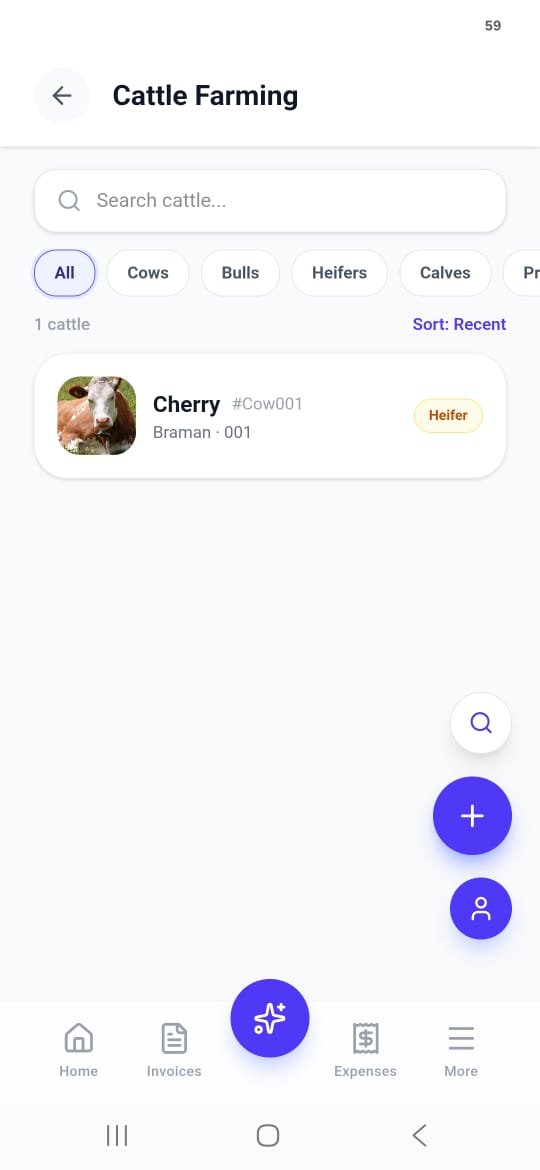
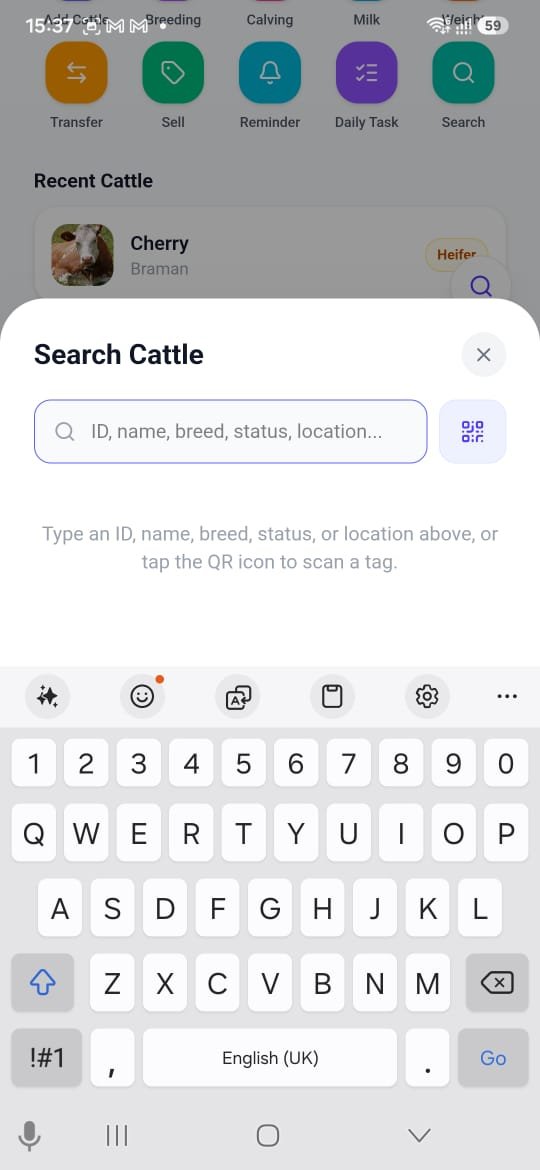
Filter the herd, or scan straight to one animal
The cattle list shows every animal with its photo, name, Cattle ID (e.g. #Cow001), breed, location and a colored status pill. Filter chips — All, Cows, Bulls, Heifers, Calves, Pregnant and more — narrow it down, and Sort: Recent keeps new additions on top.
Search Cattle goes further than a name search: type an ID, name, breed, status or location, or tap the QR icon and scan an ear tag to open that animal's profile in the field.
Every animal starts with a Cattle ID
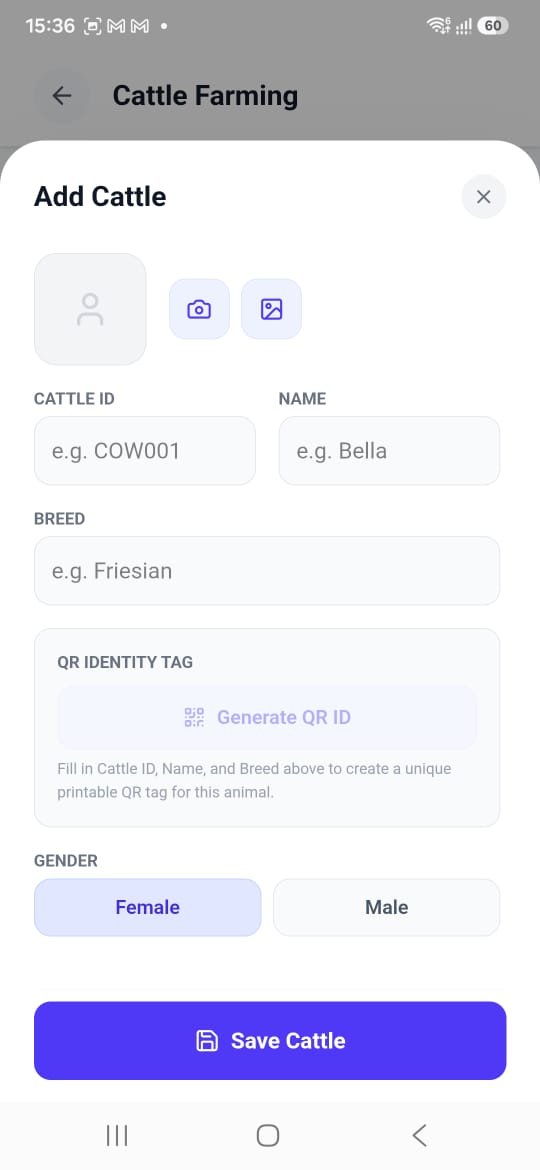
Add a photo, then fill in Cattle ID (e.g. COW001 — usually your ear-tag number), Name and Breed — Friesian, Brahman or whatever runs on your farm. Once those three are filled, Generate QR ID builds a unique, printable QR tag for that animal.
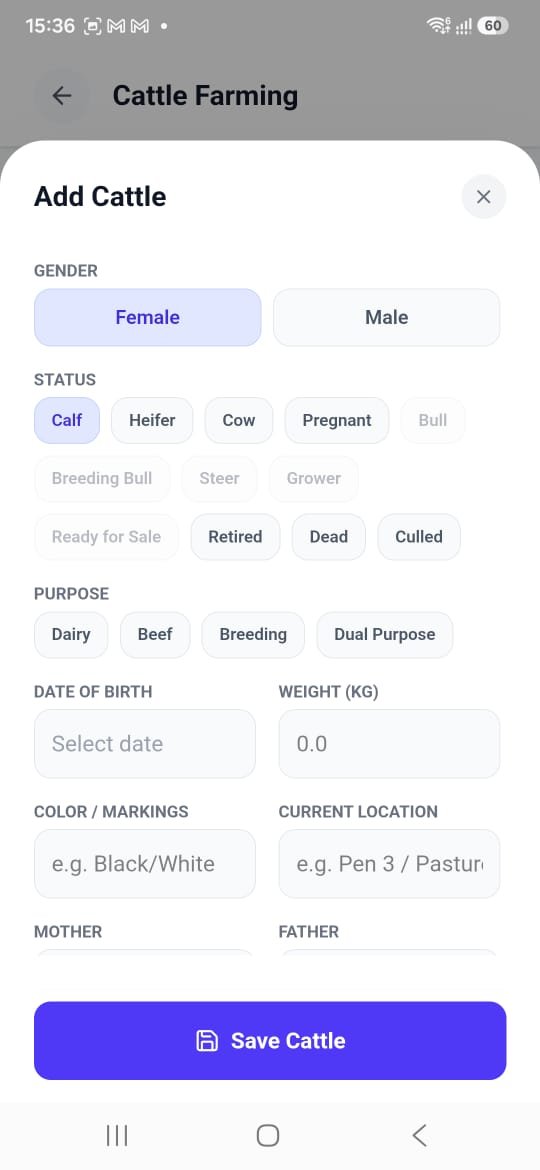
Then set Gender and a Status — Calf, Heifer, Cow, Pregnant, Bull, Breeding Bull, Steer, Grower, Ready for Sale, Retired, Dead or Culled; the choices adapt to the gender you pick. Choose a Purpose (Dairy, Beef, Breeding or Dual Purpose) and add date of birth, weight, color or markings, current location (e.g. Pen 3 or a pasture name), mother and father.
- Cattle ID
- Name
- Breed
- Generate QR ID
- Female / Male
- Status
- Purpose
- Date of Birth
- Weight (kg)
- Color / Markings
- Current Location
- Mother / Father
One card holds the whole animal
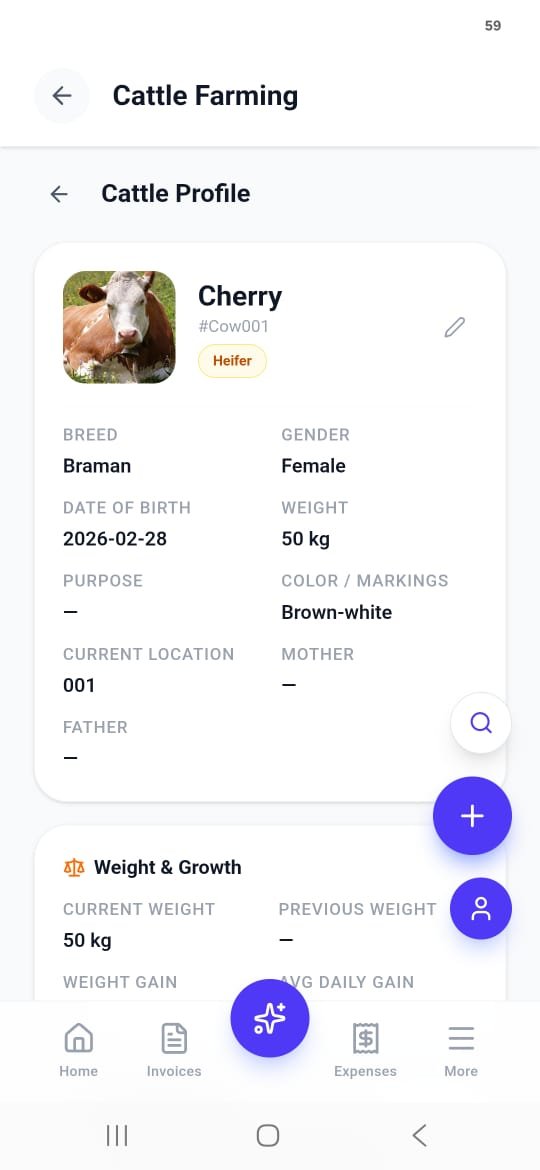
Tap any animal and its profile lays out what you'd otherwise keep on a herd card: photo, Cattle ID, status pill (Heifer), Breed, Gender, Date of Birth, Weight, Purpose, Color / Markings, Current Location, Mother and Father.
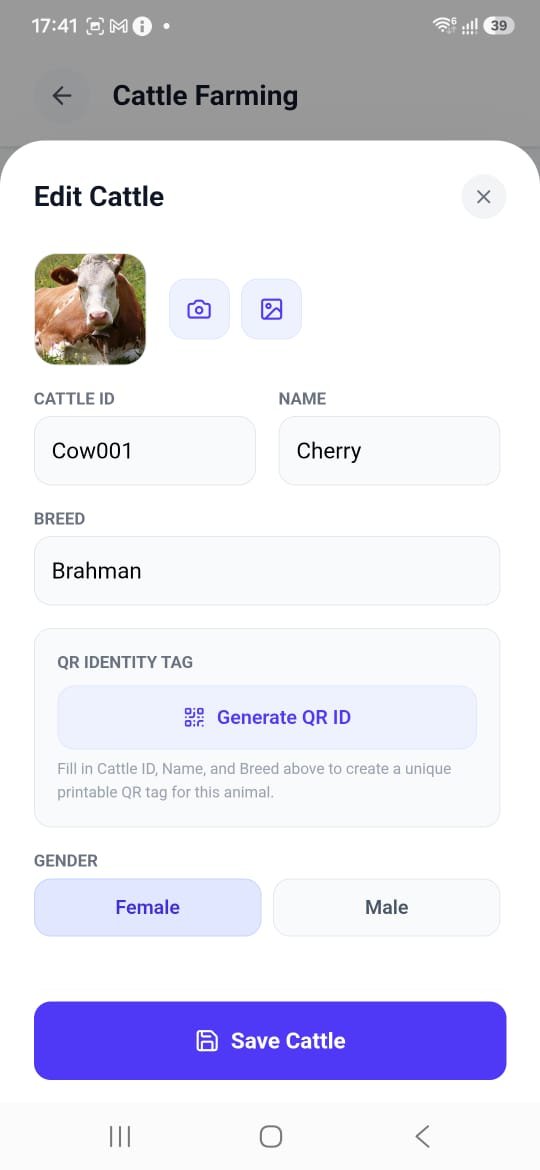
Tap the pencil to open Edit Cattle — the same form, pre-filled — to swap the photo, correct a tag number or update the record as a calf grows into a heifer and a heifer into a cow.
A printable tag and a history that writes itself
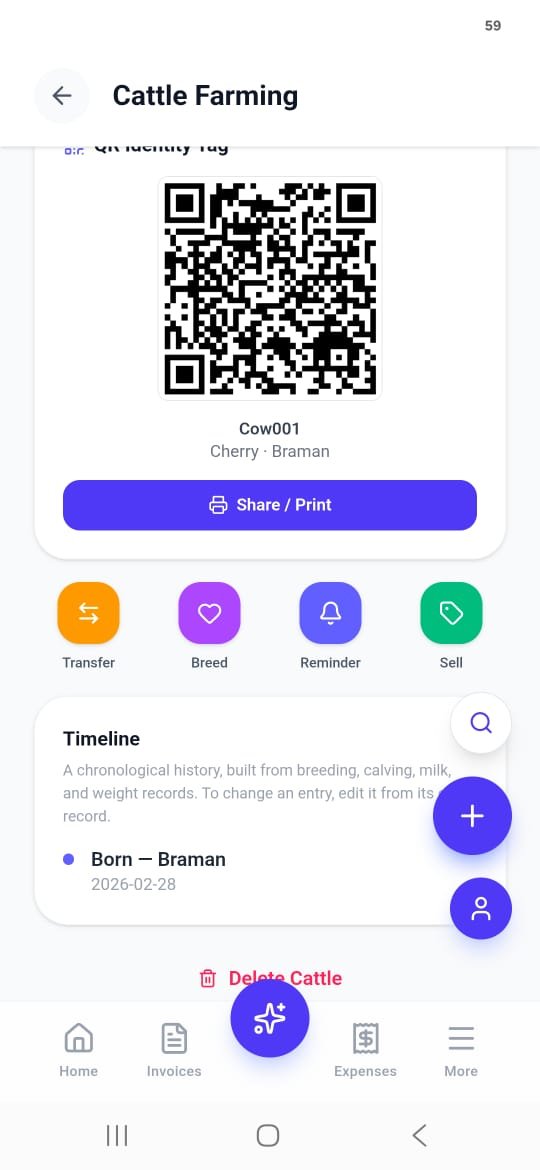
Every animal's QR Identity Tag sits on its profile, labelled with its ID, name and breed, with a Share / Print button. Print it for an ear tag, a neck chain or the pen gate; scanning it from Search opens the profile. Shortcut buttons under the tag jump to Transfer, Breed, Reminder and Sell for that animal.
Below it, the Timeline is a chronological history built from that animal's breeding, calving, milk and weight records, starting with its birth (Born · 2026-02-28). To change an entry, you edit it from its original record, so the history stays consistent. Delete Cattle sits at the very bottom.
Weigh-ins that turn into daily gain
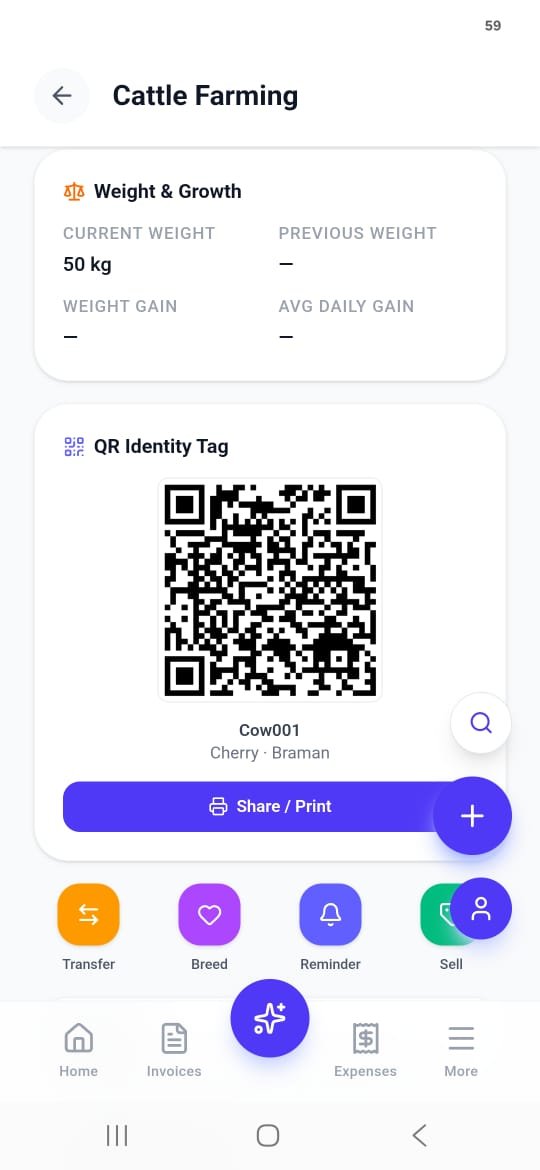
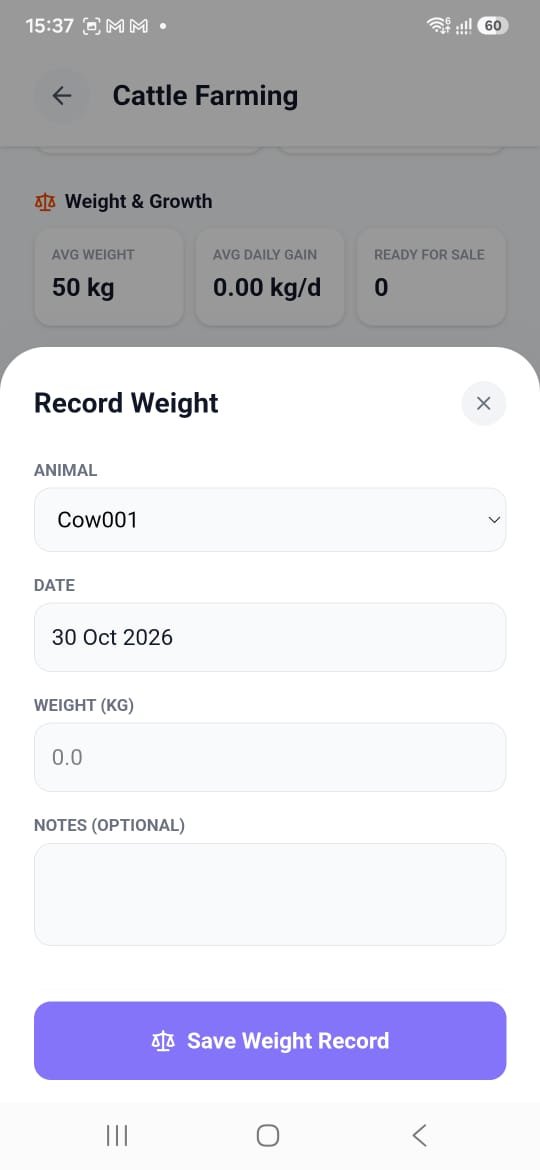
Each profile has a Weight & Growth card: current weight, previous weight, weight gain and average daily gain. Record a weigh-in from the Weight quick action — pick the animal, the date and the weight in kg, plus optional notes.
Daily gain is the number that tells you whether your grazing and feed are working, and weaning weight is a big driver of what a calf earns — Penn State Extension's beef cow-calf guide covers the practices that move it. The herd-wide averages roll up to the dashboard, along with how many animals are ready for sale.
Natural service or AI — and the calving date is worked out for you
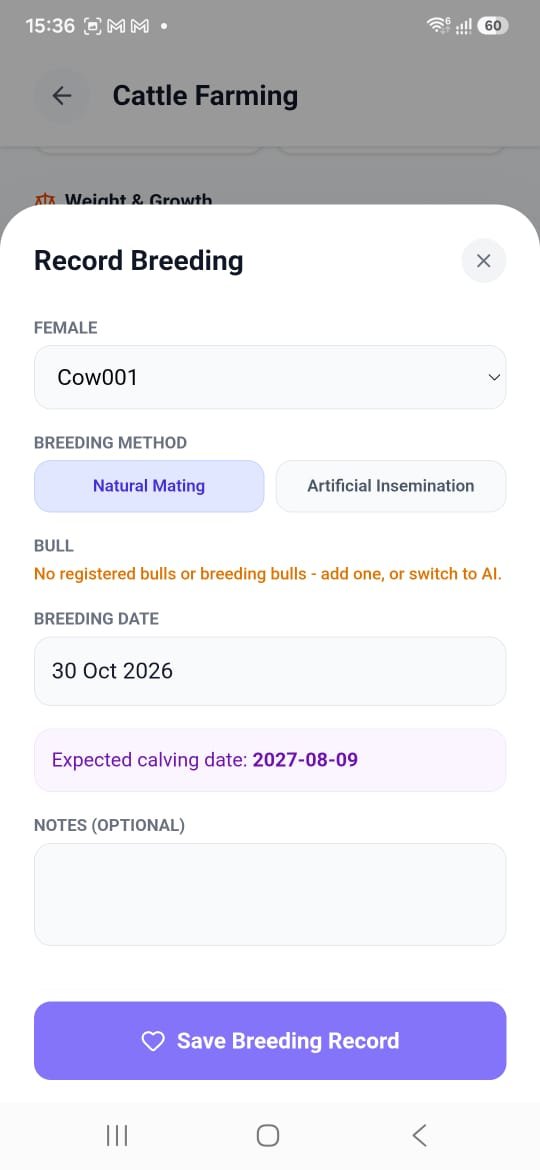
Record Breeding takes the Female, the Breeding Method — Natural Mating or Artificial Insemination — the bull, the breeding date and optional notes. For natural mating you need a registered Bull or Breeding Bull in the herd; if you don't have one, the app tells you to add one or switch to AI.
The moment you set the date, it shows the expected calving date — a breeding on 30 Oct 2026 gives 2027-08-09, about nine months out — and that date feeds the dashboard's Upcoming Calvings. Many herds use AI early in the breeding season and a bull to follow up; logging the method on each record shows which calves came from which.
Calving follows a confirmed pregnancy
Record Calving works from cows marked Pregnant. If none are, the sheet says so: record a breeding and confirm the pregnancy first. That order keeps the herd book honest — every calf links back to a breeding record and a dam, so you can see later which cows calve easily and which bulls throw the best calves. Recording the calving also starts the cow's lactation, which is what puts her on the milk list in the next step.
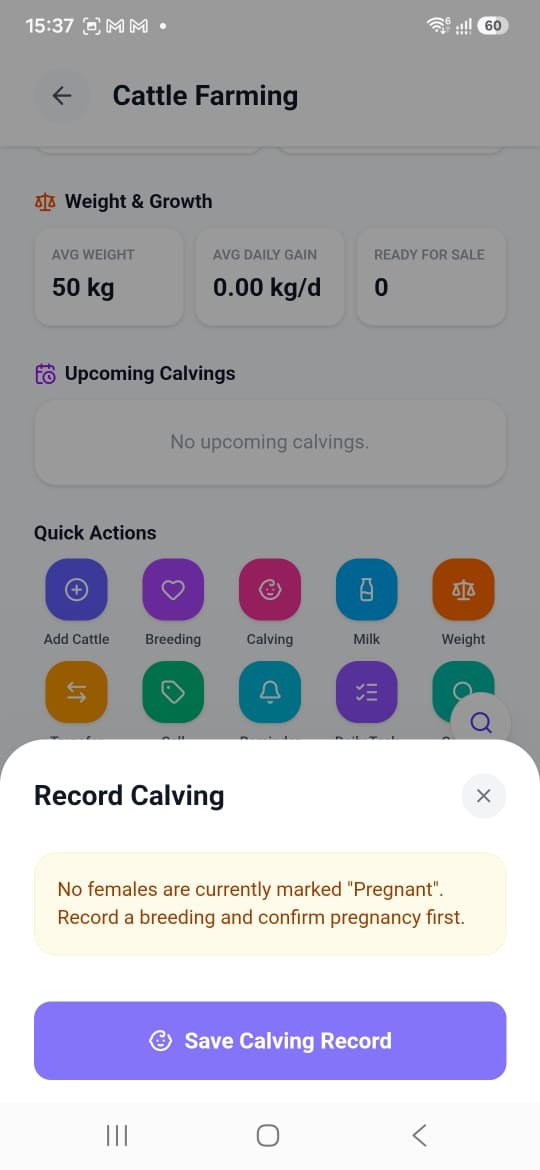
Milk records start the day a cow calves
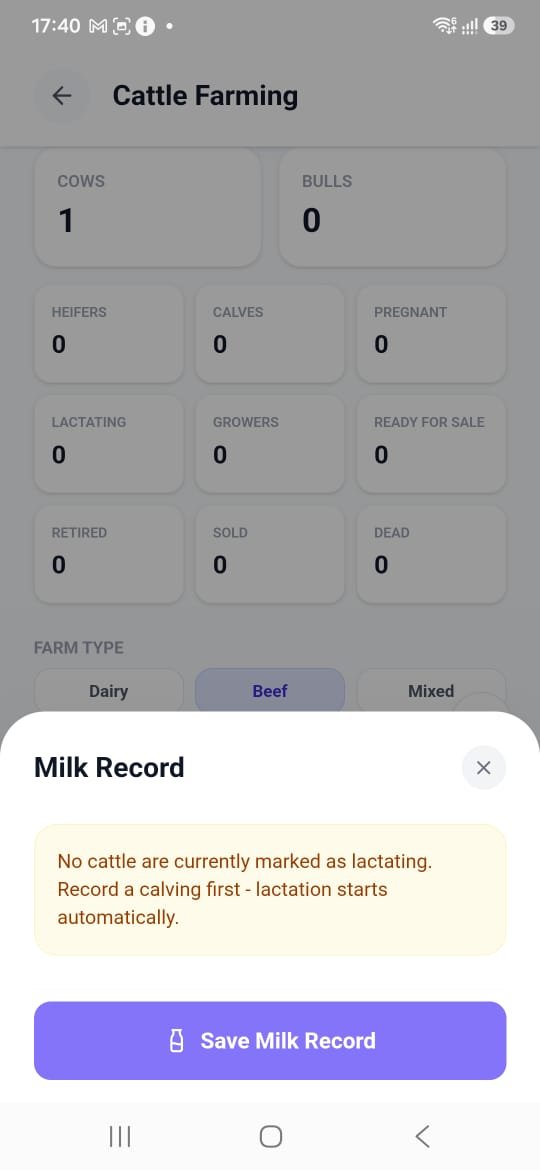
The Milk quick action opens Milk Record, which works from cows marked Lactating. You don't set that status by hand: recording a calving starts the cow's lactation automatically, so she appears here ready for her first entry. If no cows are lactating yet, the sheet says so and points you to record a calving first.
Every record feeds the dashboard's Milk Production card — milk today, milk this month, the average per lactating cow and this month's milk revenue — so a dairy farm can see its output and income side by side with the rest of its sales.
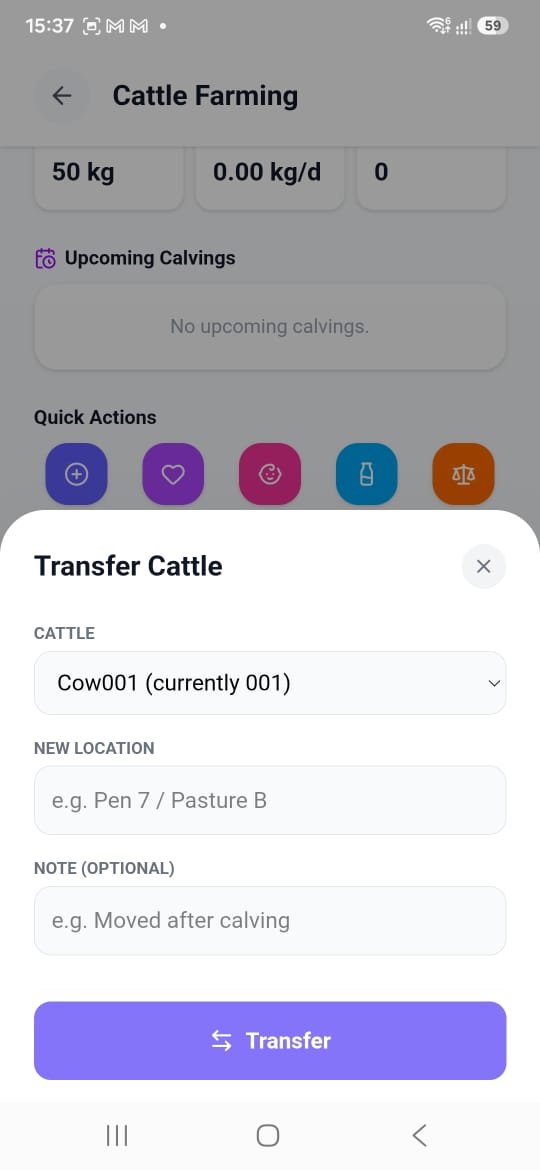
Pen and pasture moves stay on the record
Choose the animal — its current location shows in the picker, e.g. Cow001 (currently 001) — enter the New Location (e.g. Pen 7 / Pasture B) and an optional note like "Moved after calving." Handy for rotational grazing, where knowing which group was on which paddock and when matters.
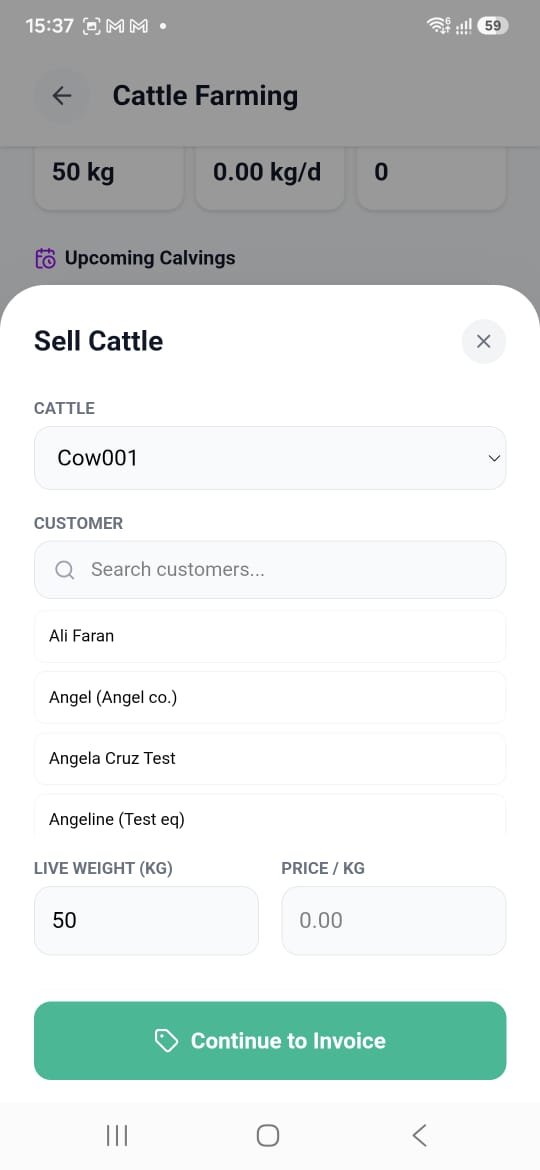
Sell by live weight, and the invoice is already started
Pick the Cattle, choose the buyer from your Invoiceror customer list, and the Live Weight (kg) comes pre-filled with the animal's recorded weight. Enter the Price / kg and tap Continue to Invoice.
You land in a normal Invoiceror invoice for that buyer, ready to send on WhatsApp with a payment link, by email or as a PDF — and the animal moves to the Sold counter on the dashboard.
One-off alerts, same bell as invoices
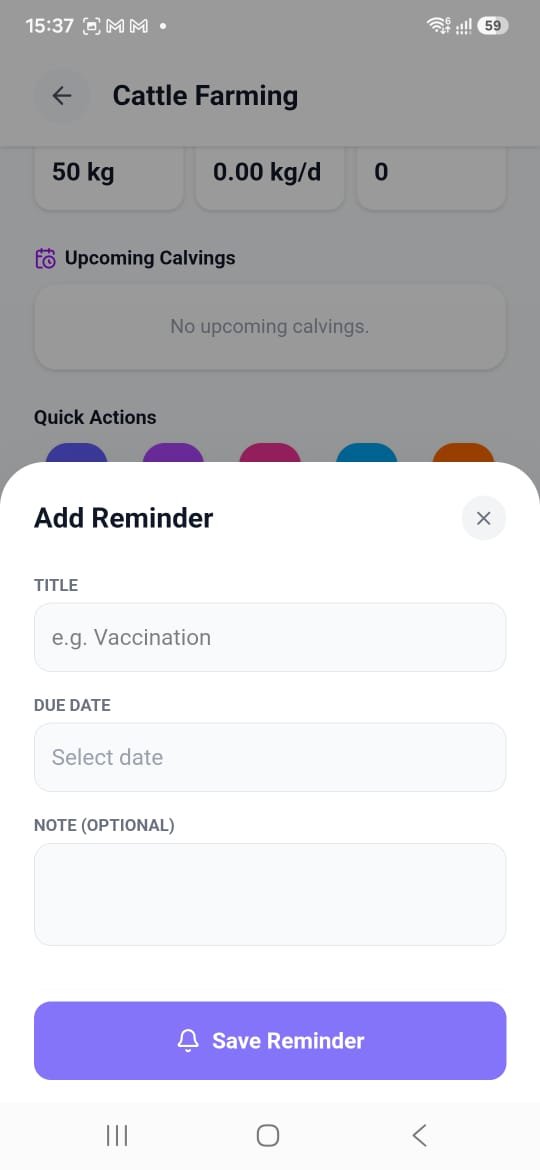
A Reminder needs just a Title (e.g. "Vaccination", "Pregnancy check" or "Weaning") and a Due Date, with an optional note. It lands in Invoiceror's existing reminder bell — the same one tracking your invoice payment reminders — so herd health and business admin show up in one place.
Chores that repeat, and prove they happened
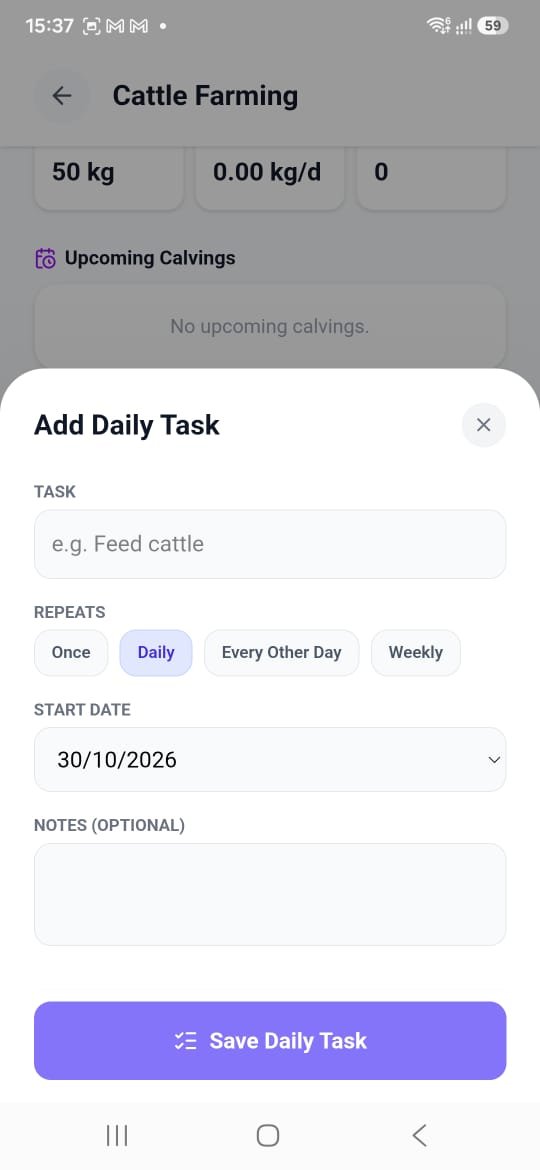
Daily Task is a recurring checklist item, not a one-off alert. Name the task ("Feed cattle", "Check water troughs"), pick how often it repeats — Once, Daily, Every Other Day or Weekly — set a start date and add notes if you like.
Each due day gets its own tickable entry, so if farm hands do the feeding, a missed day shows up as missed. It works like Invoiceror's task tracker and daily activity tracker, tuned for farm work.
Cattle farming app FAQ
Is there an app for cattle herd record keeping?
Yes. Invoiceror's Cattle Farming module, inside AgriBiz, keeps a record for every animal — Cattle ID, name, breed, gender, status, purpose, date of birth, weight, color, location, mother and father — plus weigh-ins, breeding and calving records, milk production, transfers and sales. It runs on Android and is free to download from Google Play.
Does it work for dairy and beef farms?
Yes. Set the farm type to Dairy, Beef or Mixed, and give each animal a purpose: Dairy, Beef, Breeding or Dual Purpose. Dairy farms get milk today, milk this month, average per lactating cow and monthly milk revenue; beef farms get average weight, average daily gain and a ready-for-sale count. Lactation starts automatically when you record a calving, so milk recording follows on with no extra setup.
How does the app calculate the expected calving date?
When you record a breeding — by natural mating or artificial insemination — the app shows the expected calving date as soon as you enter the breeding date, about nine months later, and adds it to Upcoming Calvings on the dashboard.
Can I print QR ear tags for my cattle?
Yes. Once an animal has a Cattle ID, name and breed, tap Generate QR ID. The QR Identity Tag on its profile has a Share / Print button, and scanning the tag from Search opens that animal's profile.
Can I sell cattle by weight and invoice the buyer?
Yes. Sell Cattle pre-fills the animal's recorded live weight; you enter the price per kg and tap Continue to Invoice to open a regular Invoiceror invoice you can send by WhatsApp, email or PDF.
What other livestock does Invoiceror support?
Cattle, Goat and Rabbit Farming are live in AgriBiz today. Chicken, Fish, Pig and Vegetable Farming are listed as coming soon.
Tag it, weigh it, breed it, sell it.
Cattle Farming is live inside Invoiceror today, built on the same invoicing and expense tracking you already run your business on — alongside Goat and Rabbit Farming. Chicken, Fish, Pig and Vegetable Farming are next up in AgriBiz.
Photos: dairy herd on rotational pasture at Nice Farms Creamery, Federalsburg, Maryland, and a beef cow on rangeland at Sauerbier Ranches, by the U.S. Department of Agriculture (public domain), via Wikimedia Commons. App screenshots: Invoiceror.
