

March 18, 2026
Running a business means making decisions every day. Evo-AI is built to guide you with real-time insights of your customers details, not guesses. With Evo-AI, your customer in one place and secure. ask AI to add and update whoever new customer on-board.
Managing your daily schedule is essential for staying productive and ensuring important activities are not missed. The Daily Activity Tracker in Invoiceror allows you to schedule tasks, meetings, and operational activities while receiving automatic reminder notifications before the activity begins.
This will guide you step-by-step on how to create activities, schedule events, and enable email notifications using the Daily Activity Tracker.
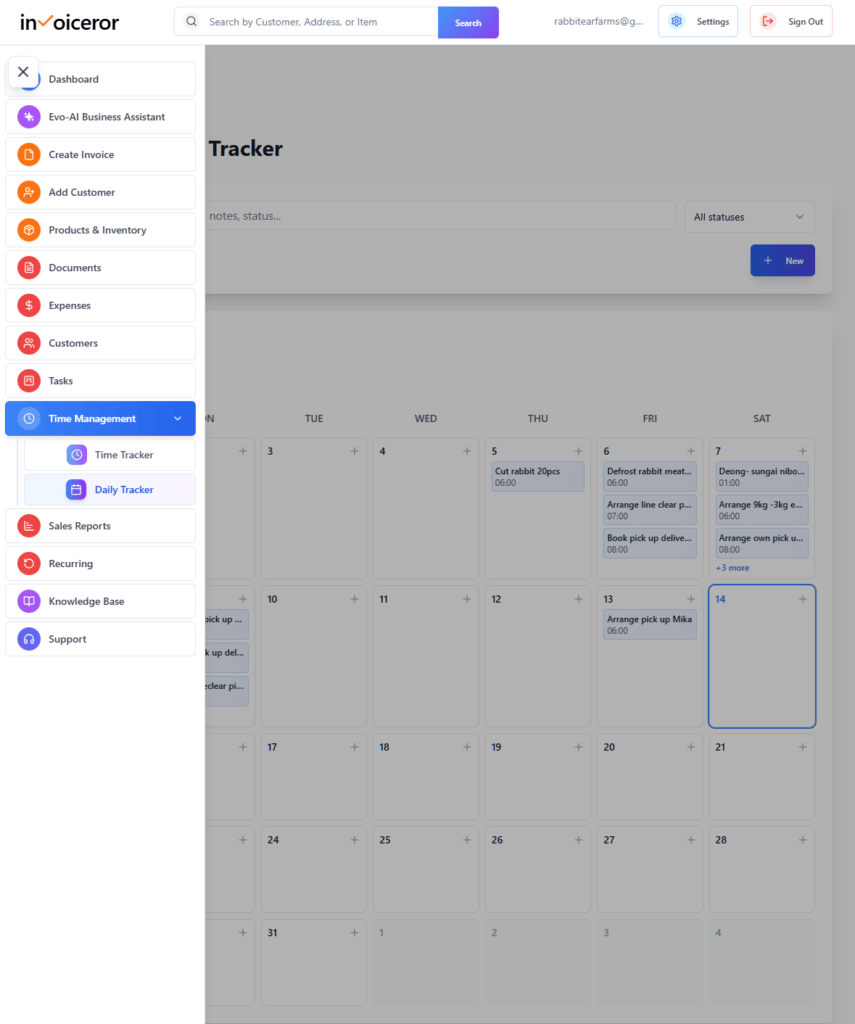
First, navigate to the Daily Activity Tracker inside your Invoiceror dashboard.
Log in to your Invoiceror dashboard
Click Time Management in the left sidebar
Select Daily Tracker
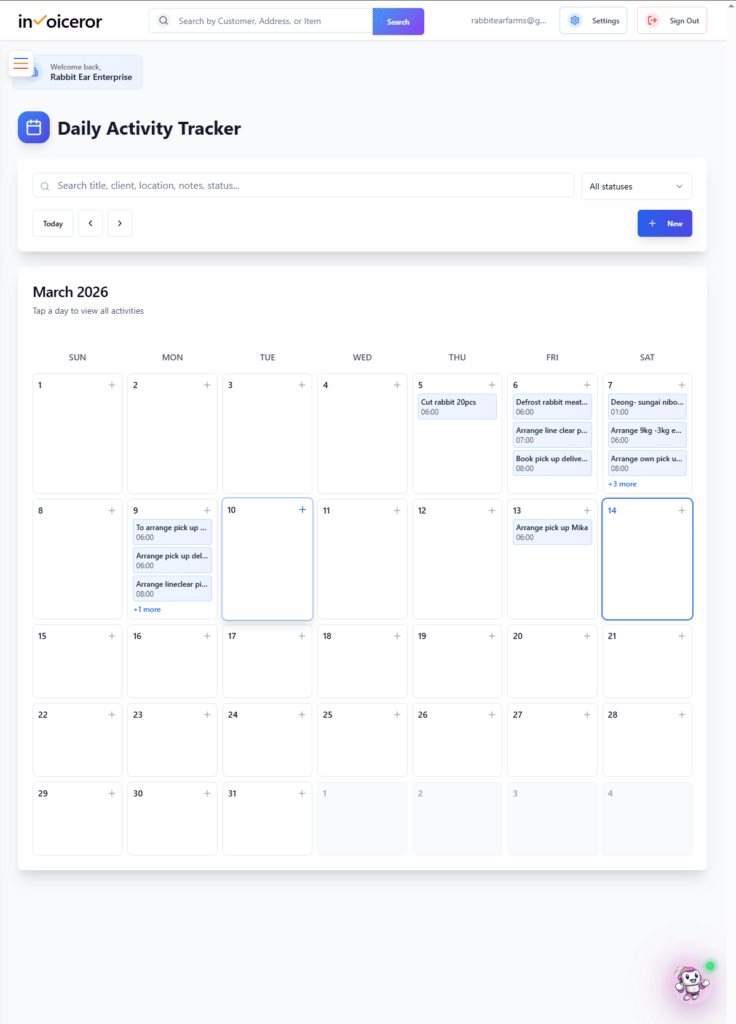
You will see a monthly calendar dashboard that displays all your scheduled activities.
Each day can contain multiple activities such as:
Meetings
Operational tasks
Client appointments
Work schedules
This calendar helps you manage your daily business operations and time planning.
To schedule a new activity:
Click the + New button
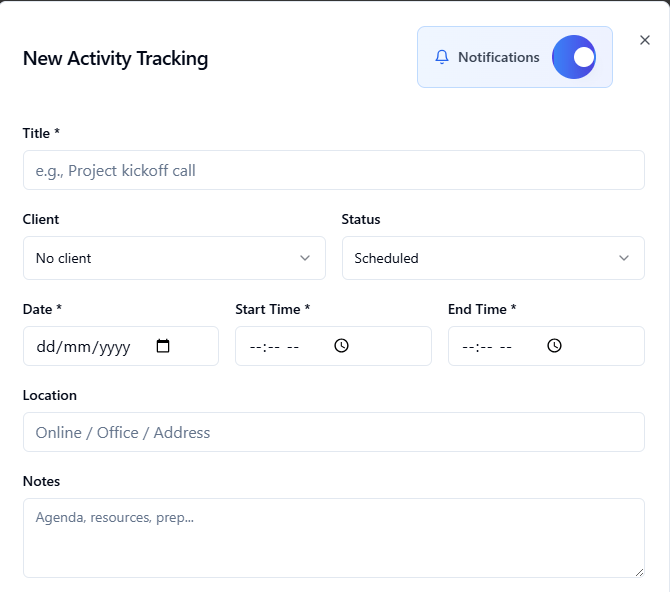
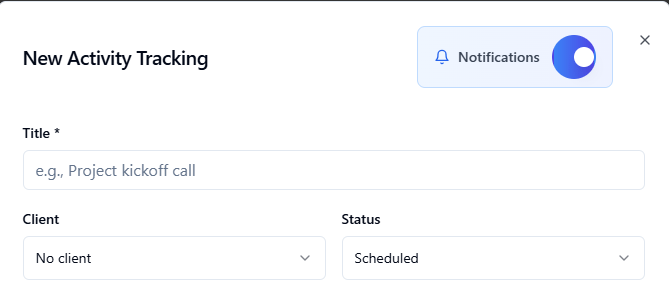
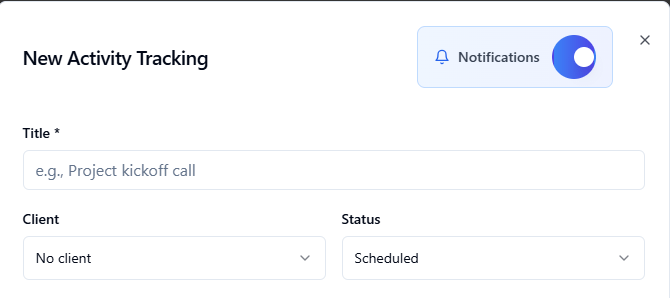
The New Activity Tracking form will appear
This form allows you to schedule an event and configure notifications.
Add a title describing the activity.
Example titles:
Using clear titles helps you quickly identify activities in the calendar.
If the activity is related to a specific client, select the client from the dropdown list.
Examples:
Customer consultation
Client delivery arrangement
Project discussion
If the activity is not client-related, simply leave it as
No Client.
Note: this activity Tracker will not notify your customers/clients, this is just for your personal notification.
Set the current status of the activity.
Common statuses include:
Scheduled – Planned activity
Completed – Activity finished
Cancelled – Activity cancelled
This helps track the progress of scheduled activities.
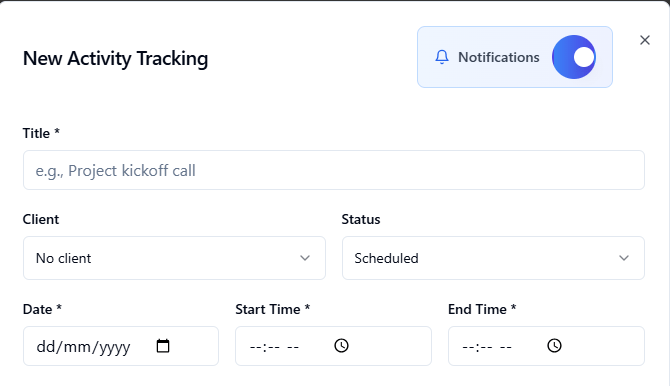
Now schedule the activity time.
Fill in the following fields:
Select the date when the activity will take place.
Choose the start time for the activity.
Select the end time.
Example schedule:
Setting the correct time ensures reminders will be triggered properly.
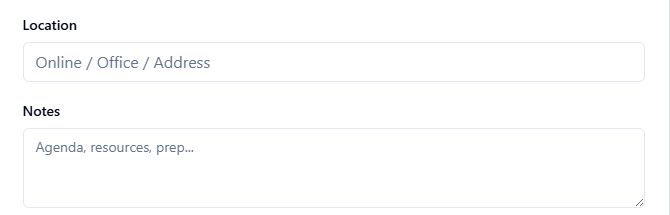
Specify where the activity will happen.
Examples:
Office meeting
Online meeting (Zoom / Google Meet)
Warehouse inspection
Farm operation site
Adding location details helps you organize activities more effectively.
Use the Notes section to include additional information.
Examples:
Notes help you remember important details related to the activity.
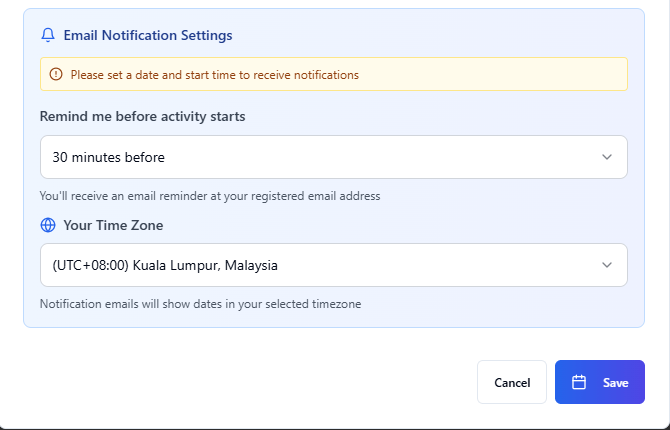
One of the most useful features is automatic email reminders.
To enable notifications:
Turn on the Notifications toggle
Select how early you want to receive reminders
Available reminder options may include:
30 minutes before
1 hour before
2 hours before
1 day before
This ensures you never miss important meetings or tasks.
Make sure the correct time zone is selected.
Example:
This ensures reminder emails are sent at the correct time.
Once everything is filled in:
Click Save
Your activity will now appear on the calendar dashboard.
You can view activities by date and see them directly on the monthly schedule.
After saving, your activity will appear on the selected date in the calendar.
From the dashboard you can:
View scheduled activities
Edit events
Update activity status
Add new activities
This visual calendar makes it easy to track your daily workload.
Using this feature helps businesses:
It works like a business productivity calendar combined with a smart reminder system.
Following these practices helps ensure smooth business operations and better time management.
The Daily Activity Tracker in Invoiceror is a powerful tool for managing schedules, planning activities, and receiving reminders before important events.
By combining calendar scheduling, activity tracking, and notification alerts, it helps businesses stay organized and avoid missed appointments.
If used consistently, it can greatly improve time management, productivity, and workflow efficiency.
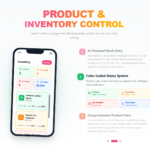
Stay in Control of Your Inventory with Real-Time Updates
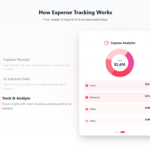
Track Every Expense Automatically Without Spreadsheets with AI Receipt Scanning

Create Professional Invoices in Seconds with Smart Invoice Creation

How Evo-AI Helps Small Businesses Make Smarter Decisions
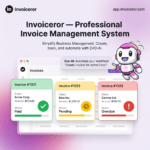
Monitor Invoice Status Instantly with Color Coding

Get a Real-Time View of Your Business Finances Dashboard

How to Use the Task Tracker in Invoiceror (Step-by-Step Guide)

How to Manage Invoices in the Documents Section of Invoiceror (Complete Step-by-Step Guide)

How to Send Invoices to Customers via WhatsApp, Email, or Download in Invoiceror

How the Invoice Color Status System Works in Invoiceror (Step-by-Step Guide)keep up out latest update Subscribe our newsletter!

© 2025 All Rights Reserved app.invoiceror.com
Get in touch with our support team. We're available via email or WhatsApp to help you with any questions.
Send us an email and we'll get back to you within 24 hours on business days.
Chat with us directly on WhatsApp for quick responses and real-time support.