

March 18, 2026
Running a business means making decisions every day. Evo-AI is built to guide you with real-time insights of your customers details, not guesses. With Evo-AI, your customer in one place and secure. ask AI to add and update whoever new customer on-board.
Managing tasks efficiently is essential for running a productive business. The Task Tracker feature in Invoiceror helps you organize your work, prioritize tasks, set deadlines, and monitor progress using a Kanban-style task board.
With the Task Tracker, you can easily manage tasks using three workflow stages:
To-Do – Tasks that need to be started
In Progress – Tasks currently being worked on
Completed – Finished tasks
This will guide you step-by-step on how to create and manage tasks using the Task Tracker.
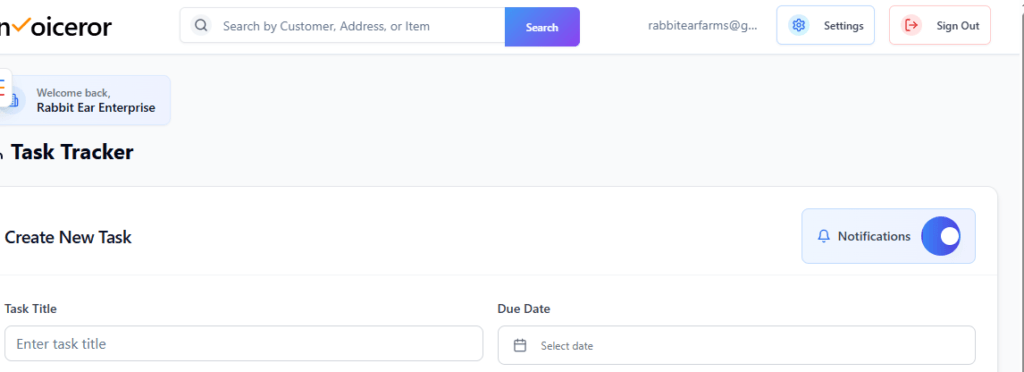
First, access the Task Tracker from your dashboard.
Log in to your Invoiceror dashboard
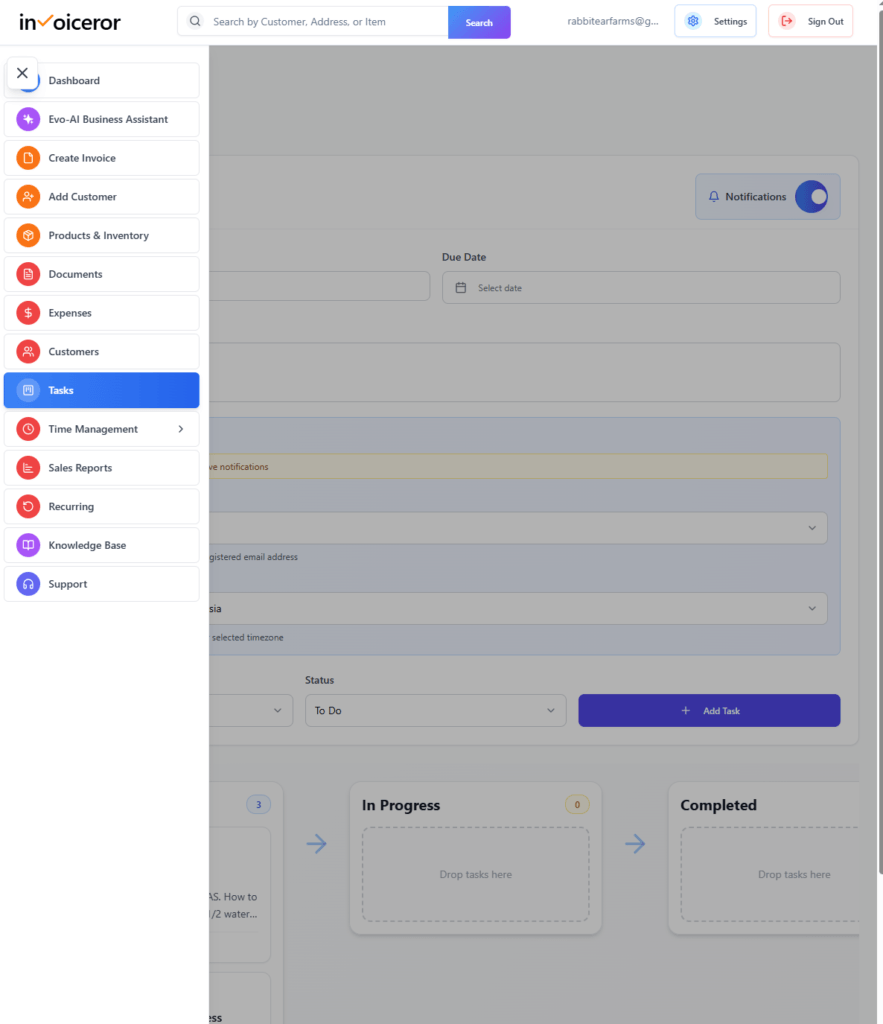
Click Tasks from the left sidebar menu
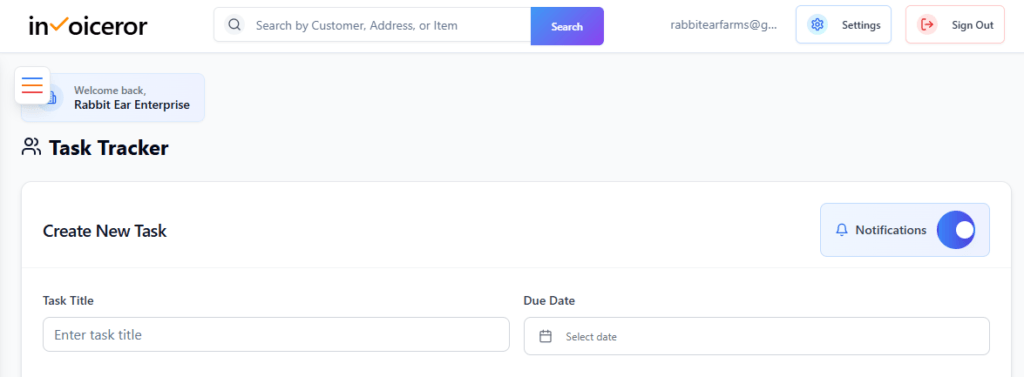
The Task Tracker dashboard will open
The page contains:
Task creation form
Task priority settings
Email reminder notifications
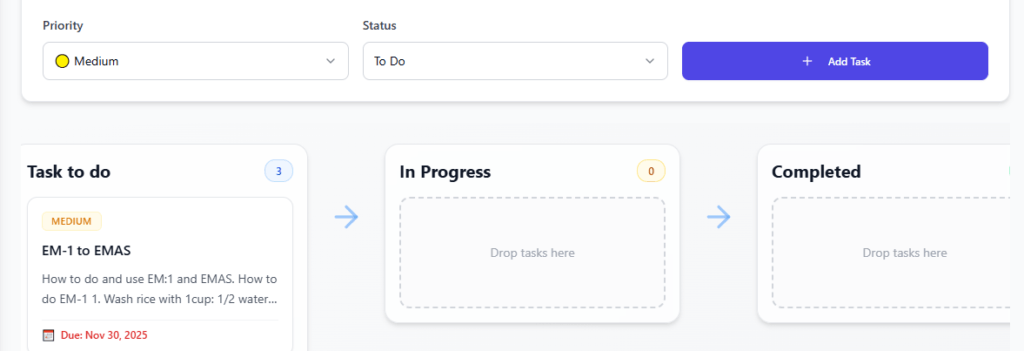
Kanban workflow board
This interface allows you to create tasks and track their progress visually.
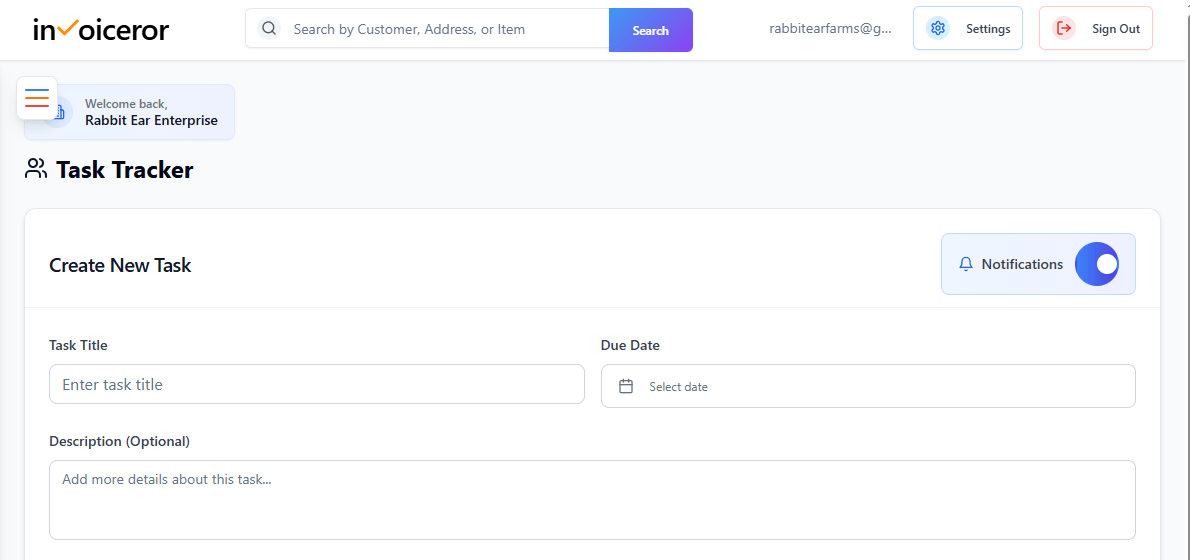
To create a task, complete the Create New Task form.
Enter the main title of the task.
Example:
Add additional details explaining the task.
Example:
Providing descriptions helps team members understand the task requirements.
Select a Due Date for the task.
This allows the system to:
Track deadlines
Send reminder notifications
Organize task priorities
Setting deadlines ensures important work is completed on schedule
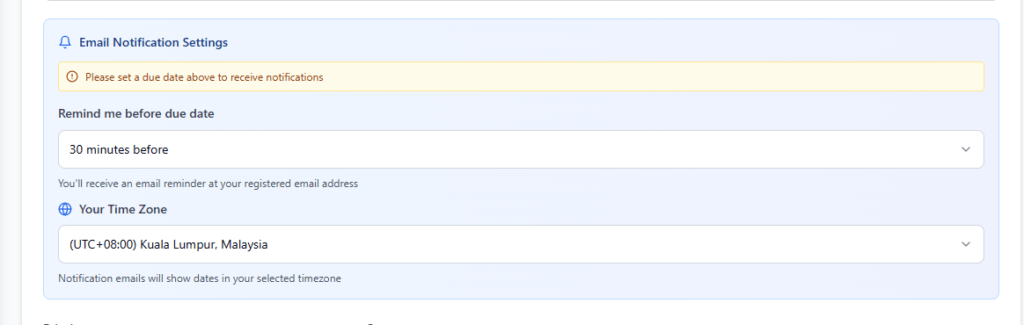
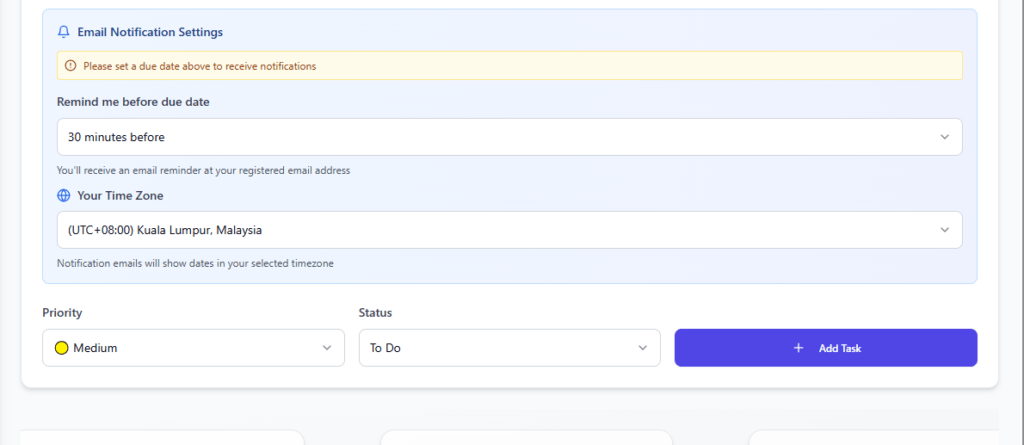
The Task Tracker includes email notification reminders.
When notifications are enabled:
You will receive reminders before the deadline
Alerts are sent to your registered email address
You can also choose when to receive reminders, such as:
30 minutes before due date
1 hour before
1 day before
This feature helps prevent missed deadlines.
Each task can be assigned a priority level.
Available priority levels typically include:
Urgent tasks that must be completed immediately.
Important tasks that should be completed soon.
Tasks that can be completed later.
Using priorities helps you focus on the most important work first.
When creating a task, you can choose the initial task status.
Options include:
To-Do – Task is waiting to be started
In Progress – Task is currently being worked on
Completed – Task is finished
After setting the status, click Add Task.
The task will appear on the Kanban task board.
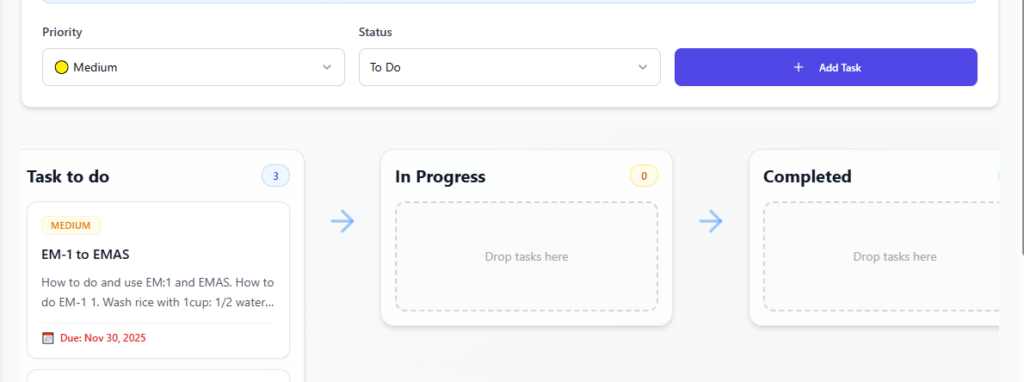
The Kanban board visually organizes your tasks into three stages.
This column shows tasks that have not started yet.
Examples:
Create marketing campaign
Prepare client invoices
Update product pricing
Move tasks here when work has started.
Examples:
Processing customer orders
Updating website products
Managing inventory
Once tasks are finished, move them to the Completed section.
This helps track productivity and completed work.
The Kanban board uses drag-and-drop functionality.
Simply:
Click and hold a task card
Drag it to the desired column
Drop it into the new stage
Example workflow:
This workflow helps teams visualize project progress clearly.
The Task Tracker helps businesses:
The Kanban workflow system also makes it easier to manage tasks in teams or solo businesses.
Always assign due dates to tasks
These practices help maintain a clear and organized workflow.
The Task Tracker feature in Invoiceror provides a simple yet powerful way to manage tasks and projects. By combining priority settings, email reminders, and a Kanban workflow board, businesses can stay organized and ensure tasks are completed efficiently.
Using this feature helps improve productivity, accountability, and workflow management.
Stay in Control of Your Inventory with Real-Time Updates
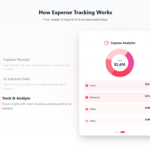
Track Every Expense Automatically Without Spreadsheets with AI Receipt Scanning

Create Professional Invoices in Seconds with Smart Invoice Creation

How Evo-AI Helps Small Businesses Make Smarter Decisions

Monitor Invoice Status Instantly with Color Coding

Get a Real-Time View of Your Business Finances Dashboard

How to Use the Daily Activity Tracker in Invoiceror (Step-by-Step Guide)

How to Manage Invoices in the Documents Section of Invoiceror (Complete Step-by-Step Guide)

How to Send Invoices to Customers via WhatsApp, Email, or Download in Invoiceror

How the Invoice Color Status System Works in Invoiceror (Step-by-Step Guide)keep up out latest update Subscribe our newsletter!

© 2025 All Rights Reserved app.invoiceror.com
Get in touch with our support team. We're available via email or WhatsApp to help you with any questions.
Send us an email and we'll get back to you within 24 hours on business days.
Chat with us directly on WhatsApp for quick responses and real-time support.