


March 18, 2026
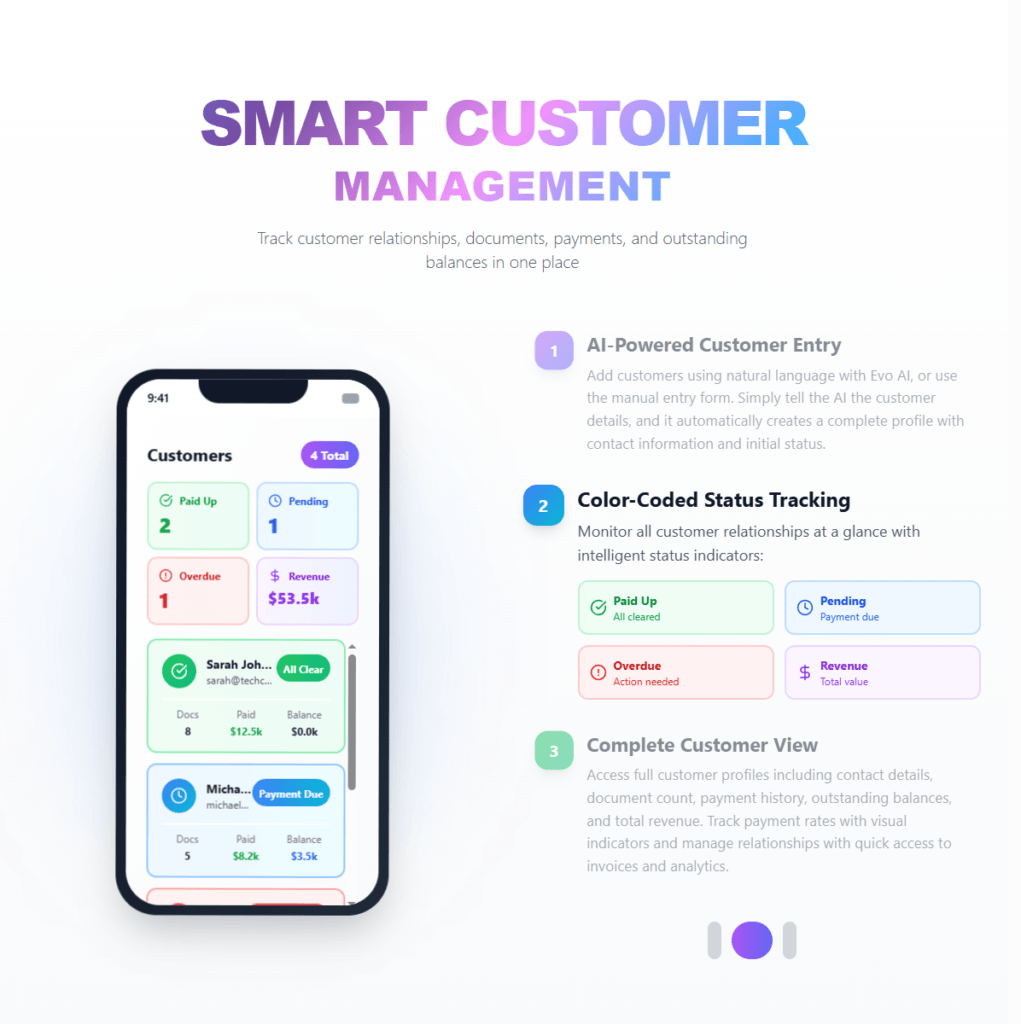
Running a business means making decisions every day. Evo-AI is built to guide you with real-time insights of your customers details, not guesses. With Evo-AI, your customer in one place and secure. ask AI to add and update whoever new customer on-board.
Managing your customers efficiently is essential for running a successful business. In Invoiceror, you can easily add and organize your customers so you can quickly create invoices, track transactions, and manage client relationships.
This SEO-optimized tutorial will guide you through how to add a new customer or client in Invoiceror step-by-step.
First, you need to access the Add New Customer page.
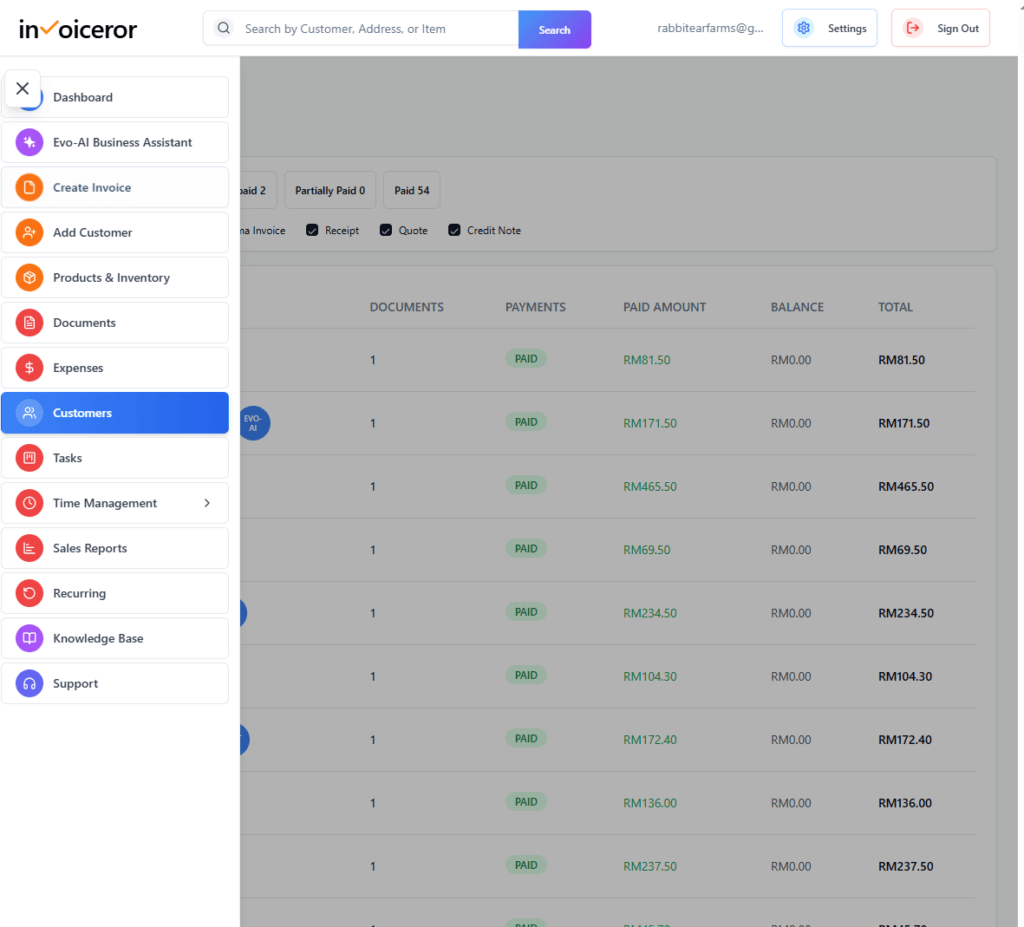
Log in to your Invoiceror dashboard
Navigate to the Customers section
Click Add Customer or New Customer
You will now see the New Customer form, where you can enter your client’s details.
The first field is the Customer Name, which is a required field.
This can be:
An individual customer’s name
A business contact person
Example:
John Doe
Sarah Lee
Michael Tan
This name will appear on invoices and customer records.
If your client represents a business, you can enter the Company Name.
Example:
Acme Corporation
ABC Trading Sdn Bhd
Adding a company name helps organize your clients, especially if you work with multiple businesses.
Next, enter the customer’s email address.
Example:
This email address is important because it allows you to:
Send invoices directly via email
Share quotes or documents
Communicate with your clients easily
Enter the customer’s phone number for quick contact.
Example:
This helps when you need to contact your client regarding invoices, payments, or services.
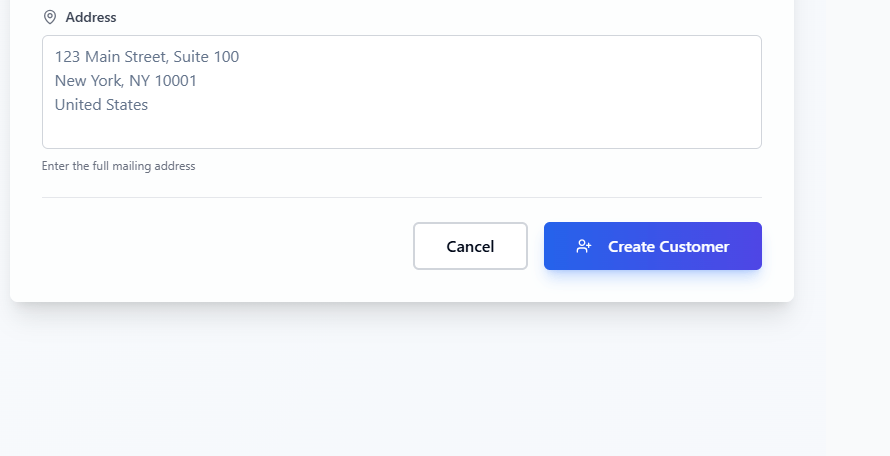
The Address field allows you to record your client’s full mailing address.
Example:
Customer addresses are helpful for:
Professional invoices
Business records
Shipping or service documentation
Once all details are entered:
Click Create Customer
The customer will now be saved in your customer database.
You can now use the client when creating:
Invoices
Quotes
Receipts
Sales documents
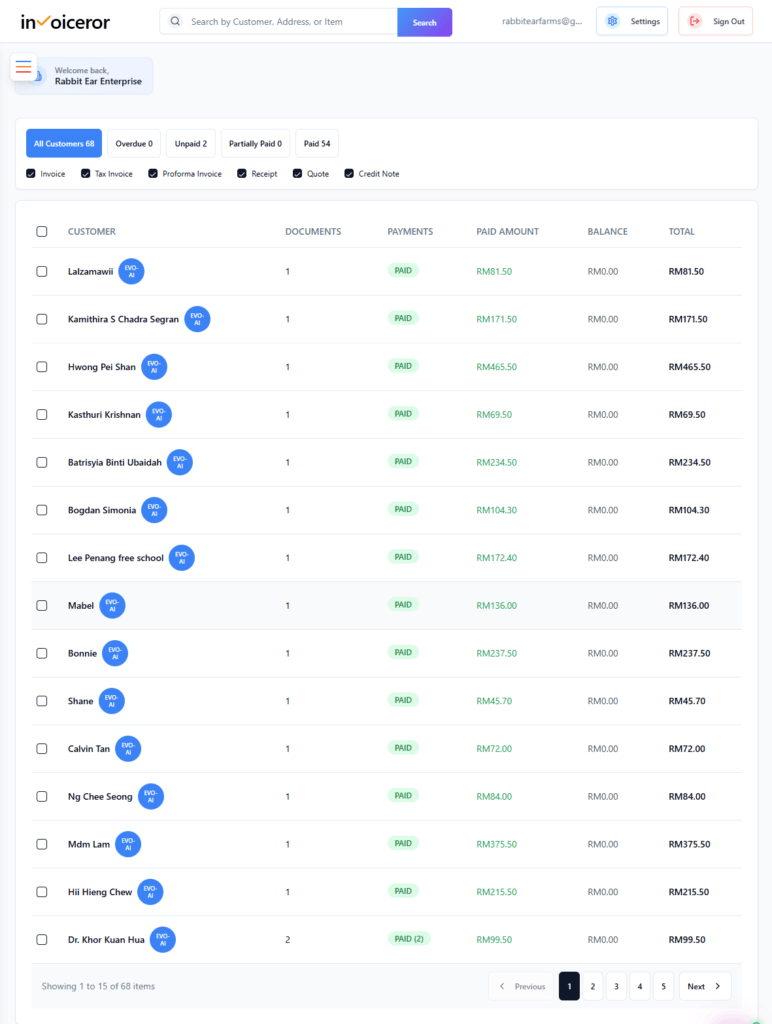
After creating a customer, they will appear in the Customer List Dashboard.
This table shows key information such as:
Documents created for the customer
Payment status (Paid, Unpaid, Overdue)
Total invoice value
Remaining balance
This helps businesses quickly monitor customer transactions and payment status.

If you need to update customer details:
Select the customer from the list
Click Edit
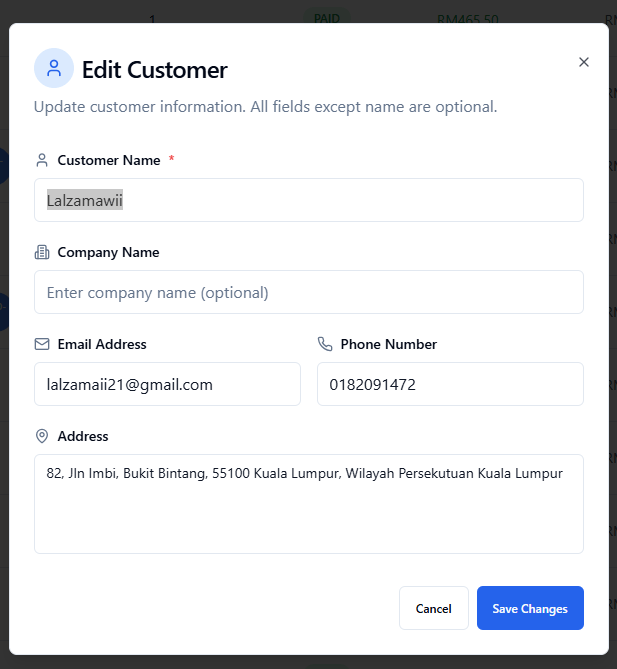
The Edit Customer window will appear.
You can update:
Customer name
Company name
Email address
Phone number
Address
After making changes, click Save Changes.
This keeps your customer database accurate and up-to-date.

Using the customer management system allows businesses to:
It functions like a lightweight CRM built directly into your invoicing system.
Following these practices helps improve customer organization and financial tracking.
The Customer Management feature in Invoiceror makes it easy to store, manage, and update customer information while tracking invoices and payments.
By keeping all client details organized in one place, businesses can streamline their workflow and improve financial management.
Whether you’re a freelancer, entrepreneur, small business owner, or service provider, managing customers efficiently is essential for running a successful business.
Stay in Control of Your Inventory with Real-Time Updates
Track Every Expense Automatically Without Spreadsheets with AI Receipt Scanning

Create Professional Invoices in Seconds with Smart Invoice Creation

How Evo-AI Helps Small Businesses Make Smarter Decisions

Monitor Invoice Status Instantly with Color Coding

Get a Real-Time View of Your Business Finances Dashboard

How to Use the Daily Activity Tracker in Invoiceror (Step-by-Step Guide)

How to Manage Invoices in the Documents Section of Invoiceror (Complete Step-by-Step Guide)

How to Send Invoices to Customers via WhatsApp, Email, or Download in Invoiceror

How the Invoice Color Status System Works in Invoiceror (Step-by-Step Guide)keep up out latest update Subscribe our newsletter!

© 2025 All Rights Reserved app.invoiceror.com
Get in touch with our support team. We're available via email or WhatsApp to help you with any questions.
Send us an email and we'll get back to you within 24 hours on business days.
Chat with us directly on WhatsApp for quick responses and real-time support.