
Blog
Published:

How to Use Evo-AI Business Assistant in Invoiceror (Complete Tutorial)

Book your demo today.

Running a business means making decisions every day. Evo-AI is built to guide you with real-time insights of your customers details, not guesses. With Evo-AI, your customer in one place and secure. ask AI to add and update whoever new customer on-board.

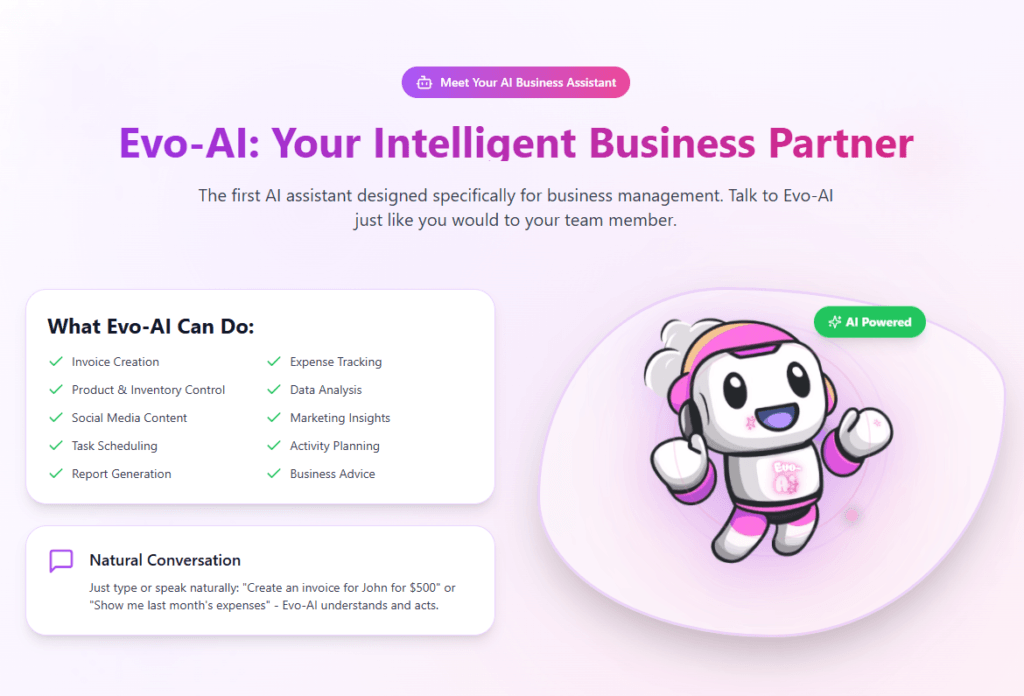
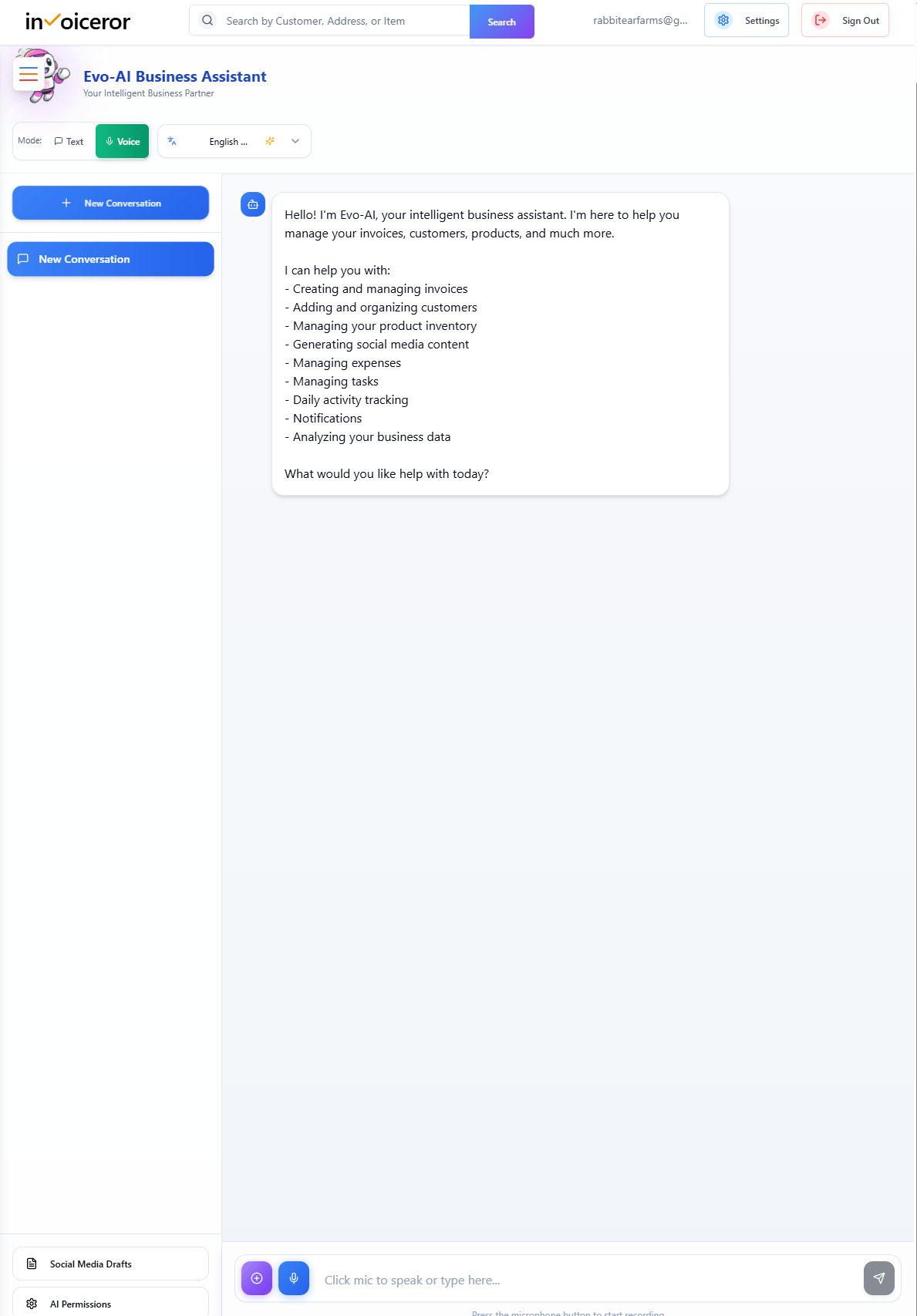
The Evo-AI Business Assistant in Invoiceror is an intelligent AI tool designed to help business owners automate tasks, analyze business data, and manage daily operations more efficiently.

With Evo-AI, you can quickly create invoices, track expenses, manage customers, generate reports, and even create social media content — all through a simple AI conversation.

This tutorial will guide you through how to start using Evo-AI and configure its permissions.


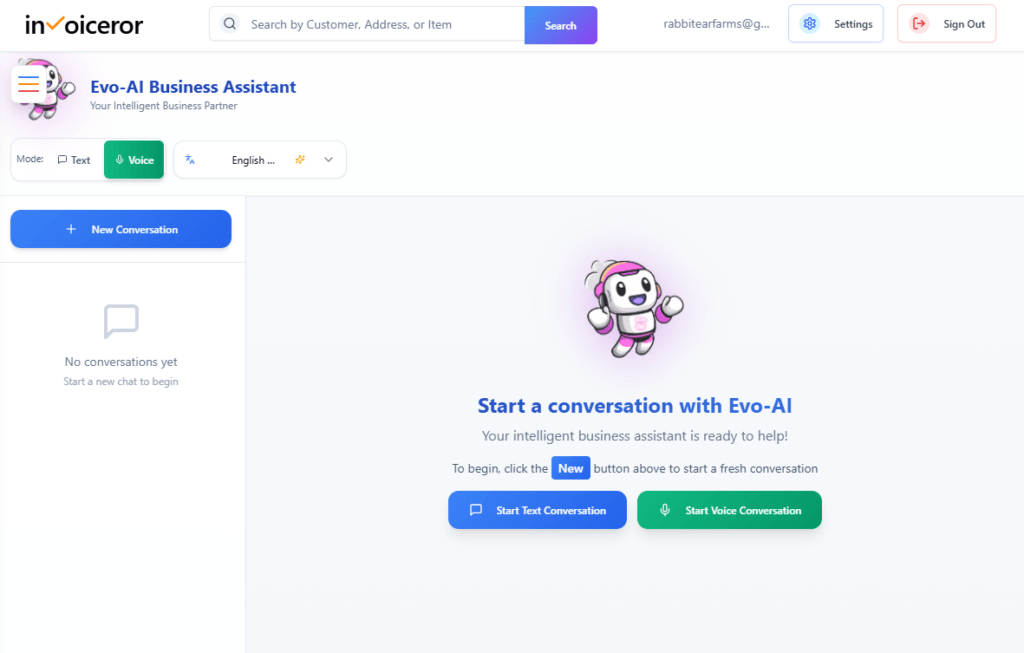
Step 1: Access Evo-AI Business Assistant

To begin:


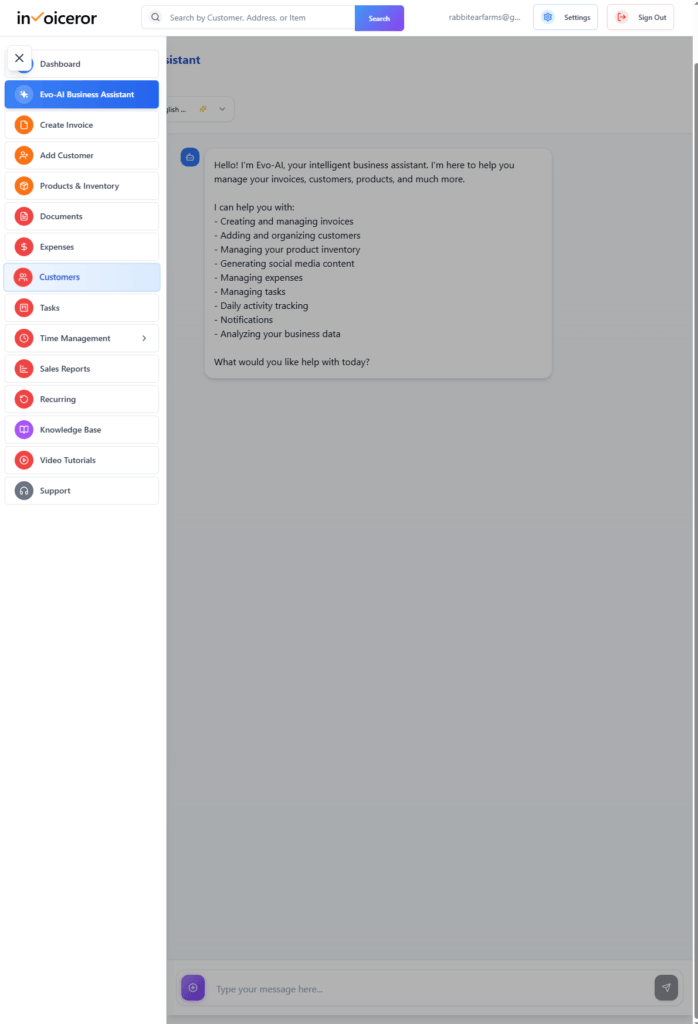
  1. Log in to your Invoiceror account

  2. Click Evo-AI Business Assistant from the left sidebar

  3. You will land on the AI assistant dashboard


Here, you can start interacting with Evo-AI using text or voice.

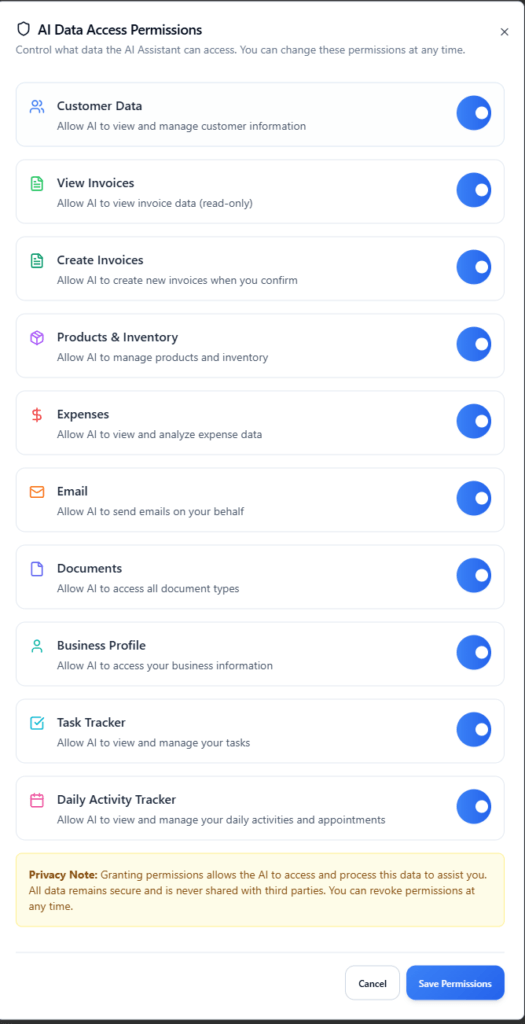
Step 2: Set AI Data Access Permissions (Important First Setup)

Before using Evo-AI fully, configure what data it can access.


How to set permissions:


  1. Click AI Permissions

  2. Enable access for the features you want:

  • Customer Data

  • View Invoices

  • Create Invoices

  • Products & Inventory

  • Expenses

  • Email

  • Documents

  • Business Profile

  • Task Tracker

  • Daily Activity Tracker

  1. Click Save Permissions


🔒 This ensures your data is secure while allowing AI automation.

Step 3: Start a New Conversation (Text or Voice)

You can interact with Evo-AI in two ways:

💬 Text Mode
  • Click New Conversation

  • Type your request in the message box


🎤 Voice Mode (NEW FEATURE)

When you select Voice Mode:


  1. A microphone icon appears next to the typing box

  2. Click the microphone to start recording

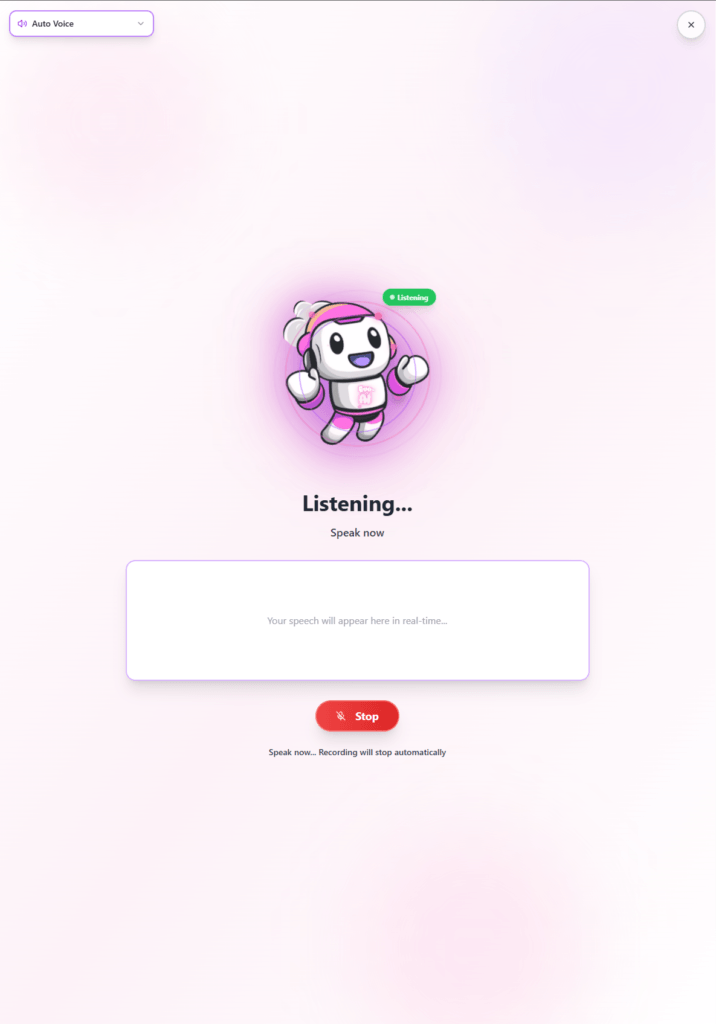
  3. The Evo-AI Voice Window will appear

  4. It will show “Listening…”

  5. Speak your command

  6. AI processes your request in real-time


💡 Recording will stop automatically or you can press Stop

Step 4: Use AI Capabilities (Task-Based Execution)

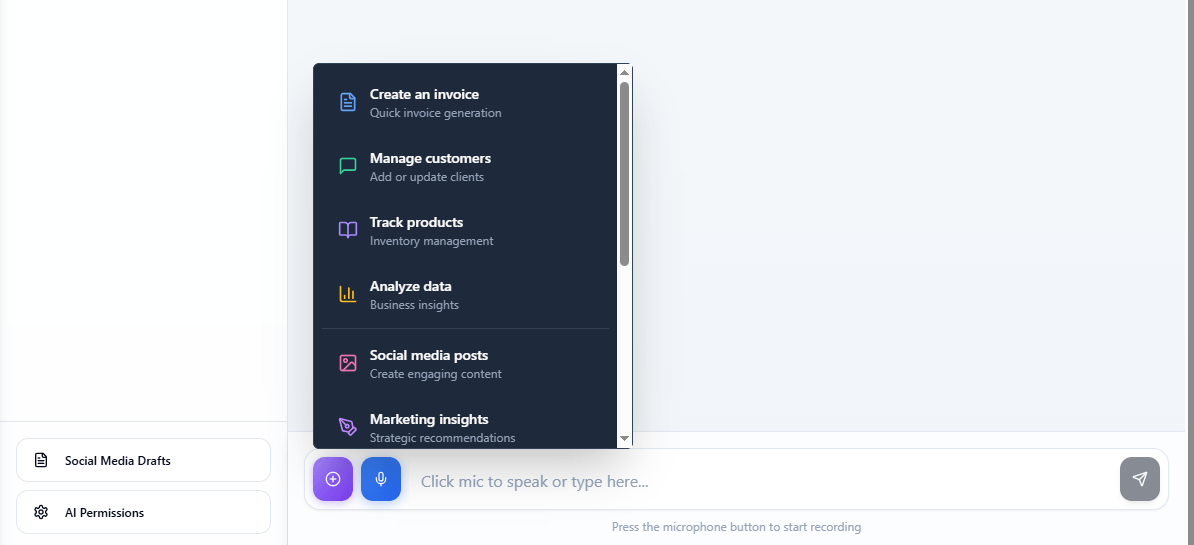
Click the “+” (Quick Actions) button to access AI-powered features.


Available AI Capabilities:


  • Create invoices

  • Manage customers

  • Track products & inventory

  • Analyze business data

  • Generate social media posts

  • Marketing insights

  • Track expenses

  • Task tracker

  • Daily activity tracker

  • Generate reports


How to select task for Ai conversation for AI task in invoiceror

Step 5: How Voice AI Executes Tasks

When you select a feature or speak a command:


  1. Evo-AI opens the voice interaction window

  2. Displays Listening…

  3. Captures your speech input

  4. Converts it into actions

  5. Executes based on selected capability


Example voice commands:
  • “Create an invoice for John, RM500”

  • “Show unpaid invoices”

  • “Track my expenses this month”

  • “Generate a sales report”


💡 The AI understands context based on the selected feature.

How to start Ai voice conversation for AI task in invoiceror

Step 6: AI Workflow Based on Selected Capability

Evo-AI adapts its behavior depending on what you choose:

🧾 Create Invoices
  • AI generates invoice drafts

  • Auto-fills customer & product data


👥 Manage Customers

  • Add or update customer details

  •  
  • Retrieve customer records


📦 Track Products & Inventory
  • Monitor stock levels

  • Update inventory


📊 Analyze Business Data
  • Provide revenue insights

  • Show performance trends


📱 Generate Social Media Posts
  • Create captions and content

  • Optimize for marketing


📈 Marketing Insights
  • Suggest strategies

  • Analyze engagement


💸 Track Expenses
  • Log and categorize expenses

  • Provide summaries


✅ Task Tracker
  • Create and manage tasks

  • Update progress


📅 Daily Activity Tracker
  • Schedule activities

  • Set reminders


📄 Generate Reports
  • Create financial or business reports

  • Export insights


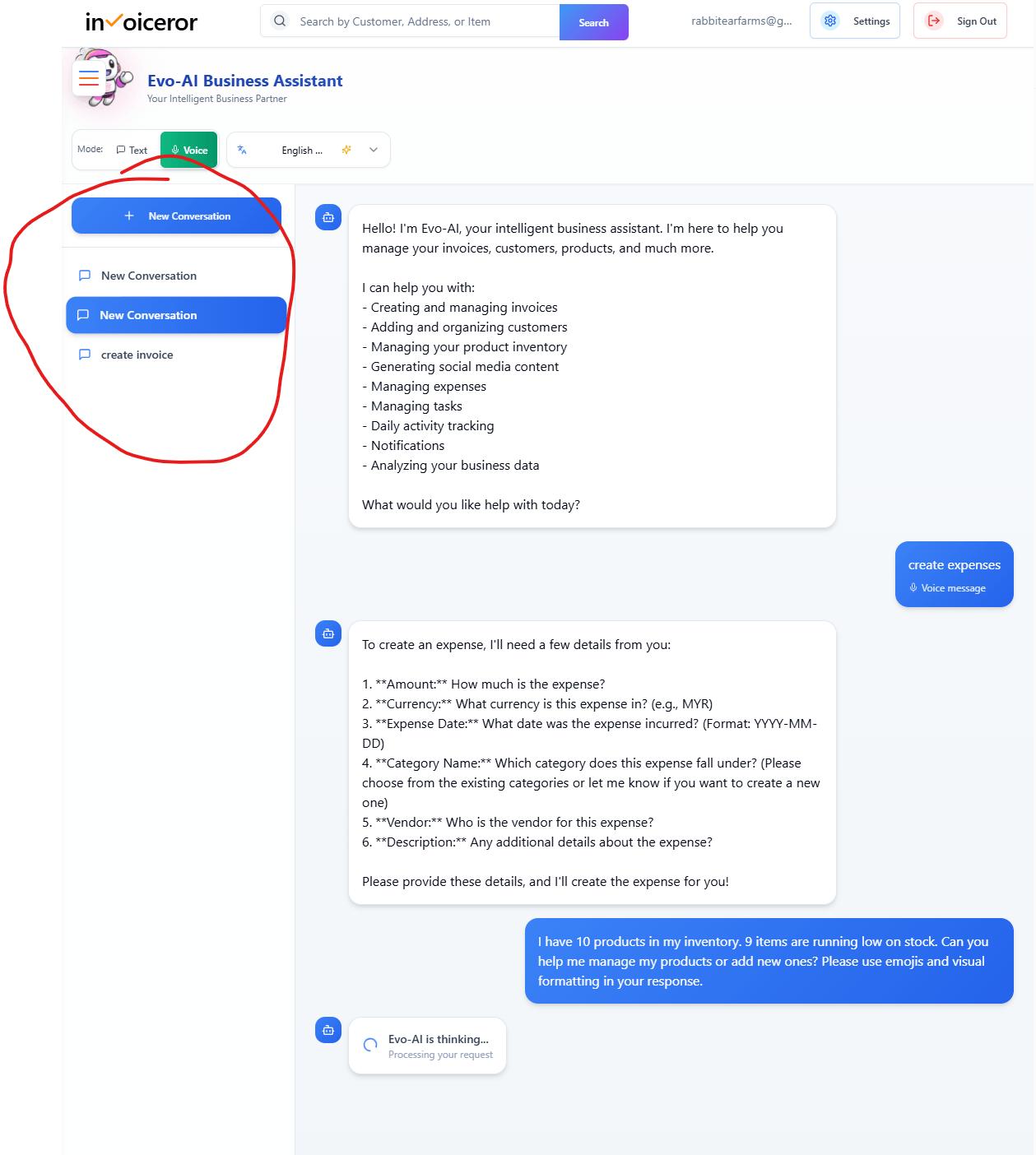
How to select task for Ai conversation for AI task in invoiceror

Step 7: Manage Conversations & Productivity

You can:

  • Start multiple conversations

  • Revisit previous chats

  • Continue unfinished tasks


This ensures a smooth and organized workflow.

How to check history task by EVO-AI in invoiceror

Why Evo-AI is a Game-Changer

Using Invoiceror Evo-AI helps you:


  • Automate repetitive business tasks
  • Save time with voice commands
  • Manage everything in one platform
  • Reduce manual errors
  • Get real-time insights
  • Increase productivity


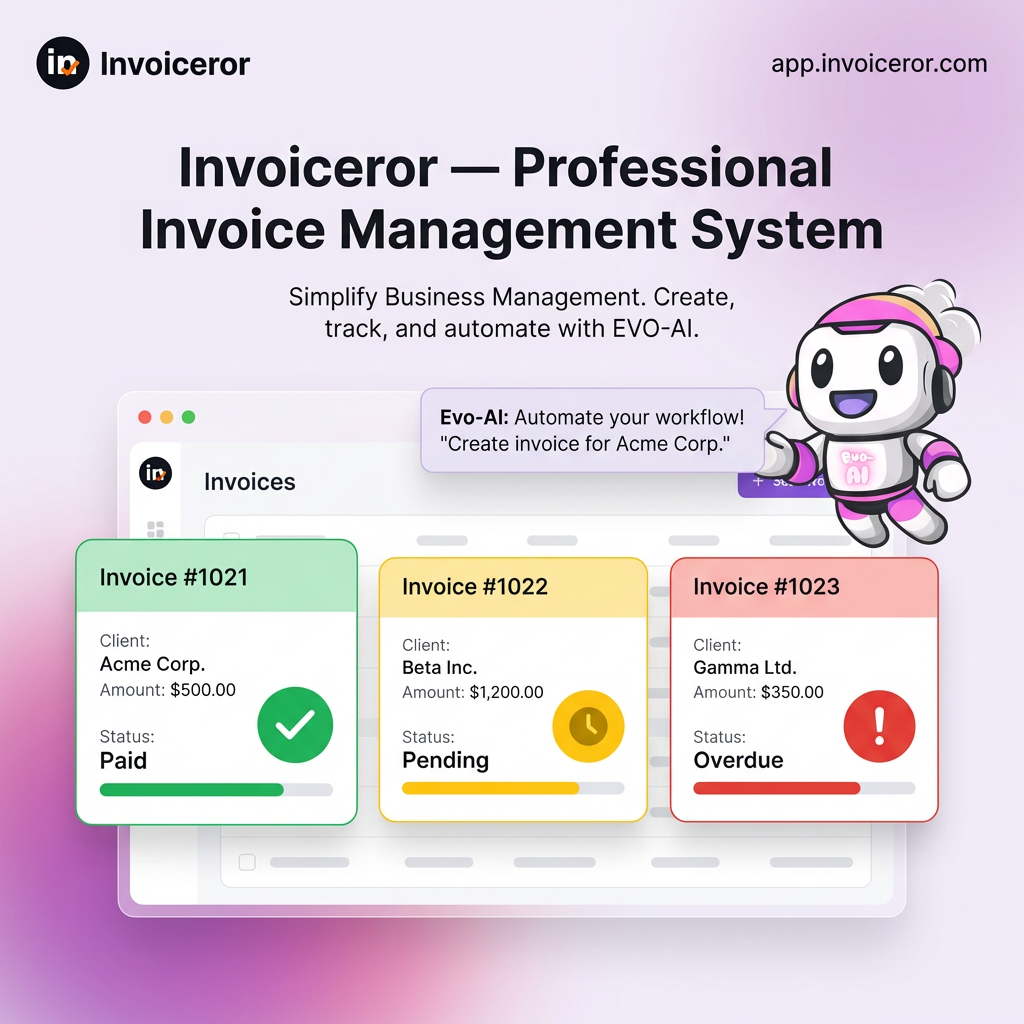
how to easily monitor invoices by colors and notification

Best Practices When Using Evo-A

To get the best results:


  •  Give clear instructions
  • Enable necessary
  • permissions
  •  Use Evo-AI for repetitive tasks
  •  Ask for business insights regularly

This allows the AI assistant to provide more accurate and useful responses.


Pro Tip:
Use Evo-AI daily to analyze your business performance and automate routine work so you can focus on growing your business.

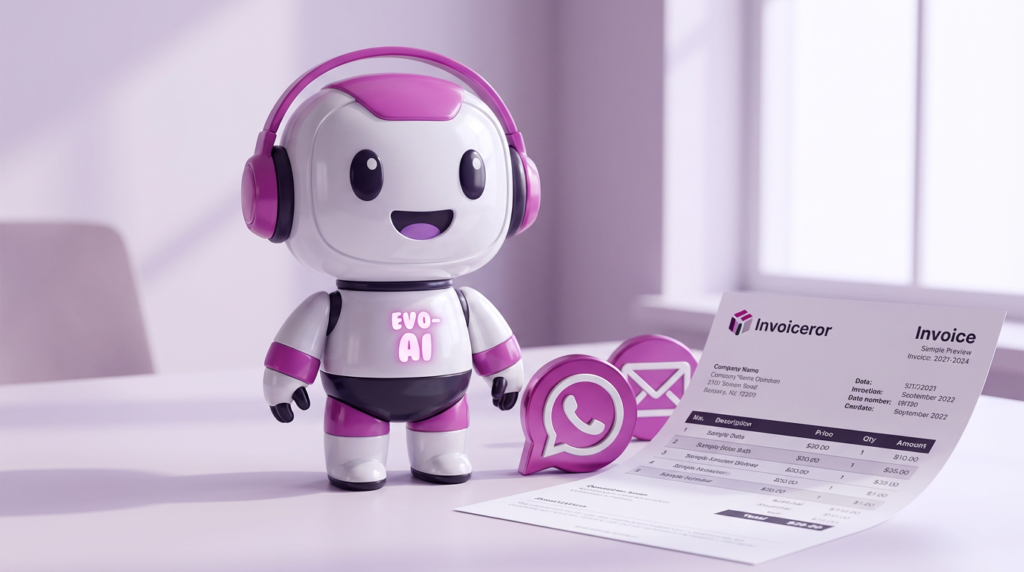
How Ai can help to you create and send Invoices via WhatsApp, Email, or PDF Instantly

Final Thoughts

The Evo-AI Business Assistant Dashboard is not just a chatbot—it’s a complete AI-powered business control center. With both text and voice capabilities, you can run your business faster, smarter, and more efficiently.

We're Here to Help You

Get in touch with our support team. We're available via email or WhatsApp to help you with any questions.

WhatsApp Support

Chat with us directly on WhatsApp for quick responses and real-time support.

+60172438082
  • Instant messaging support
  • Quick questions and assistance
  • Share screenshots easily
Start WhatsApp Chat