
Blog
Published:

How to Use the Dashboard in Invoiceror (Complete Tutorial Guide)

Book your demo today.

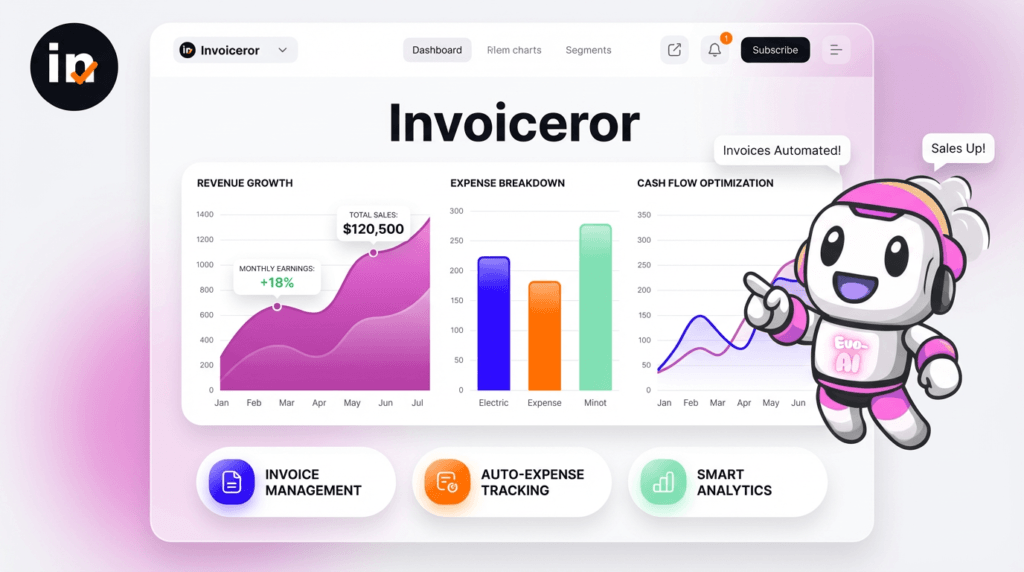
Running a business means making decisions every day. Evo-AI is built to guide you with real-time insights of your customers details, not guesses. With Evo-AI, your customer in one place and secure. ask AI to add and update whoever new customer on-board.

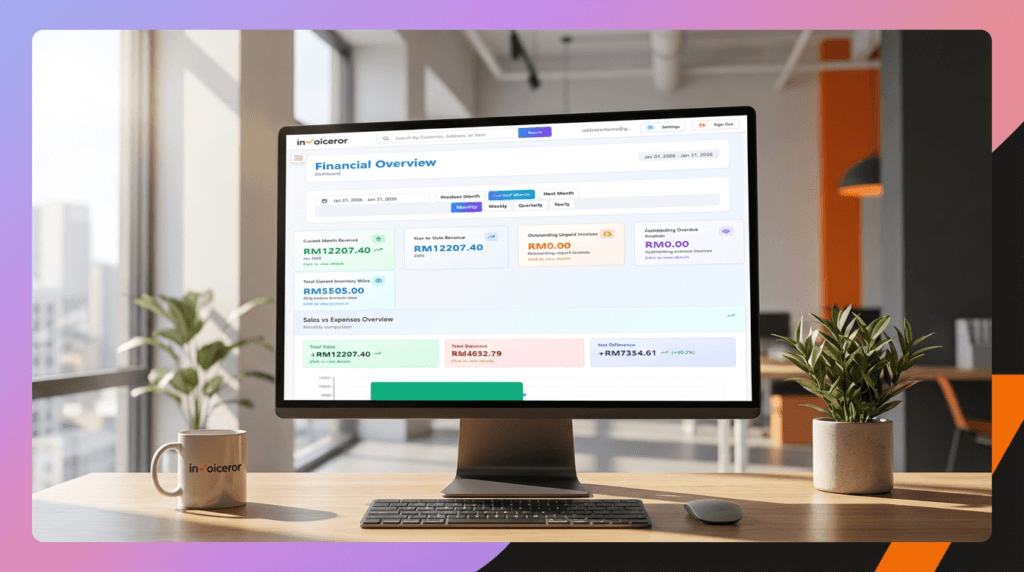
Understanding your financial data is critical for business success. The Invoice Dashboard in Invoiceror provides a powerful, real-time overview of your revenue, expenses, profits, and invoice performance—all in one place.

This will walk you through how to use the dashboard effectively to monitor and grow your business.


Step 1: Access the Financial Overview Dashboard

To begin:

  1. Log in to your Invoiceror account

  2. Navigate to the Dashboard

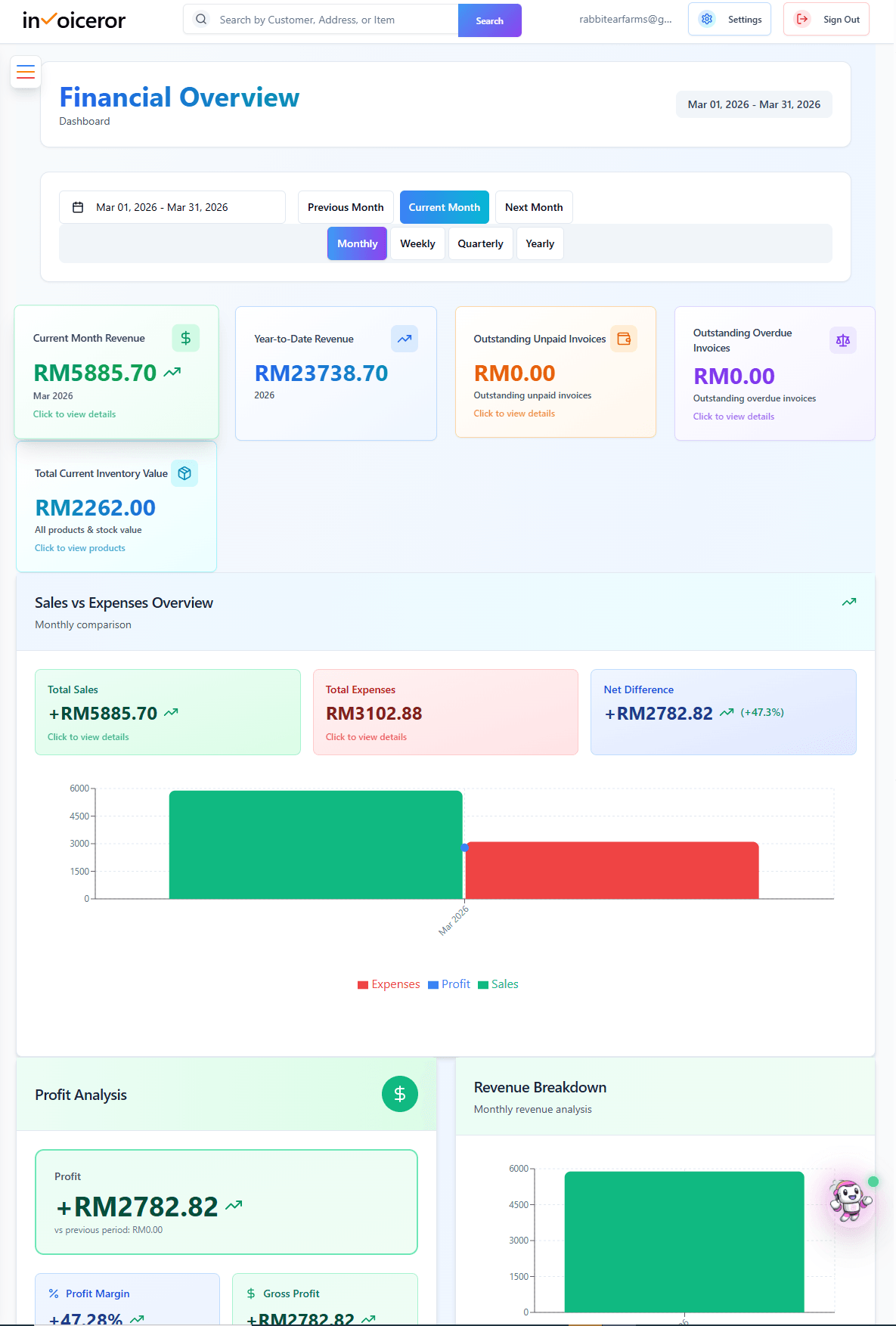
  3. You will land on the Financial Overview section


Here, you can instantly view your business performance.

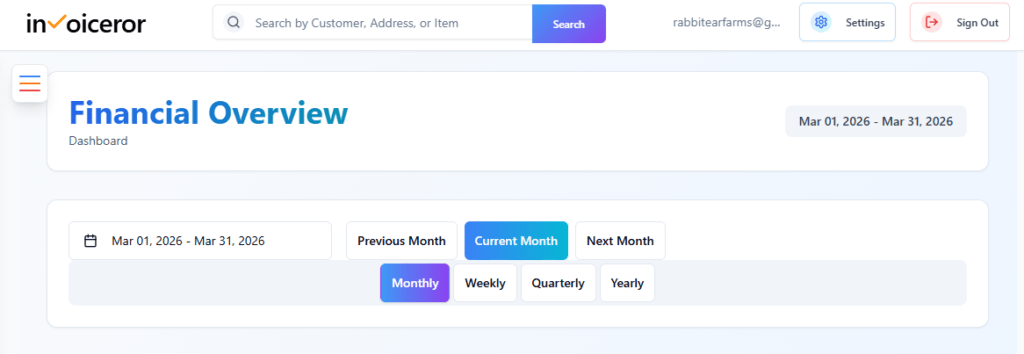
Step 2: Set Date Range & View Mode

At the top of the dashboard, you can customize your data view.

 
Available controls:
  • Date Range Selector (e.g., Mar 01 – Mar 31, 2026)

  • Quick Filters:

    • Previous Month

    • Current Month

    • Next Month

  • View Modes:

    • Monthly

    • Weekly

    • Quarterly

    • Yearly


💡 This allows you to analyze your business performance across different time periods.

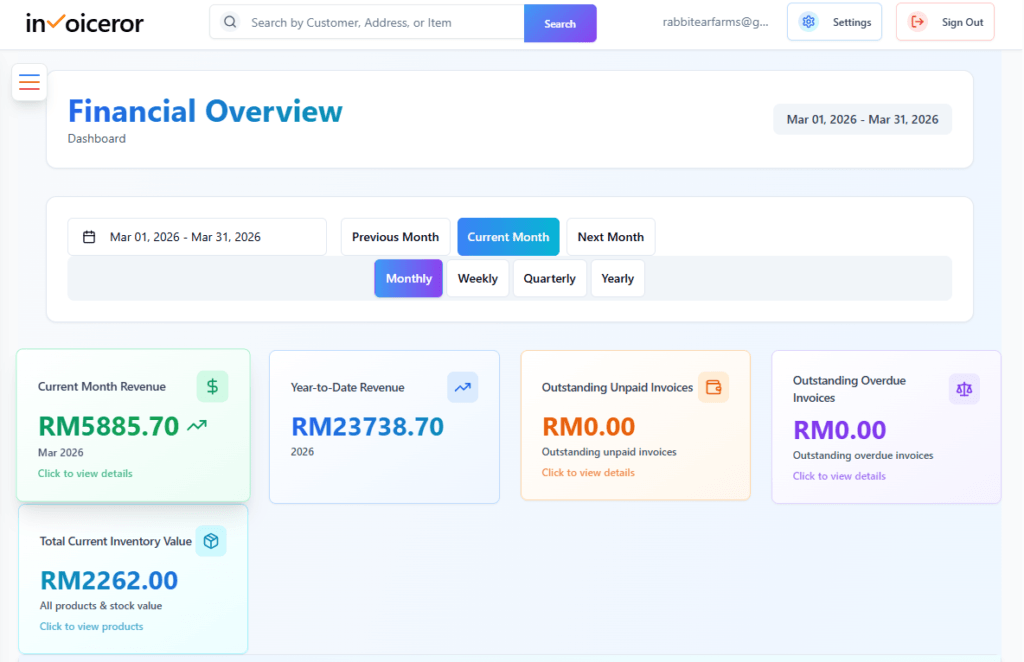
Step 3: Understand Key Financial Metrics

The top section displays key performance indicators (KPIs):


💰 Current Month Revenue
  • Shows total income for the selected period

  • Helps track monthly earnings growth


📊 Year-to-Date Revenue
  • Displays total revenue for the year

  • Useful for long-term performance tracking


🧾 Outstanding Unpaid Invoices
  • Total amount yet to be paid

  • Helps you track pending payments


⚠️ Outstanding Overdue Invoices


  • Shows invoices past due date

  • Critical for cash flow management


📦 Total Inventory Value
  • Displays current stock value

  • Useful for product-based businesses


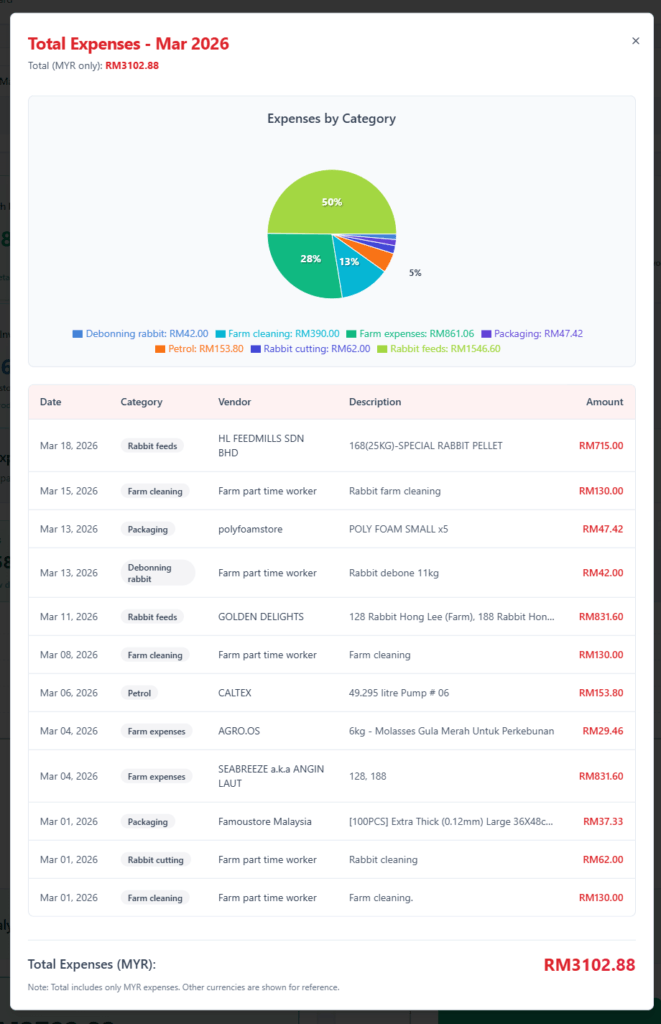
Step 4: Analyze Sales vs Expenses

This section compares:


  • Total Sales

  • Total Expenses

  • Net Profit (Difference)


Why this matters:
  • Instantly see if your business is profitable

  • Identify if expenses are too high

  • Track financial trends over time


💡 A positive net difference = healthy business growth

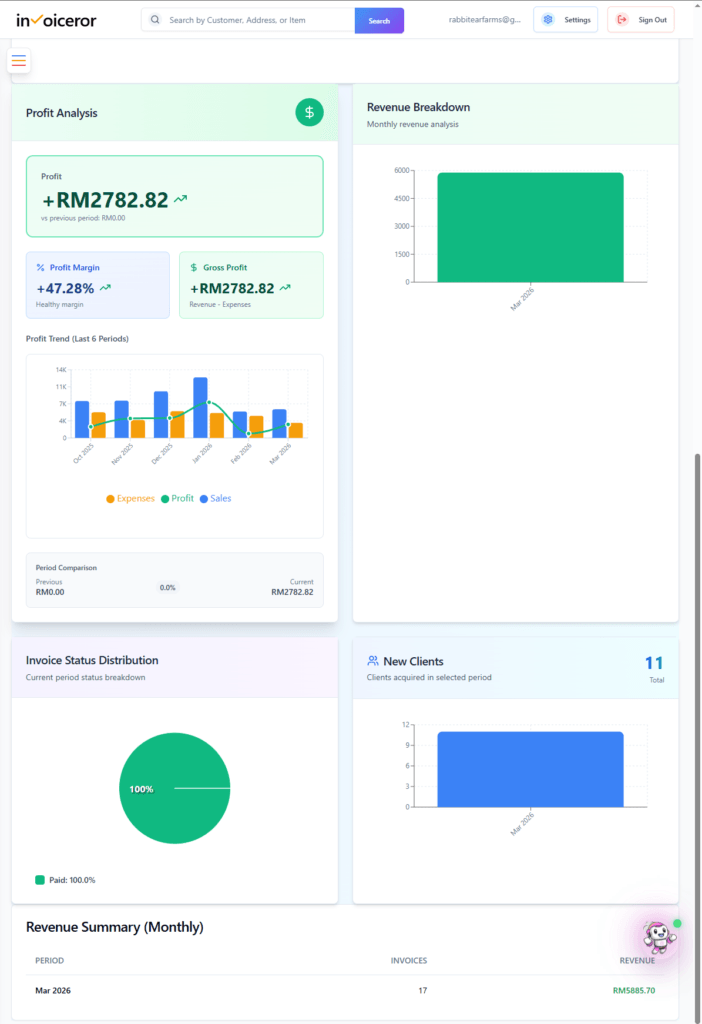
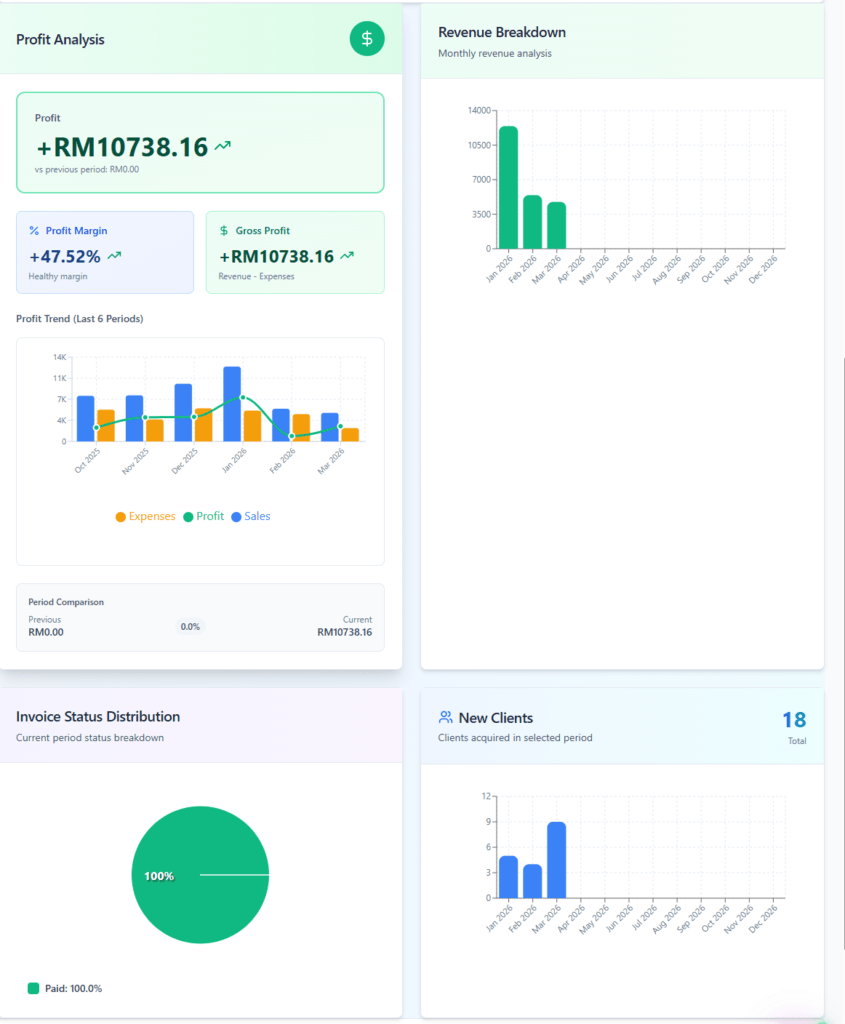
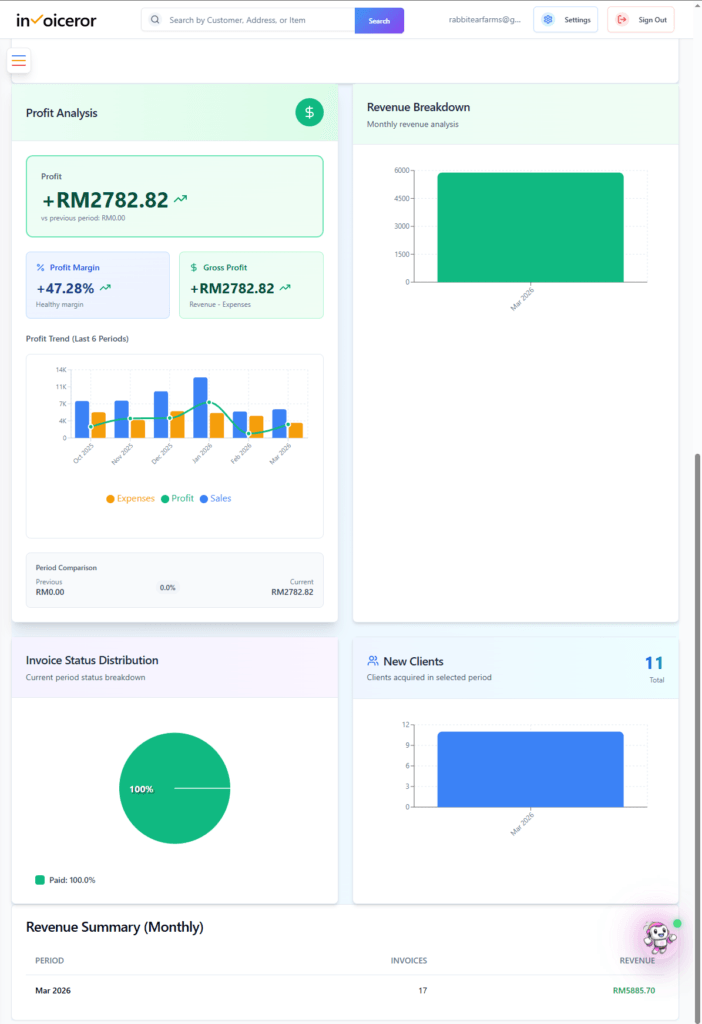
Step 5: Review Profit Analysis

The Profit Analysis section gives deeper insights:

Key components:
  • Total Profit

  • Profit Margin (%)

  • Gross Profit

  • Profit Trends (Last 6 periods)


This helps you:

  •  Understand profitability
  • Track performance over time
  •  Make better pricing decisions


Step 6: Monitor Revenue Breakdown

On the right side, you’ll see a Revenue Breakdown chart.

 
What it shows:
  • Monthly revenue performance

  • Revenue growth trends

This is useful for:

  • Identifying your best-performing months

  • Forecasting future income

Step 7: Track Invoice Status Distribution

This section displays a visual breakdown of invoice statuses.


Example:
  • Paid invoices (major portion)

  • Unpaid / pending invoices

 
Why it’s important:
  • Quickly see payment trends

  • Identify if customers are paying on time

  • Improve collection strategy

Step 8: Monitor New Clients Growth

The New Clients section shows:


  • Number of new customers acquired

  • Growth within selected period


This helps measure:

  • Business expansion

  • Marketing effectiveness

Step 9: Review Monthly Revenue Summary

At the bottom, you’ll find a Revenue Summary Table.

 
Includes:
  • Time period (e.g., March 2026)

  • Number of invoices

  • Total revenue generated


This gives you a quick snapshot of performance per period.

Why the Invoice Dashboard is Powerful

The dashboard in Invoiceror helps you:


  • Track revenue and expenses in real time
  • Monitor invoice payments and overdue amounts
  • Analyze profitability and margins
  • Visualize business growth
  • Make data-driven decisions

Best Practices for Using the Dashboard

  •  Check your dashboard daily
  •  Monitor overdue invoices regularly
  •  Compare monthly and yearly performance
  •  Use profit analysis to adjust pricing
  •  Track client growth for scaling strategies

Final Thoughts

The Invoiceror Invoice Dashboard is more than just numbers—it’s a complete financial control center. With clear visual charts and real-time insights, you can confidently manage your business, improve cash flow, and scale efficiently.

We're Here to Help You

Get in touch with our support team. We're available via email or WhatsApp to help you with any questions.

WhatsApp Support

Chat with us directly on WhatsApp for quick responses and real-time support.

+60172438082
  • Instant messaging support
  • Quick questions and assistance
  • Share screenshots easily
Start WhatsApp Chat