Blog
Published:

How to Set Up Your Account Settings in Invoiceror (Step-by-Step Guide After Sign-Up)

Book your demo today.

Running a business means making decisions every day. Evo-AI is built to guide you with real-time insights of your customers details, not guesses. With Evo-AI, your customer in one place and secure. ask AI to add and update whoever new customer on-board.

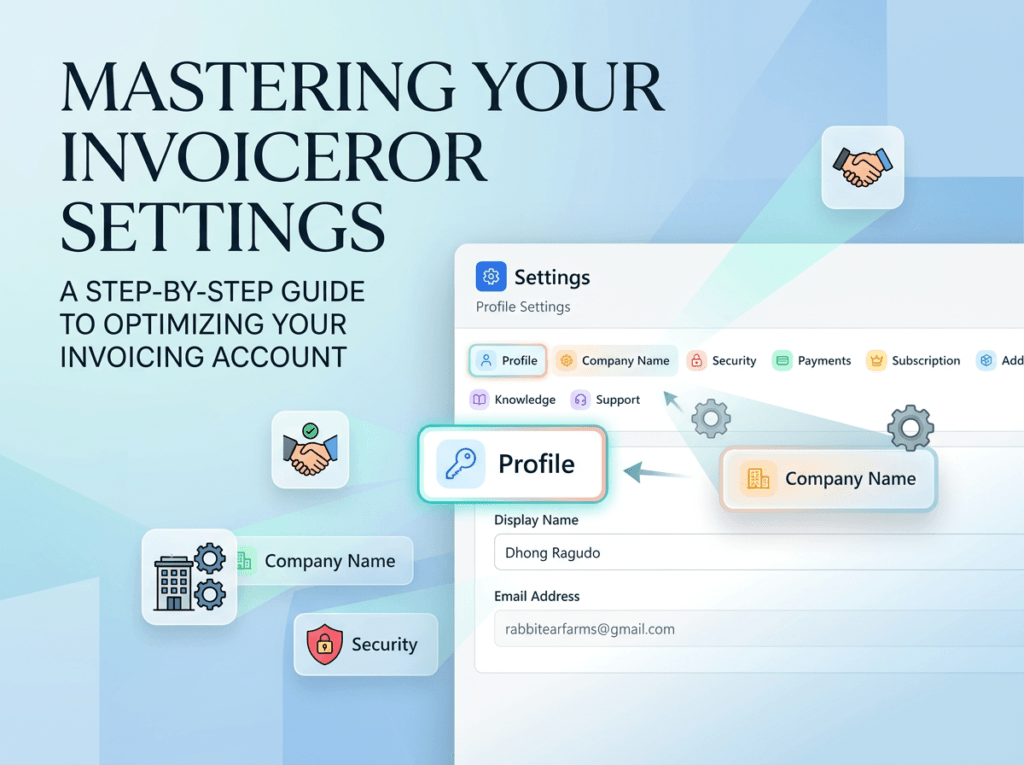
Setting up your account correctly is the first step to getting the most out of Invoiceror. After signing up, configuring your Settings panel ensures your invoices, payments, team access, and automation tools work perfectly for your business.

This guide will walk you through each settings section step-by-step so you can fully optimize your account.


Step 1: Open the Settings Panel

After logging into your Invoiceror dashboard:

  1. Go to the top navigation menu.

  2. Click the Settings (⚙️) icon.

  3. The Settings panel will open showing multiple setup tabs.

You will see the following sections:

  • Profile

  • Company Name

  • Language

  • Security

  • Payments

  • Subscription

  • Add-Ons

  • Team

  • Affiliates

  • Knowledge

  • Support

Now let’s configure each one.


Invoiceror settings

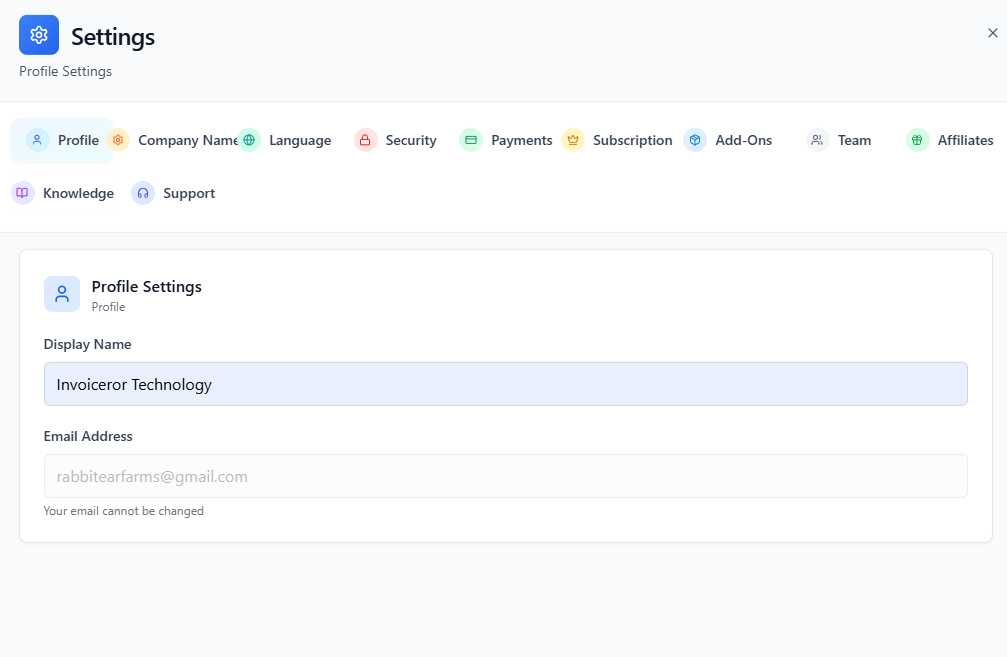
Step 2: Set Up Your Profile

The Profile Settings allow you to manage your personal account details.

How to Configure Profile
  1. Click Profile.

  2. Enter your Display Name.

  3. The  Email Address will be set as default.

  4. click save.

⚠️ Note:
Your email address cannot be changed after registration.


Best Practice

Use your business or brand name as the display name for professional invoice communication.

Example:

Display Name: John Smith
or
Display Name: Smith Digital Agency


Invoiceror settings

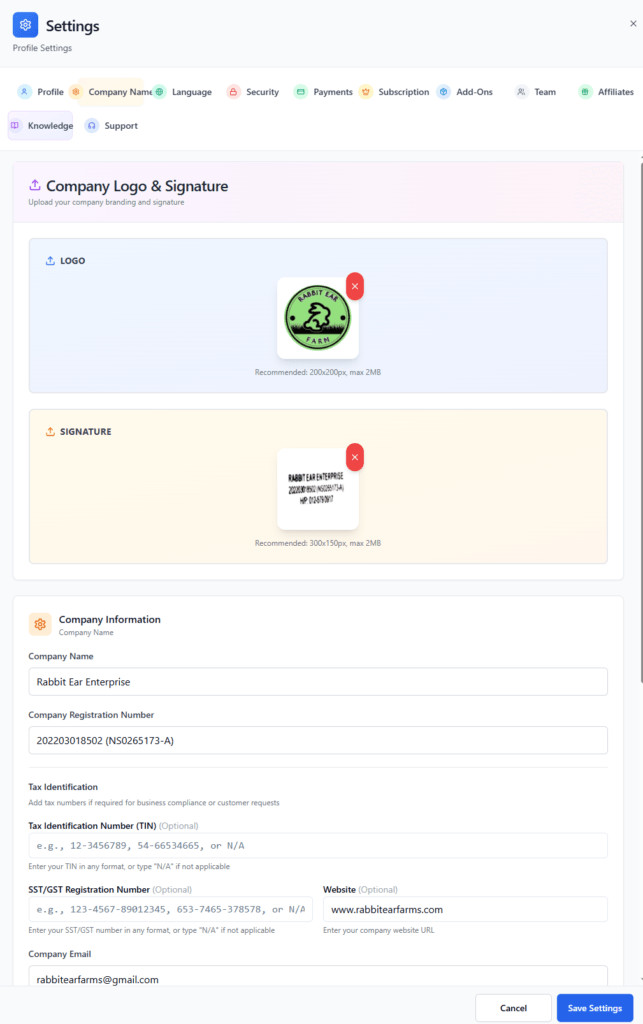
Step 3: Add Your Company Name

The Company Name section is where you configure your business identity.

Steps
  1. Click Company Name.

  2. upload your logo and signature

  3. Add company details such as:

    • Company name

    • company registration

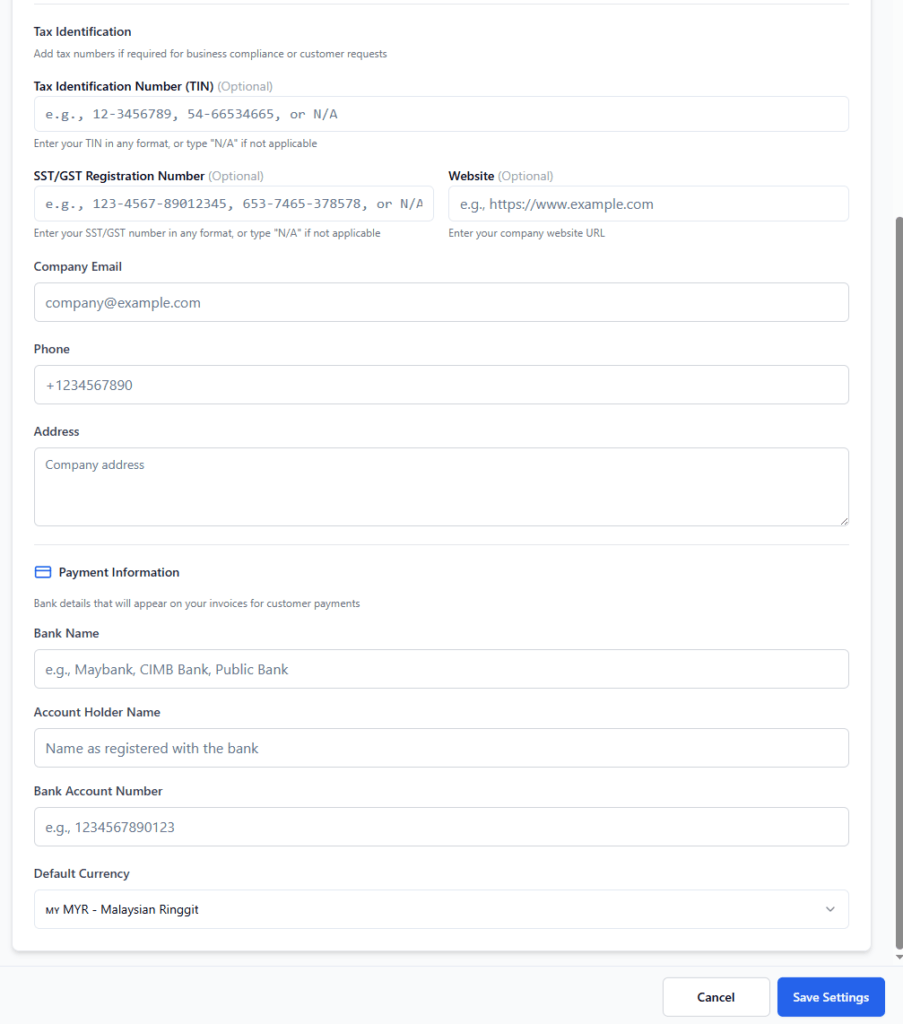
  4. Tax Identification and SST/GST Registration (if  any).  you can add also your Website.

  5. Company Email
  6. Phone
  7. Address
  8. Payment Information

  • add your Bank Name
  • Account Holder Name
  • Bank Account Number
  • set Default Currency
  •  
Why This Matters

Your company details automatically appear on:

  • Invoices

  • Receipts

  • Reports

  • Client communications

This ensures your brand looks professional and trustworthy.

invoiceror settings for company

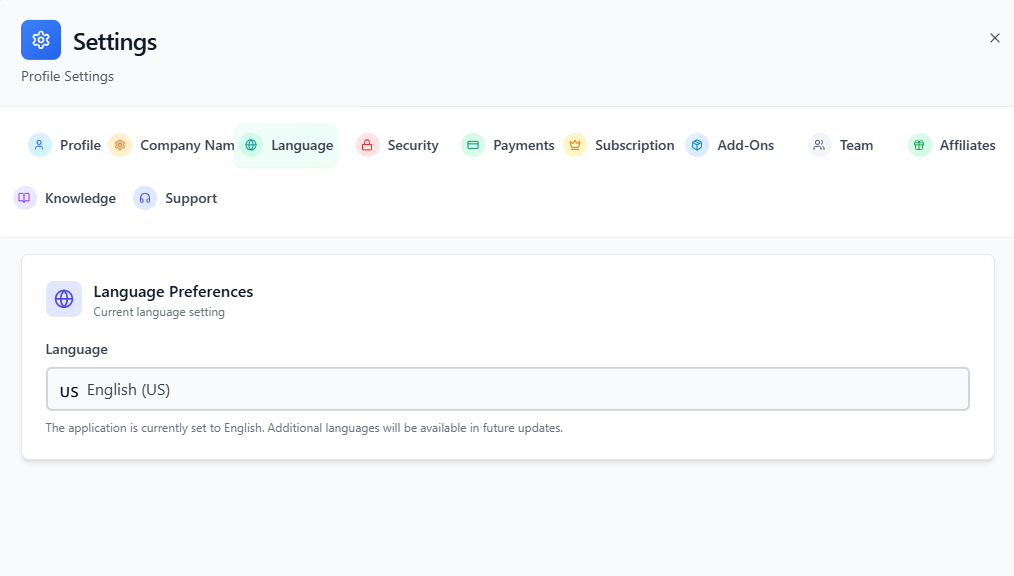
Step 4: Select Your Language

If you operate internationally, the language is to set to English. (this will changes later for new updates) and added more languages. 


Steps
  1. Click Language.

  2. Select your preferred language from the dropdown.

  3. Save the changes.

This will update your dashboard interface language.

invoiceror settings language

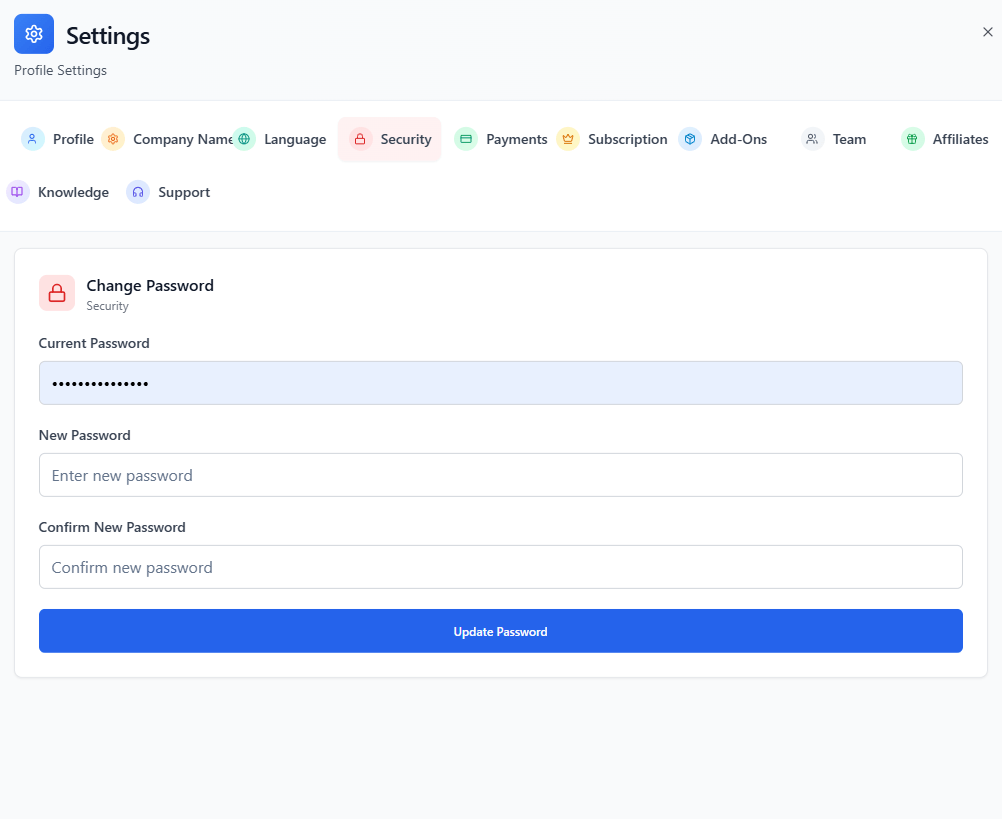
Step 5: Configure Security Settings

Security settings protect your account and business data.

Recommended Setup
  1. Create password (if you wanted to change) by deafault during your account creation..

  2. set-up new password and confirm new password.

  3. Save your changes.


Security Tip

Use a strong password combining:

  • Uppercase letters

  • Numbers

  • Symbols

Example:

Inv0icer0r#Secure2026


how to set invoiceror security settings

Step 6: Set Up Payment Methods

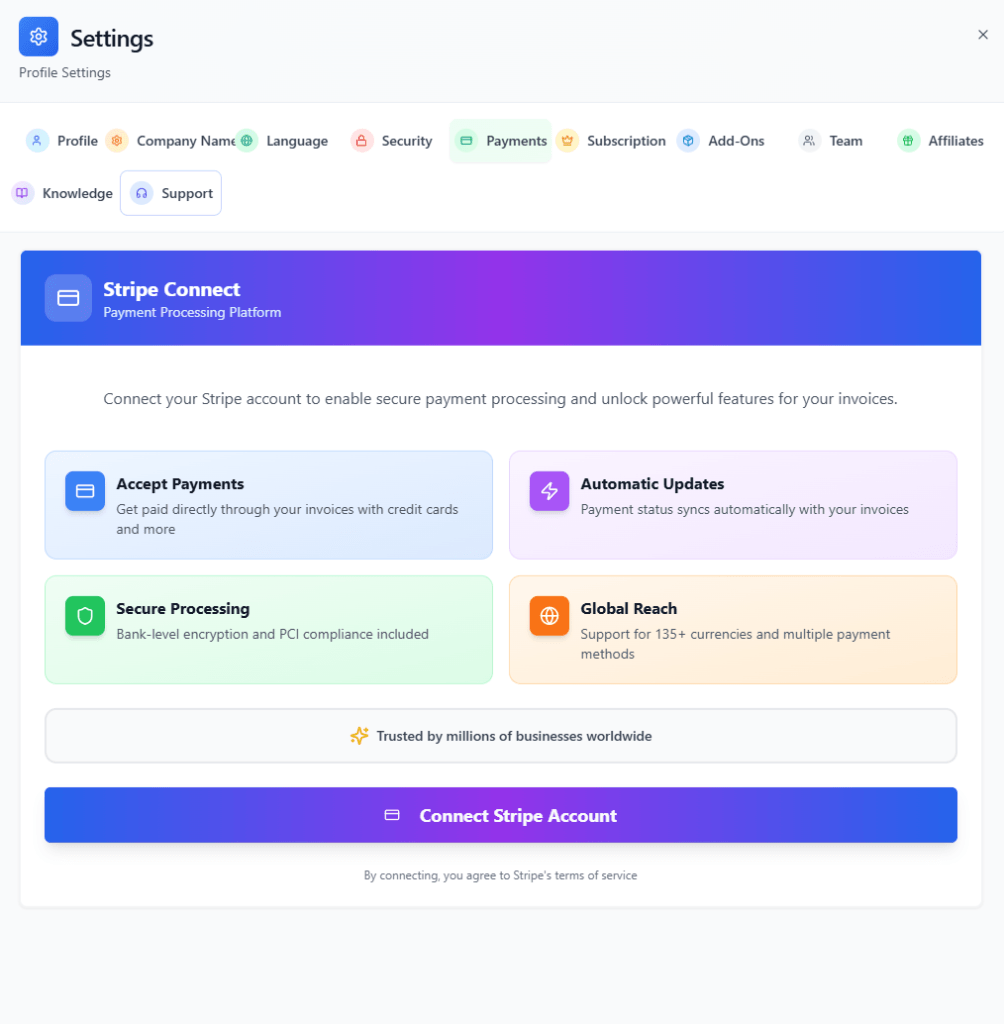
To receive payments from clients, configure the Payments section via Stripe.

Steps
  1. Click Payments.

  2. click the button connect stripe Account.

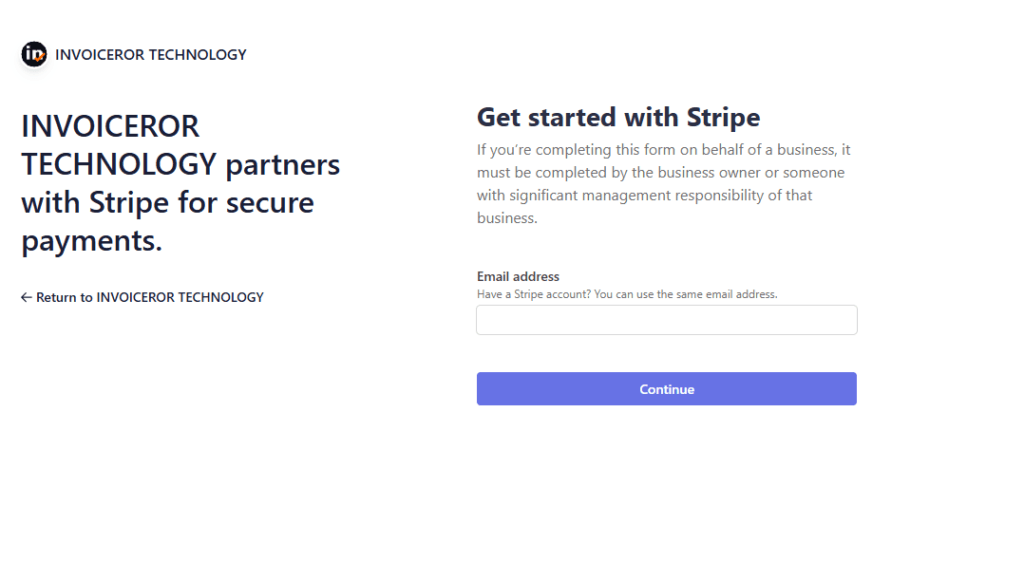
  3. the next window to pop-up

  4. add your Stripe Email address account.
  • Note: make sure you already have Stripe account activated to receive the payment from you clients or customers.

Benefit

Clients can pay invoices faster directly from the invoice.

invoiceror set-up payments2
invoiceror set-up payments3

Step 7: Manage Your Subscription

The Subscription section allows you to manage your current plan, track usage limits, and upgrade your account to unlock additional features. This ensures your business has the right tools and capacity as it grows.

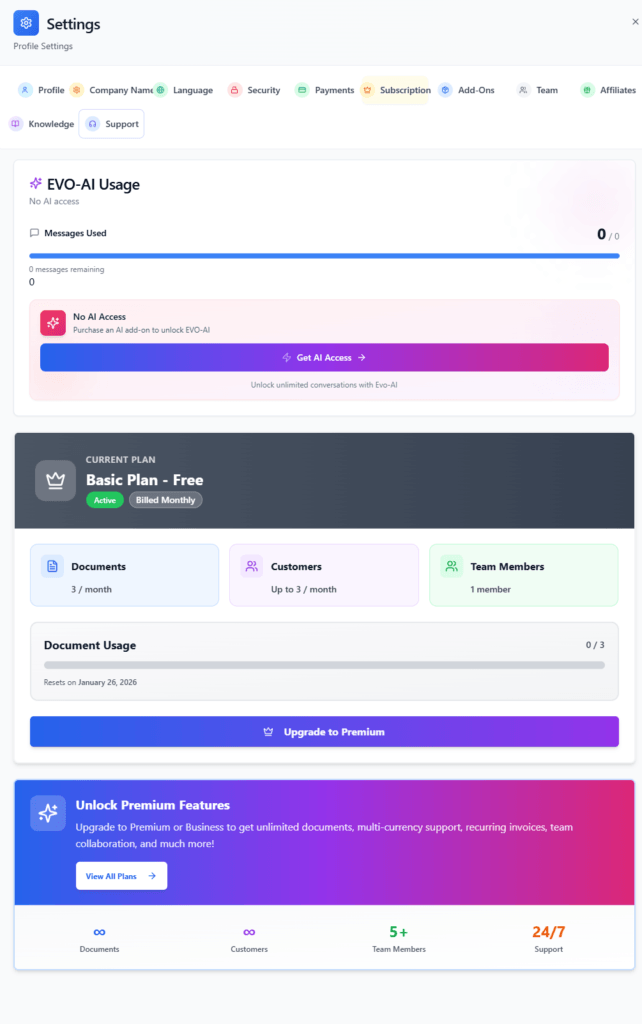
Based on the screenshot above, this page shows your current plan status, usage limits, and upgrade options.


1. View Your Current Plan

At the top of the Subscription page, you will see your active subscription plan.

Example shown in the image:

  • Current Plan: Basic Plan – Free

  • Status: Active

  • Billing: Monthly

This section helps you quickly understand what plan your account is currently using and whether it is active.


2. Monitor EVO-AI Usage

The EVO-AI Usage panel shows whether your account has access to the AI assistant.

If AI access is not enabled, you will see:

  • Messages Used: 0 / 0

  • No AI Access

To unlock the AI assistant:

  1. Click Get AI Access

  2. Purchase the AI Add-On

  3. Activate the feature

Once enabled, you will be able to use EVO-AI to assist with business insights, automation, and smart recommendations.


3. Track Your Plan Limits

Your subscription plan includes limits depending on the package you selected.

In the Basic Free Plan, the limits shown include:

Documents

  • Up to 3 documents per month

Customers

  • Up to 3 customers

Team Members

  • 1 team member allowed

These limits help small businesses and freelancers start using the system before upgrading to larger plans.


4. Check Document Usage

The Document Usage bar shows how many invoices or documents you have created for the current billing cycle.

Example in the image:

  • 0 / 3 documents used

Once you reach the limit, you will need to either:

  • Wait until the monthly reset, or

  • Upgrade your plan to create more documents.

The reset date is displayed below the progress bar.


5. Upgrade to a Premium Plan

If your business grows and requires more features, you can upgrade your plan directly from this page.

To upgrade:

  1. Click Upgrade to Premium

  2. Review available plans

  3. Select the plan that suits your business

  4. Confirm the upgrade

Upgrading unlocks powerful features such as:

  • Unlimited documents

  • More customers

  • Additional team members

  • Multi-currency support

  • Recurring invoices

  • Advanced collaboration tools


6. Explore Premium Features

At the bottom of the page, you will see a section called Unlock Premium Features.

This area highlights the benefits of upgrading your subscription, including:

  • Unlimited documents

  • Unlimited customers

  • 5+ team members

  • 24/7 support

To explore available plans:

  1. Click View All Plans

  2. Compare pricing and features

  3. Choose the best option for your business needs.


Pro Tip

Start with the Free Plan to learn the platform, then upgrade when you need:

  • More invoices

  • More clients

  • Team collaboration

  • AI business tools

Upgrading ensures you can fully maximize the capabilities of Invoiceror as your business scales.

How to set invoiceror settings subscription

Step 8: Enable Add-Ons

The Add-Ons section allows you to extend the capabilities of your Invoiceror account by activating additional features. These optional upgrades help businesses unlock advanced tools such as AI assistance or additional team collaboration, without needing to upgrade the entire subscription plan.

Add-Ons are designed to be flexible and scalable, allowing you to customize the platform based on your business needs.


Where to Find Add-Ons

To access the Add-Ons page:

  1. Log in to your Invoiceror dashboard.

  2. Click Settings from the top menu.

  3. Select the Add-Ons tab.

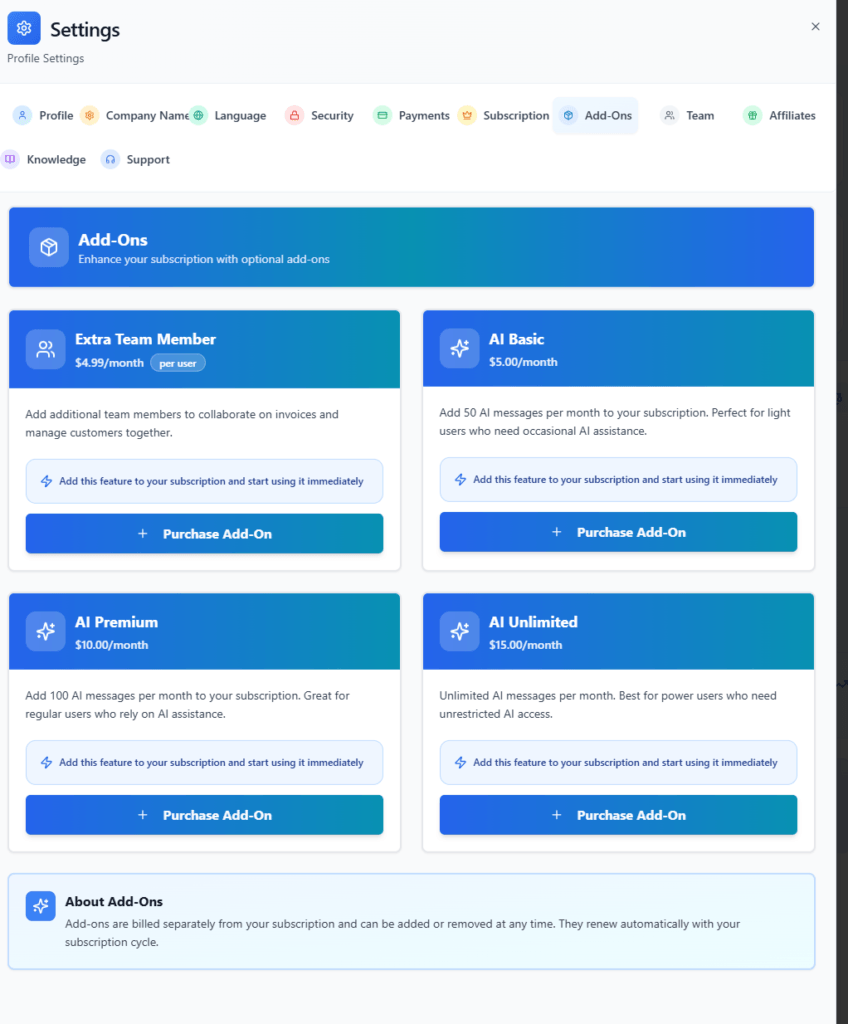
Inside this section, you will see available add-ons that can be added to your current subscription.


Available Add-Ons
Extra Team Member

The Extra Team Member add-on allows you to invite more users to collaborate inside your business workspace.

Price: $4.99 per month per user

With this add-on, you can:

  • Add more team members to your account

  • Collaborate on invoices and customer management

  • Allow staff to assist with business operations

This feature is useful for small teams and growing businesses that require multiple users to access the system.


AI Basic

The AI Basic add-on provides access to the AI assistant with a limited number of monthly messages.

Price: $5.00 per month

Features include:

  • 50 AI messages per month

  • AI assistance for business tasks

  • Smart insights and suggestions

This option is ideal for light users who occasionally use AI features.


AI Premium

The AI Premium add-on increases the number of AI messages available each month.

Price: $10.00 per month

Benefits include:

  • 100 AI messages per month

  • More frequent AI assistance

  • Enhanced productivity for regular users

This plan works well for business owners who use AI regularly for decision making or automation.


AI Unlimited
The AI Unlimited add-on offers unrestricted access to the AI assistant.

Price: $15.00 per month

With this add-on, you get:

  • Unlimited AI messages

  • Continuous AI support

  • Maximum automation assistance

This option is best suited for power users who depend heavily on AI for business operations.


How to Purchase an Add-On

Enabling an add-on is quick and easy.

Follow these steps:

  1. Go to Settings.

  2. Click the Add-Ons tab.

  3. Browse the available add-ons.

  4. Select the feature you want to activate.

  5. Click Purchase Add-On.

  6. Confirm your purchase.

Once activated, the feature will immediately become available in your account.

invoiceror subscription add-ons

Step 9: Add Team Members

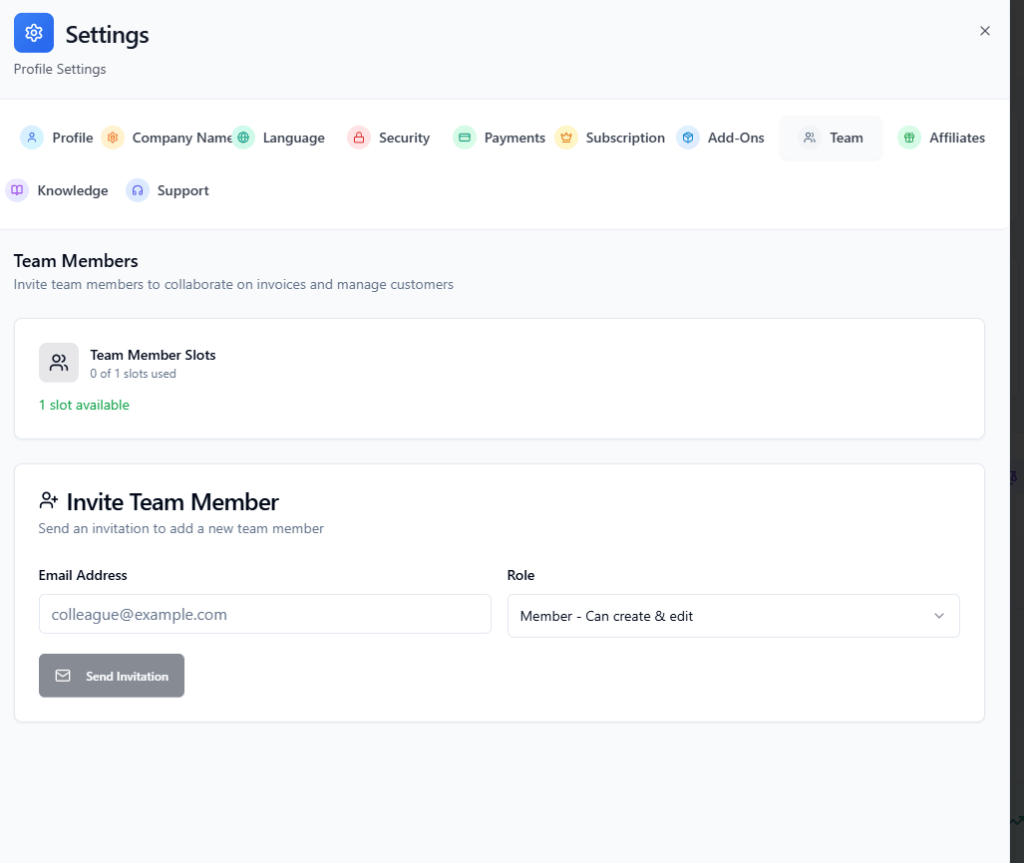
The Team Members feature allows you to invite colleagues or staff to help manage invoices and customers inside your Invoiceror workspace. This is useful if you want others to assist with business operations while keeping everything organized in one account.

How to Add a Team Member
  1. Go to Settings in your dashboard.

  2. Click the Team tab.

  3. In the Invite Team Member section, enter the email address of the person you want to invite.

  4. Select the role for the user (for example: Member – Can create & edit).

  5. Click Send Invitation.

The invited user will receive an email to join your workspace.


Note:

Your plan includes a limited number of team member slots. If you need to add more users, you can purchase additional slots through the Add-Ons section.

Adding team members helps improve team collaboration, task delegation, and business management efficiency.

invoiceror add team members

Step 10: Join the Affiliate Program in Invoiceror

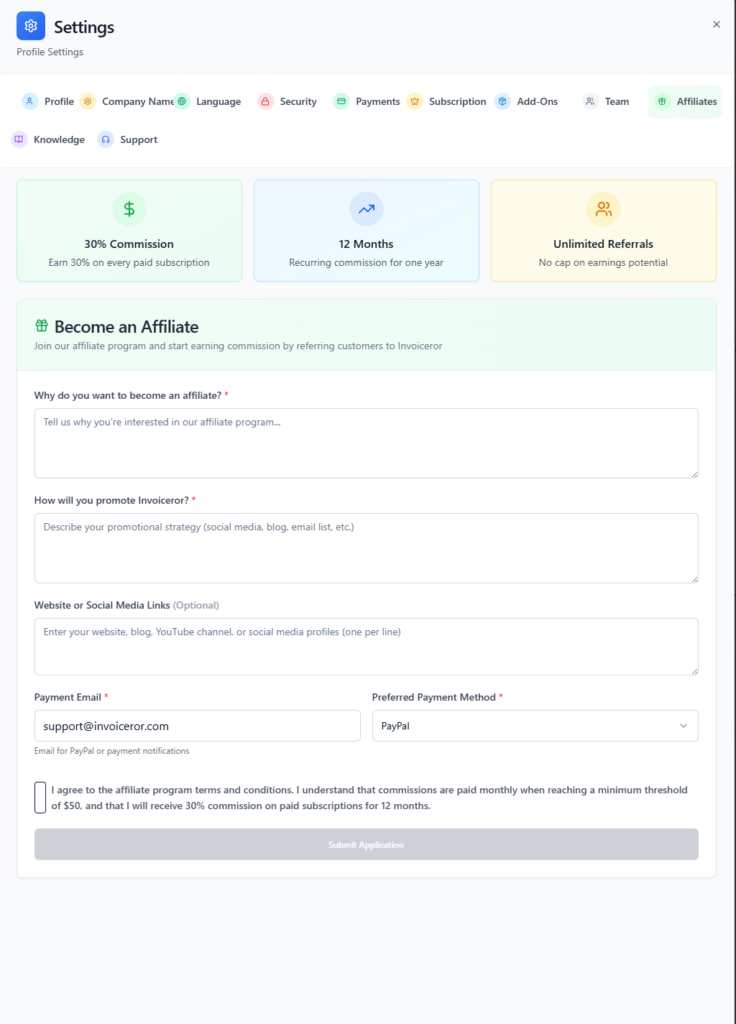
The Affiliate Program allows users to earn commissions by referring new customers to Invoiceror. By sharing your referral link, you can generate passive income whenever someone signs up and subscribes to the platform through your referral.

Affiliate Program Benefits

When you join the program, you can enjoy several benefits:

  • 30% Commission on every paid subscription

  • 12 Months Recurring Commission for each successful referral

  • Unlimited Referrals with no cap on earnings

This program is ideal for entrepreneurs, bloggers, influencers, and business professionals who want to recommend useful business tools to their audience.


How to Join the Affiliate Program

Follow these steps to apply:

  1. Go to Settings in your dashboard.

  2. Click the Affiliates tab.

  3. In the Become an Affiliate section, complete the application form.

  4. Fill in the required information:

    • Why you want to become an affiliate

    • How you plan to promote Invoiceror

    • Your website or social media links (optional)

    • Payment email

    • Preferred payment method (e.g., PayPal)

  5. Agree to the Affiliate Program Terms and Conditions.

  6. Click Submit Application.

Once approved, you will receive your unique affiliate referral link that you can start sharing immediately.


Tip for Successful Affiliates

You can promote Invoiceror through:

  • Blog posts and tutorials

  • YouTube videos

  • Social media platforms

  • Email newsletters

  • Business communities and forums

The more people you refer, the more recurring commissions you can earn.

Joining the affiliate program is a great way to monetize your audience while promoting a powerful business management platform. 🚀
 
 
invoiceror- how to become an affiliate

Step 11: Access the Knowledge Base in Invoiceror

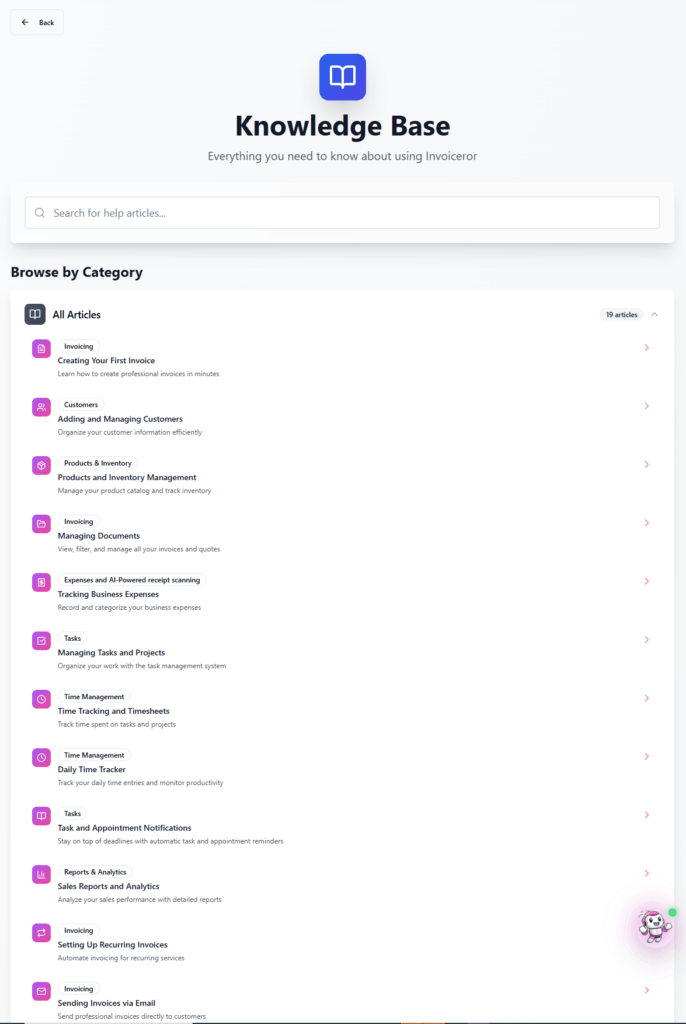
The Knowledge Base is a built-in help center that provides guides, tutorials, and articles to help you learn how to use Invoiceror effectively. It contains helpful resources that explain different features of the platform step-by-step.

If you ever need help understanding a feature or learning how to perform a task, the Knowledge Base is the best place to start.

How to Access the Knowledge Base

Follow these steps to open the Knowledge Base:

  1. Go to Settings in your dashboard.

  2. Click the Knowledge tab.

  3. The Knowledge Base page will open where you can browse helpful articles.

Search for Help Articles

At the top of the page, you will see a search bar where you can quickly find answers.

Simply type keywords such as:

  • Creating invoices

  • Managing customers

  • Tracking expenses

  • Inventory management

The system will display related help articles to guide you.

Browse by Category

The Knowledge Base also organizes tutorials by categories so you can easily find information. Some of the common categories include:

  • Invoicing – Learn how to create and manage invoices

  • Customers – Add and organize customer information

  • Products & Inventory – Manage your product catalog

  • Expenses – Track business expenses and receipts

  • Tasks & Time Management – Manage daily tasks and time tracking

  • Reports & Analytics – Monitor business performance

Each category contains detailed guides to help you understand and use the platform more efficiently.

Why the Knowledge Base Is Helpful

The Knowledge Base allows you to:

  • Learn how to use features step-by-step

  • Solve common issues quickly

  • Discover tips to improve productivity

  • Understand new features and updates

Using the Knowledge Base helps you **get the most out of Invoiceror without needing to contact support.

For additional assistance, you can also reach out through the Support section, which we will cover in the next step.

invoiceror- knowledge base access

Step 12: Contact Support in Invoicero

If you need help using the platform or encounter any issues, you can easily contact the Invoiceror Support Team through the Support section in your dashboard. The support team is available to assist with technical questions, billing inquiries, and feature guidance.


How to Access Support
  1. Go to Settings in your dashboard.

  2. Click the Support tab.

  3. You will see the available support options.


Support Options Available

Email Support
You can send your questions directly via email. The support team will respond within 24 hours during business days.

Email:
support@invoiceror.com

Email support can help with:

  • Technical issues

  • Account and billing questions

  • Feature requests or feedback


WhatsApp Support
For faster assistance, you can contact support through WhatsApp chat.

WhatsApp Number:
+60172438082

WhatsApp support allows you to:

  • Get quick responses

  • Ask simple questions

  • Share screenshots for troubleshooting


Support Hours

The support team is available:

Monday to Friday
9:00 AM – 6:00 PM (GMT+8)

Average response time is under 24 hours during business days.


Tip

Before contacting support, you may also check the Knowledge Base, where many common questions and tutorials are already available.

Using the support channels ensures you can quickly resolve issues and continue managing your business smoothly with Invoiceror.


invoiceror- knowledge base access
How to set your settings with invoiceror

We're Here to Help You

Get in touch with our support team. We're available via email or WhatsApp to help you with any questions.

WhatsApp Support

Chat with us directly on WhatsApp for quick responses and real-time support.

+60172438082
  • Instant messaging support
  • Quick questions and assistance
  • Share screenshots easily
Start WhatsApp Chat