
March 18, 2026
Running a business means making decisions every day. Evo-AI is built to guide you with real-time insights of your customers details, not guesses. With Evo-AI, your customer in one place and secure. ask AI to add and update whoever new customer on-board.
After creating invoices, the next step is managing them efficiently. The Documents section in Invoiceror allows you to view, edit, send, track, and manage invoices with multiple powerful actions.
This explains how to manage invoices from the Documents dashboard, including updating status, sending invoices, sharing payment links, and more.
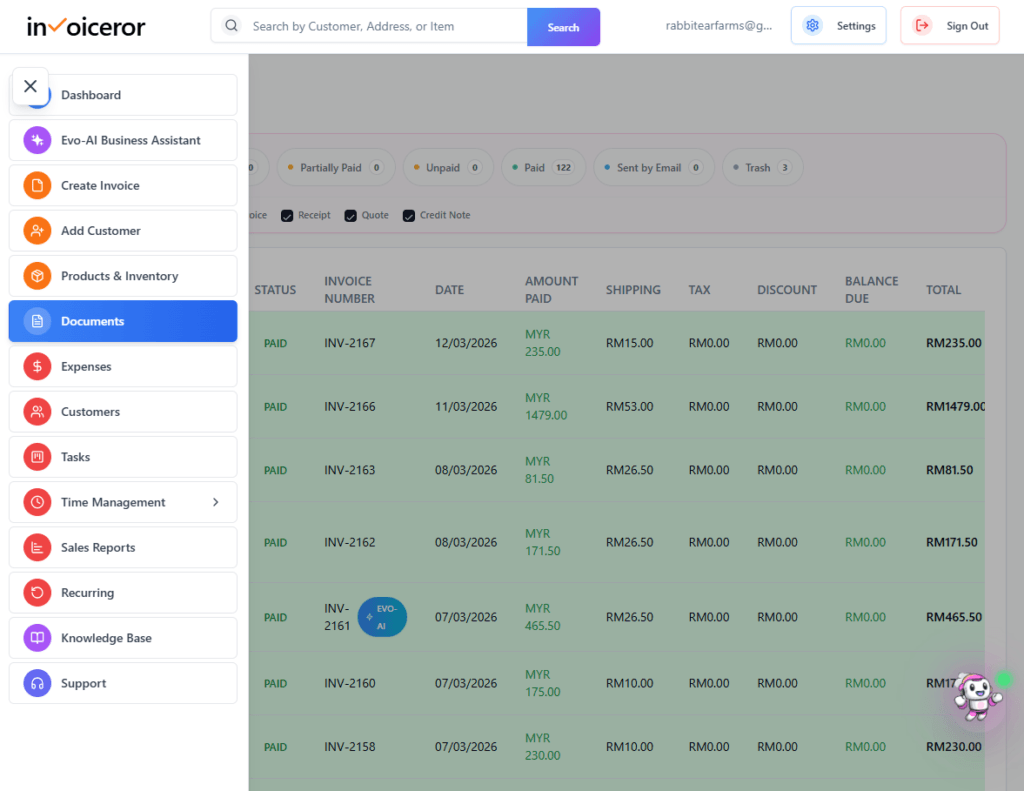
First, access the Documents section where all invoices are stored.
Log in to your Invoiceror dashboard
Click Documents in the left sidebar
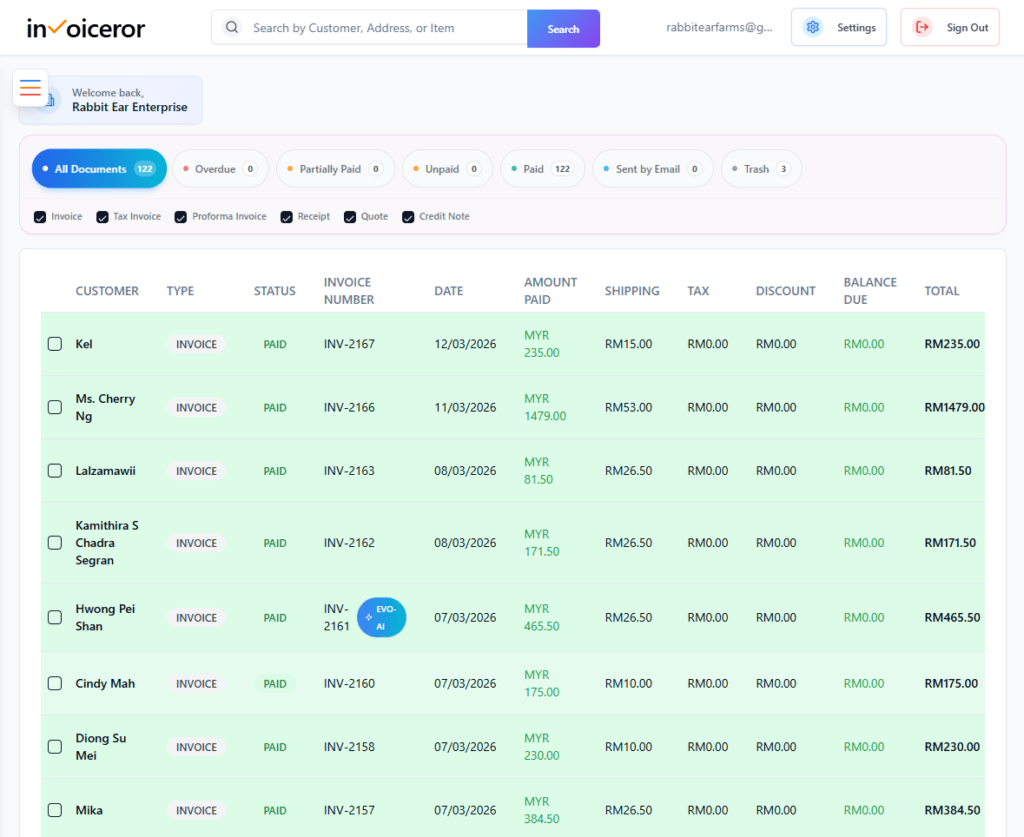
The Invoice Document List will appear
This dashboard displays:
Invoice Status
Invoice Number
Invoice Date
Amount Paid
Shipping Charges
Taxes
Discounts
Balance Due
Total Invoice Value
This helps businesses track invoice payments and financial records easily.


To manage a specific invoice:
Click the invoice row
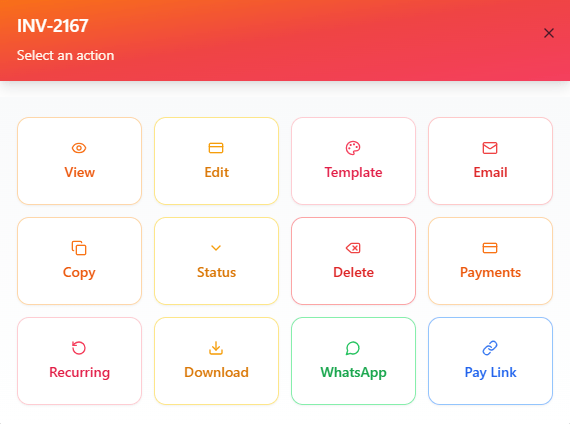
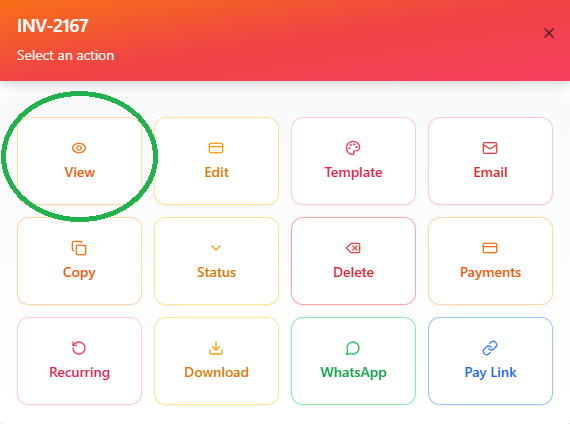
The Invoice Action Menu will open
This panel allows multiple actions such as:
View invoice
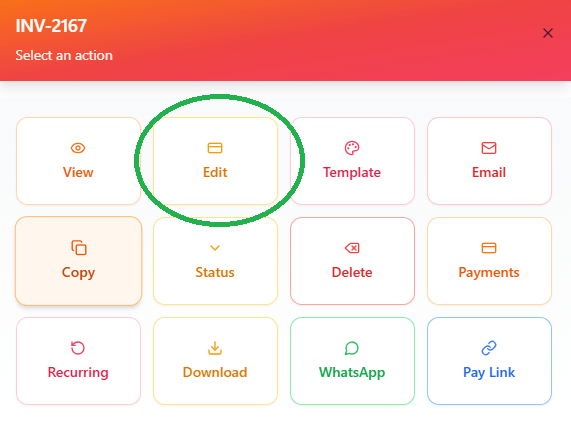
Edit invoice
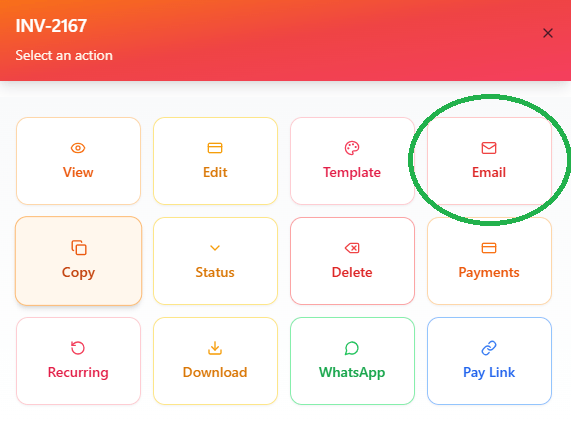
Send email
Copy invoice
Change invoice status
Record payment
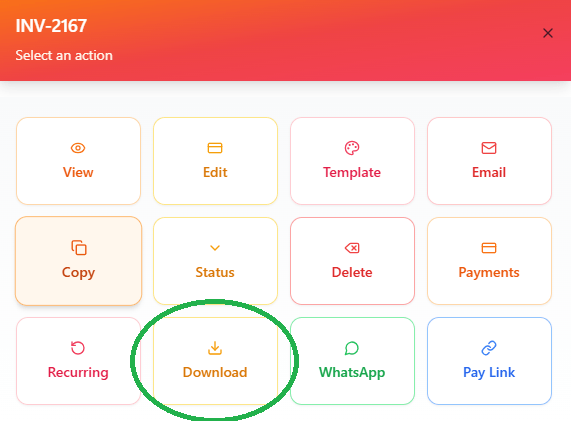
Download PDF
Share via WhatsApp
Generate payment link
You can also filter invoices such as:
Paid
Unpaid
Partially Paid
Sent by Email
Trash
These options help businesses manage invoices quickly without leaving the dashboard.
Click View to open the full invoice.
This allows you to:
Review invoice details
Confirm customer information
Check product or service items
Verify totals before sending
This is useful before sending invoices to clients.

Click Edit if you need to update invoice information.
You can modify:
Customer details
Product or service items
Pricing
Taxes or discounts
Notes and terms
After editing, save the changes to update the invoice.

Click Email to send the invoice directly to the client.
The system will:
Attach the invoice automatically
Send it to the customer’s email address
Allow professional invoice communication
This feature helps businesses send invoices instantly without exporting files manually.

Click Download to export the invoice as a PDF document.
This is useful for:
Record keeping
Offline storage
Printing invoices
Accounting documentation
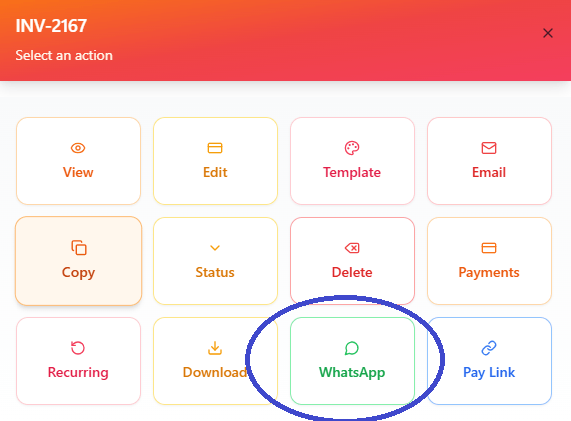
One of the fastest ways to send invoices is via WhatsApp.
Click WhatsApp to:
Send invoice directly to the client
Share payment information quickly
Improve response time
This feature is especially useful for small businesses and freelancers.
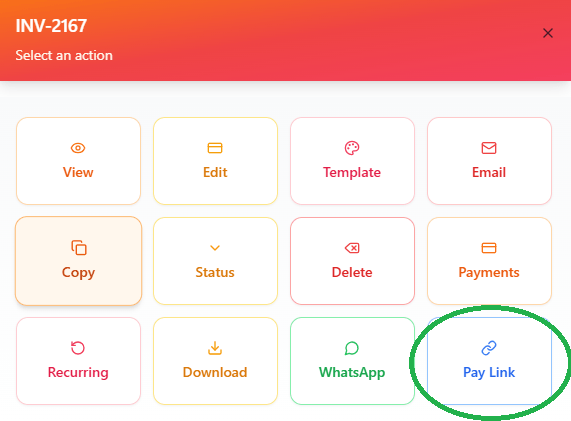
Click Pay Link to generate a secure payment link.
You can send this link to the client so they can:
Pay the invoice online
Complete payment faster
Avoid manual bank transfers
Payment links help accelerate invoice payments.
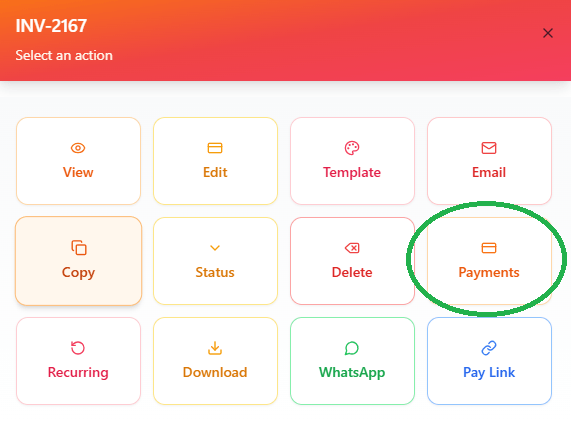
Click Payments when a customer pays.
You can record:
Full payment
Partial payment
This keeps your invoice records accurate and up-to-date.
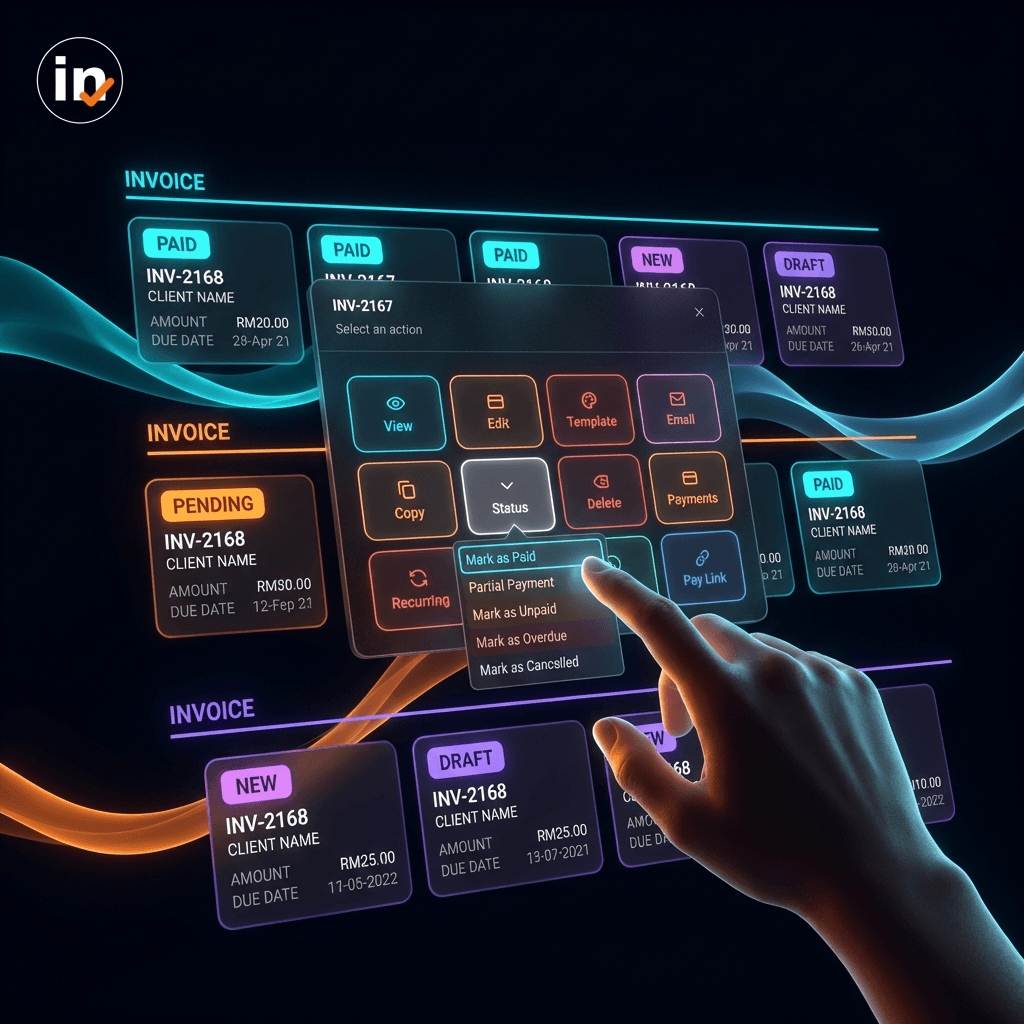
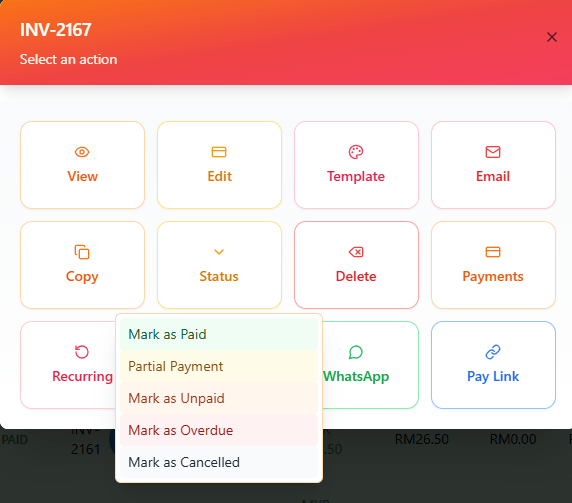
Click Status to update the invoice status.
Available options include:
Use this when the invoice is fully paid.
Record partial payments when the customer pays only part of the amount.
Change status if payment has not been received.
Mark invoices that have passed the payment deadline.
Cancel invoices that are no longer valid.
Updating invoice status helps businesses track outstanding payments accurately.
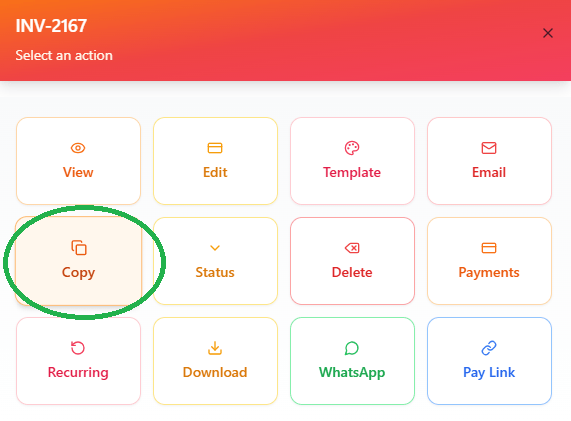
Click Copy to duplicate an existing invoice.
This is useful when:
Re-sending similar invoices
Billing recurring services
Saving time creating invoices
You can edit the copied invoice before sending.
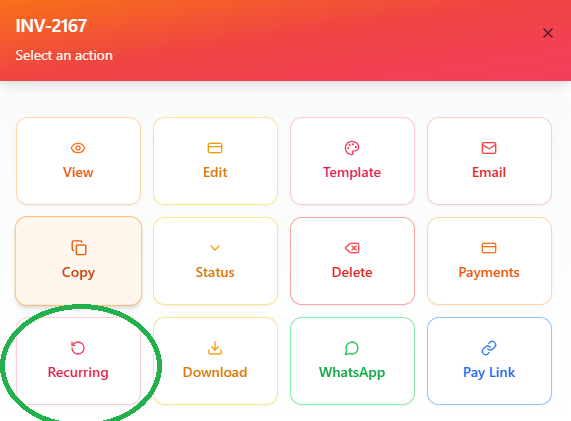
Click Recurring if the invoice needs to repeat automatically.
Examples include:
Monthly subscriptions
Service retainers
Maintenance contracts
Recurring invoices help automate regular billing processes.
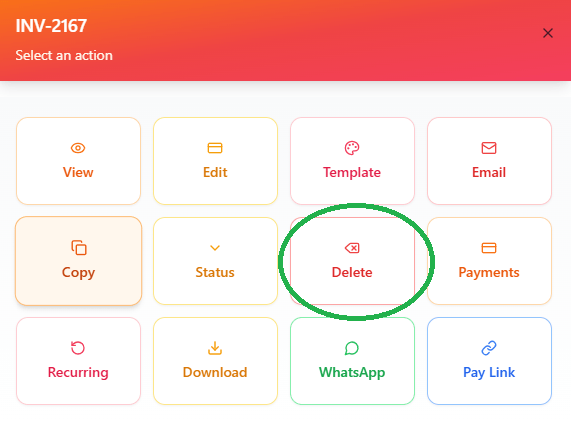
If an invoice is no longer needed, click Delete.
Deleted invoices may be moved to Trash, allowing recovery if needed.
Using the invoice management tools helps businesses:
This creates a complete invoice management system for small businesses and freelancers.
These practices help improve cash flow and financial organization.
The Documents section in Invoiceror provides a powerful invoice management dashboard where businesses can perform multiple actions on invoices quickly and efficiently.
From sending invoices to updating payment status, everything can be managed from one place.
This makes Invoiceror a complete invoicing and financial management solution for entrepreneurs, freelancers, and small businesses.
Stay in Control of Your Inventory with Real-Time Updates
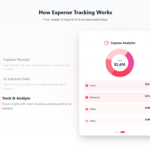
Track Every Expense Automatically Without Spreadsheets with AI Receipt Scanning

Create Professional Invoices in Seconds with Smart Invoice Creation

How Evo-AI Helps Small Businesses Make Smarter Decisions
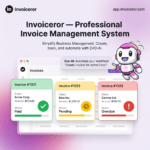
Monitor Invoice Status Instantly with Color Coding

Get a Real-Time View of Your Business Finances Dashboard

How to Use the Task Tracker in Invoiceror (Step-by-Step Guide)

How to Use the Daily Activity Tracker in Invoiceror (Step-by-Step Guide)

How to Send Invoices to Customers via WhatsApp, Email, or Download in Invoiceror

How the Invoice Color Status System Works in Invoiceror (Step-by-Step Guide)keep up out latest update Subscribe our newsletter!

© 2025 All Rights Reserved app.invoiceror.com
Get in touch with our support team. We're available via email or WhatsApp to help you with any questions.
Send us an email and we'll get back to you within 24 hours on business days.
Chat with us directly on WhatsApp for quick responses and real-time support.