
Blog
Published:

How to Add Products, Inventory, and Services in Invoiceror (Step-by-Step Guide)

Book your demo today.

Running a business means making decisions every day. Evo-AI is built to guide you with real-time insights of your customers details, not guesses. With Evo-AI, your customer in one place and secure. ask AI to add and update whoever new customer on-board.

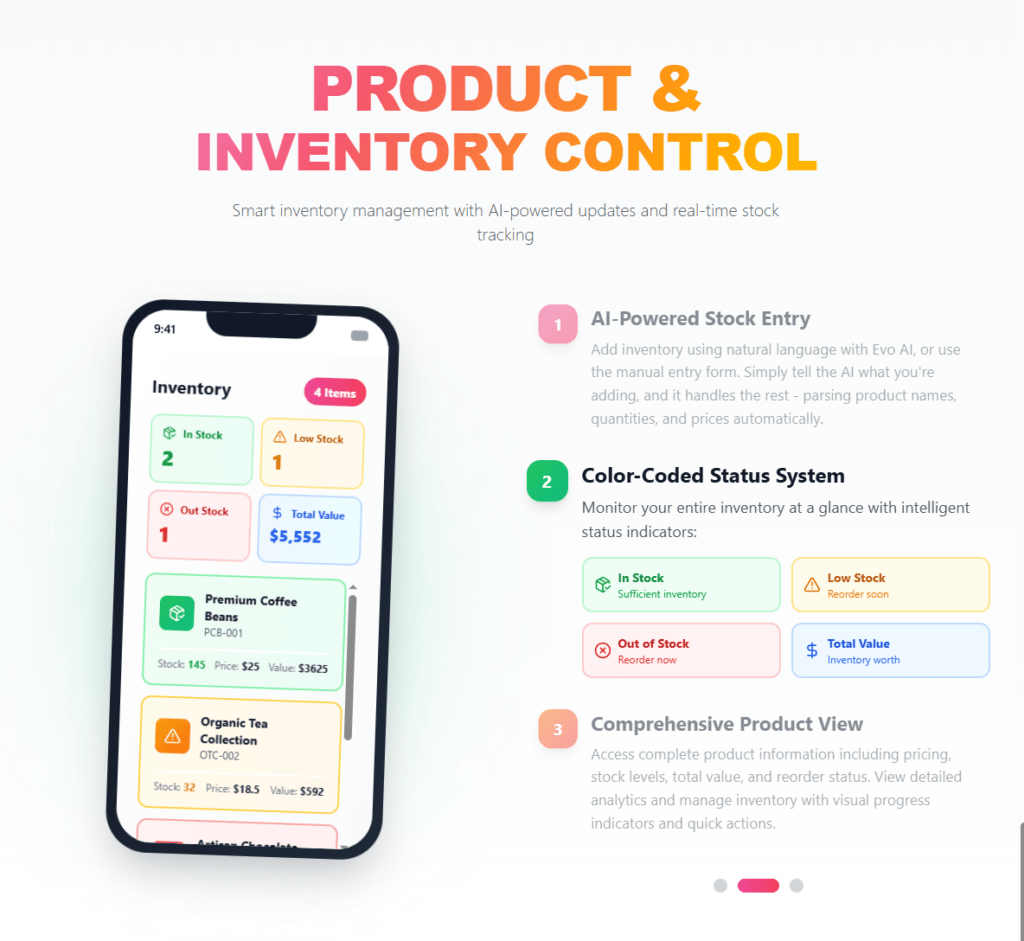
Managing products, inventory, and services is essential for businesses that sell physical goods or offer services. The Products & Inventory feature in Invoiceror helps you organize your product catalog, track stock levels, and automatically add items to invoices.

This SEO-optimized tutorial will guide you step-by-step on how to add products, manage inventory, and track stock levels in Invoiceror.


Step 1: Open the Products & Inventory Section

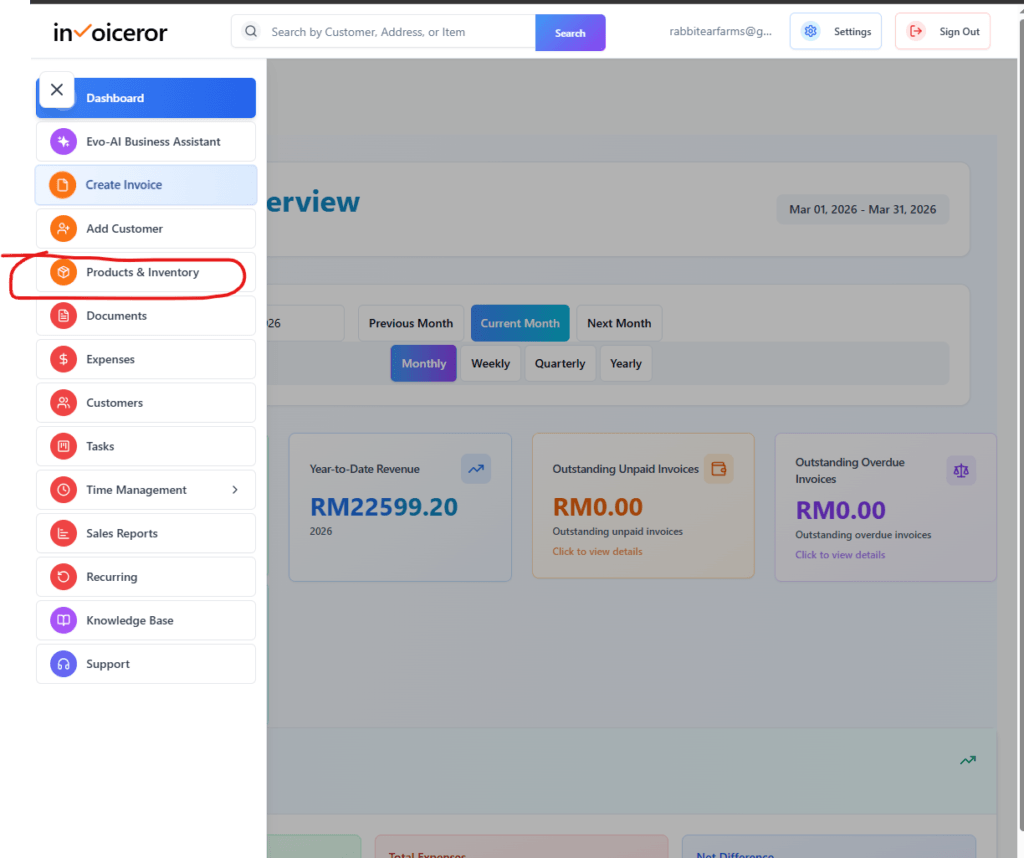
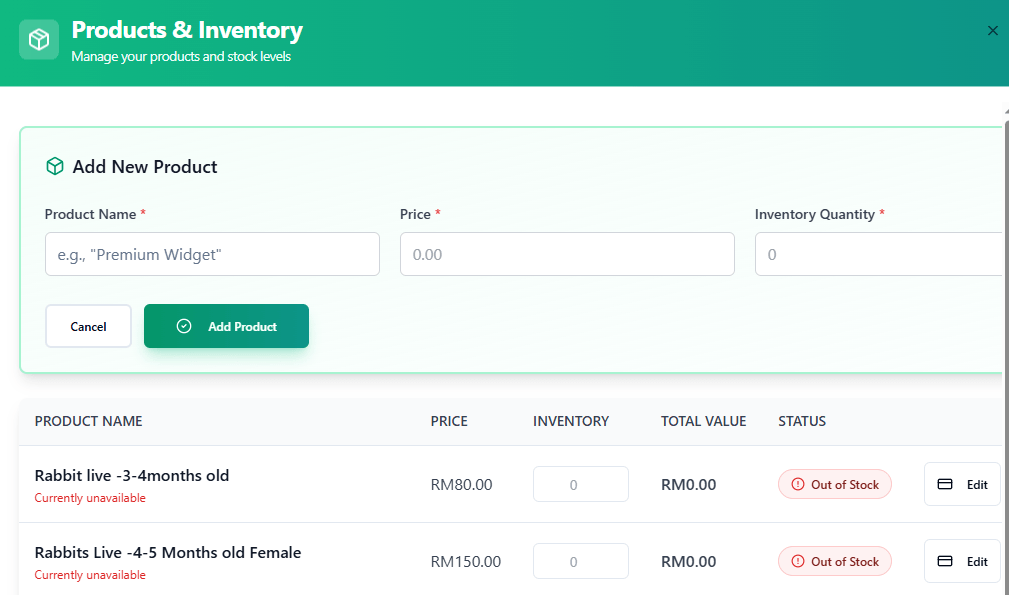
First, navigate to the Products & Inventory section in your dashboard.


How to access it:
  1. Log in to your Invoiceror dashboard

  2. Navigate to Products & Inventory

  3. The product inventory list will appear

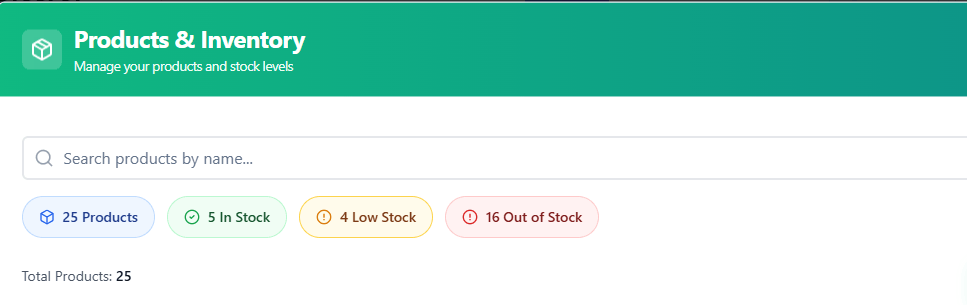
This page shows an overview of your inventory including:

  • Total number of products

  • Products currently in stock

  • Low stock alerts

  • Out-of-stock items


These indicators help you quickly monitor your inventory health.

how to add products and inventory in invoiceror

Step 2: Click “Add Product”

To add a new product or service:


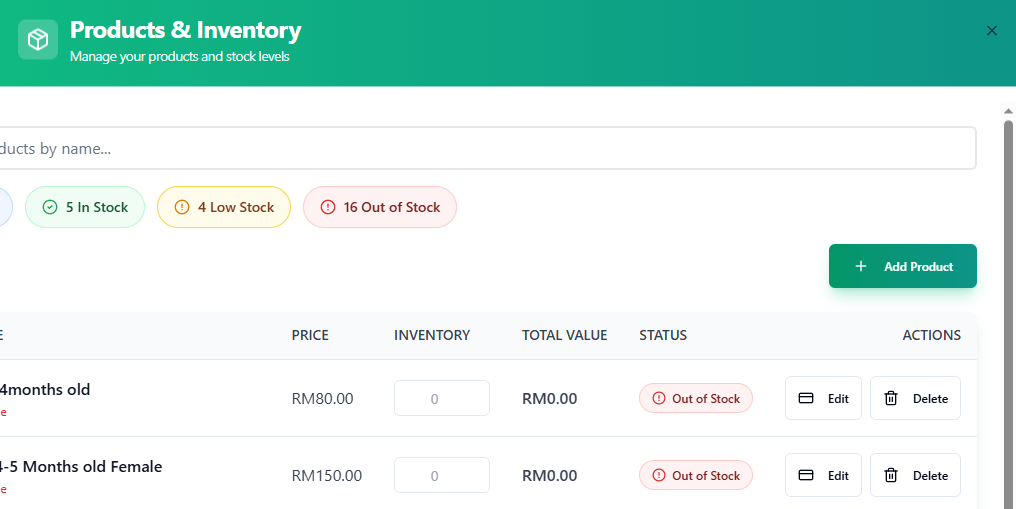
  1. Click the Add Product button

  2. A product creation form will appear

  3. Enter the product details

You can add both:


  • Physical products

  • Services


These items will then be available when creating invoices.

Step 3: Enter Product Name

Start by entering the product or service name.


Examples:


Products

  • Rabbit (3–4 months old)

  • Organic Pet Feed

  • Farm Equipment

Services

  • Veterinary Consultation

  • Farm Maintenance Service

  • Pet Grooming


Using clear product names helps you easily locate items when creating invoices.

Step 5: Enter Inventory Quantity

For physical products, enter the available inventory quantity.


Example:

 
10 units
50 units
100 units
 

The system will automatically calculate:

Total Inventory Value

 
Price × Quantity
 

This helps track the total value of your product inventory.

For services, inventory quantity can be left at 0 or unlimited, since services do not require stock tracking.

Step 6: Monitor Inventory Status

Once products are added, Invoiceror automatically categorizes inventory status.

The system displays three inventory statuses:


In Stock

Products with sufficient inventory available for sale.

Low Stock


Products running low that may require restocking soon.

Out of Stock


Products with zero inventory remaining.

These alerts help businesses avoid selling unavailable products.

Step 7: Edit or Update Product Information

You can easily update product details at any time.

To edit a product:


  1. Click the Edit button

  2. Update price, quantity, or product name

  3. Save the changes


This allows you to maintain accurate inventory records.

Step 8: Delete Unused Products

If a product is no longer sold or offered:


  1. Click Delete

  2. Confirm the deletion


Removing unused items keeps your product list clean and organized.

Benefits of Using Products & Inventory in Invoiceror

The inventory management system helps businesses:


  • Track product availability.
  •  Monitor stock levels automatically
  • Reduce manual data entry
  • Speed up invoice creation
  • Maintain organized product catalogs


By adding products in advance, you can quickly select them when creating invoices.

Pro Tips for Inventory Management

  •  Always update stock after receiving new products.
  •  Use clear product names for easier searching.
  • Monitor the Low Stock alerts to avoid shortages.
  • Track inventory value to understand your business assets.

Final Thoughts

The Products & Inventory feature in Invoiceror simplifies inventory management for businesses selling products or services. By keeping your product catalog organized and updated, you can streamline your invoicing workflow and maintain better control over your stock levels.

Using this feature ensures your business operates more efficiently, accurately, and professionally.

We're Here to Help You

Get in touch with our support team. We're available via email or WhatsApp to help you with any questions.

WhatsApp Support

Chat with us directly on WhatsApp for quick responses and real-time support.

+60172438082
  • Instant messaging support
  • Quick questions and assistance
  • Share screenshots easily
Start WhatsApp Chat