

Published:
March 18, 2026
How to Add Business Expenses and Scan Receipts in Invoiceror (Step-by-Step Guide)
Book your demo today.
Running a business means making decisions every day. Evo-AI is built to guide you with real-time insights of your customers details, not guesses. With Evo-AI, your customer in one place and secure. ask AI to add and update whoever new customer on-board.
Tracking business expenses accurately is essential for managing cash flow, understanding profitability, and preparing financial reports. The Expense Tracking feature in Invoiceror allows you to record expenses manually or automatically using AI-powered receipt scanning.
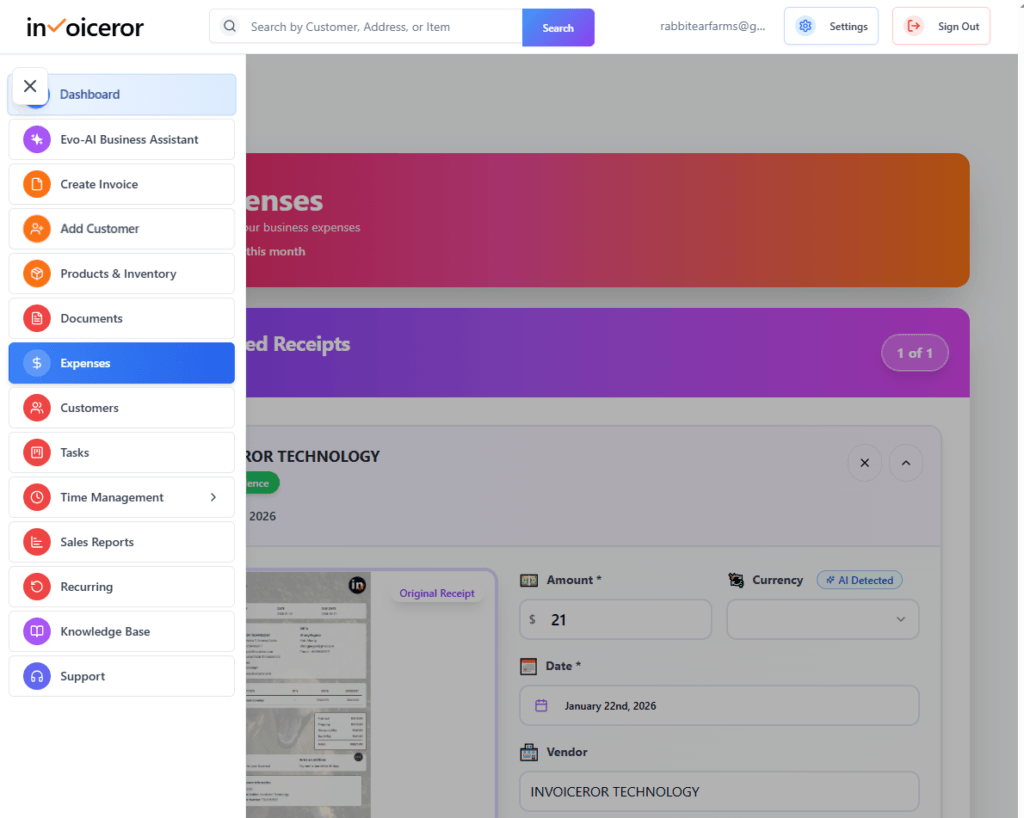
Step 1: Open the Expense Management Page
First, navigate to the My Expenses section in your dashboard.
How to access it:
Log in to your Invoiceror dashboard
Click Expenses
Open the My Expenses page
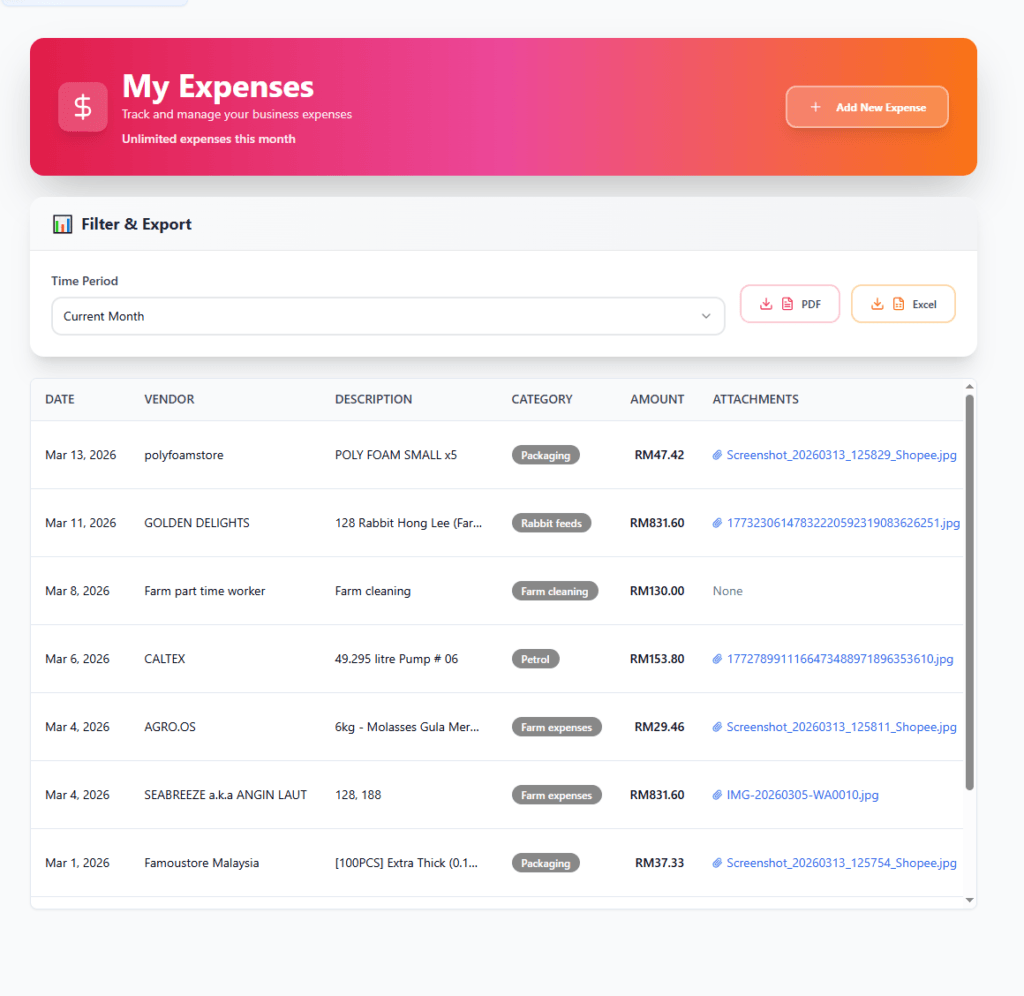
This page shows all recorded expenses including:
Expense date
Vendor name
Description
Category
Amount
Receipt attachments
You can also filter expenses by time period or export reports in PDF or Excel format.

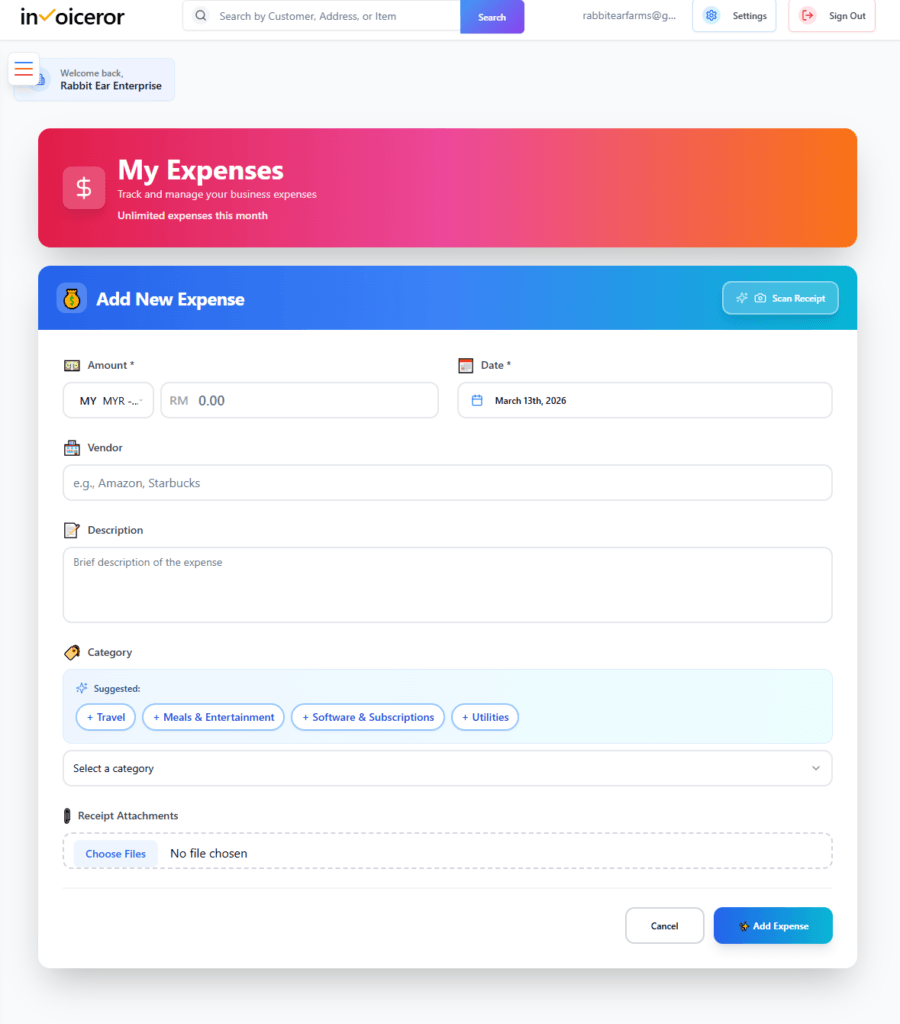
Step 2: Click “Add New Expense”
To record a new expense:
Click Add New Expense
The expense form will appear
Fill in the required details:
Amount
Enter the total expense amount.
Example:
Date
Select the date when the expense occurred.
Vendor
Enter the supplier or vendor name.
Examples:
Shopee
Caltex
Golden Delights
Amazon
Description
Provide a short description of the purchase.
Example:
Rabbit feed purchase
Fuel for delivery
Step 3: Select Expense Category
Categories help organize expenses for better financial reporting.
Suggested categories may include:
Travel
Meals & Entertainment
Software & Subscriptions
Utilities
Packaging
Farm expenses
You can also create custom categories if needed.
Organizing expenses by category helps with:
Profit analysis
Expense reports
Tax preparation
Step 4: Upload Receipt Attachments
To keep records of your expenses, you can upload receipt files.
How to upload:
Click Choose Files
Upload a receipt image or document
Supported formats include:
JPG
PNG
PDF
Saving receipts helps businesses maintain accurate financial records and proof of expenses.
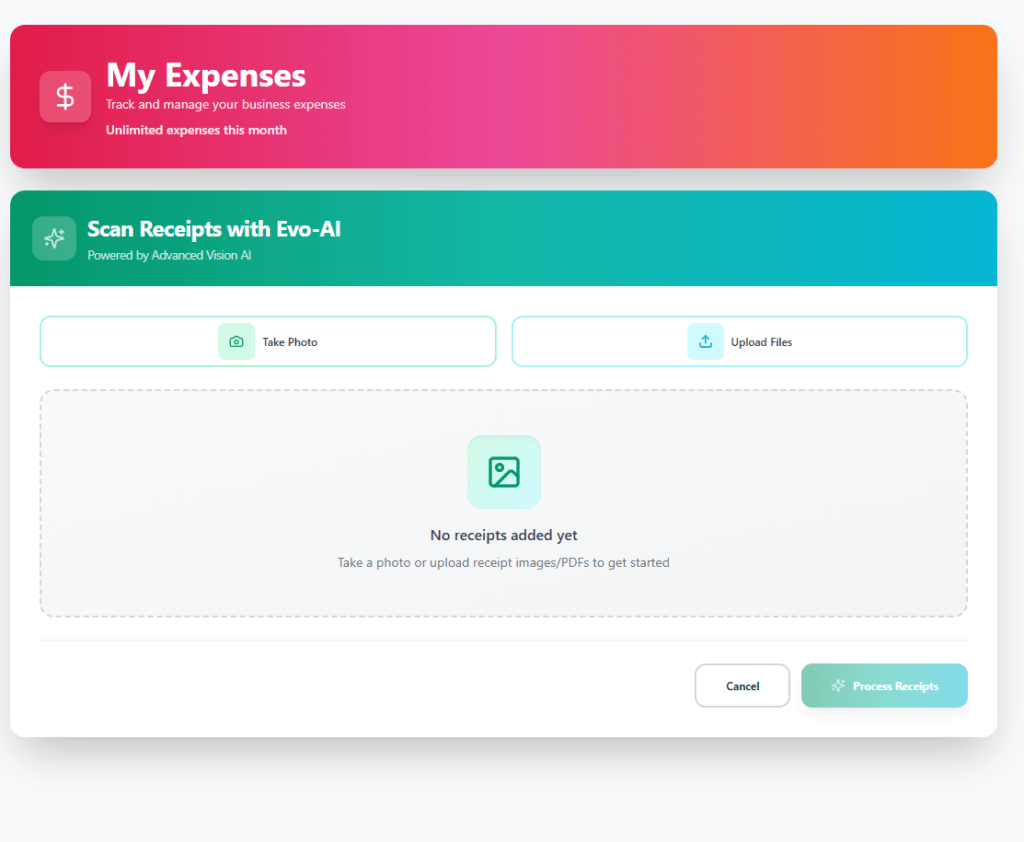
Step 5: Scan Receipts Using Evo-AI
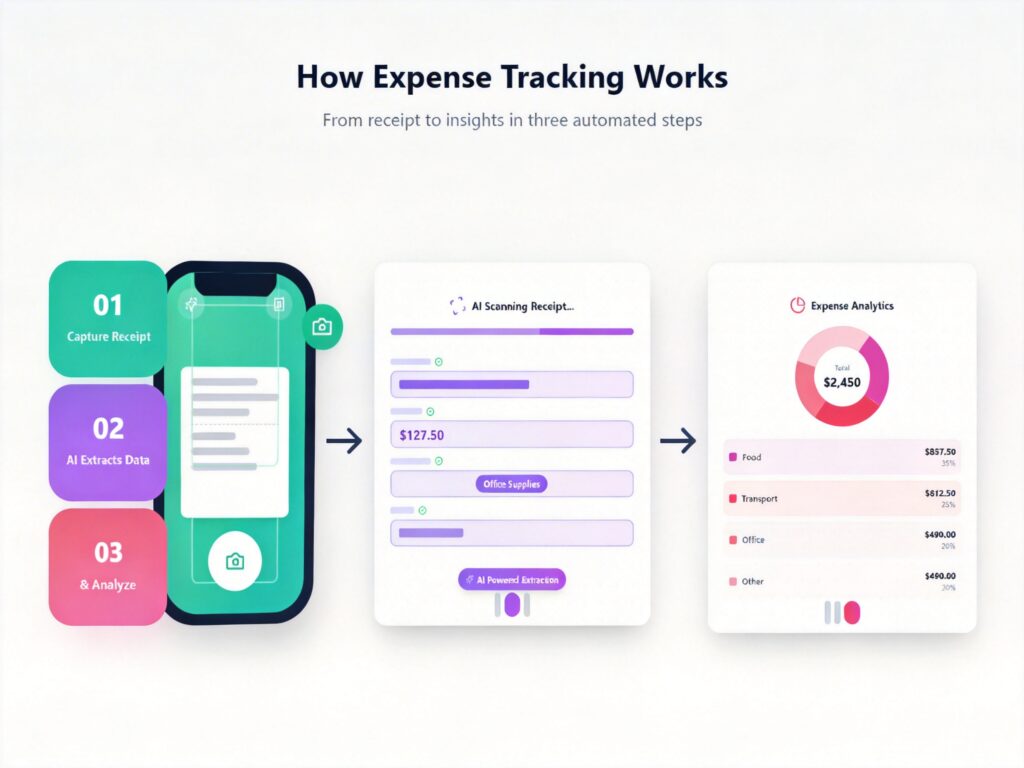
Invoiceror also includes AI-powered receipt scanning using Evo-AI.
This feature automatically extracts information from receipts.
Steps to scan receipts:
Click Scan Receipt
Choose one of the options:
Take Photo using your phone camera
Upload File from your device
Upload the receipt image
Click Process Receipts
The AI will analyze the receipt and extract important details automatically.
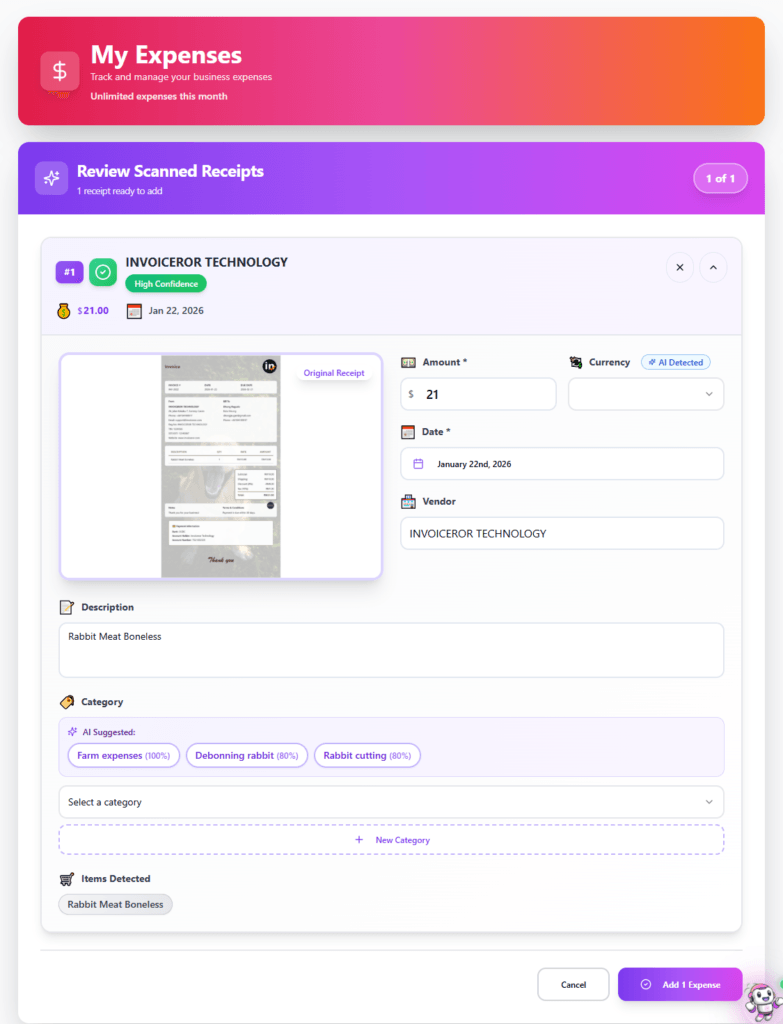
Step 6: Review AI-Detected Expense Data
After scanning the receipt, Evo-AI automatically detects important information such as:
Vendor name
Expense amount
Currency
Purchase date
Description
Expense category
You can review and edit the information if needed.
The system will also display AI confidence level to indicate detection accuracy.
Step 7: Confirm and Save the Expense
Once you confirm the details:
Review the extracted information
Adjust any fields if necessary
Click Add Expense
Verify the expenses add to the list
The expense will now appear in your expense list
Benefits of Using Expense Tracking in Invoiceror
The expense management system helps businesses:
- Track operational costs
- Store receipts digitally
- Automate expense data entry
- Improve financial reporting
- Monitor spending patterns
- Reduce manual bookkeeping
AI receipt scanning also saves time by automatically extracting receipt information.
Best Practices for Managing Expenses
- Upload receipts immediately after purchase
- Use clear expense descriptions
- Assign correct categories for accurate reporting
- Review expense reports monthly
These practices help maintain organized and reliable financial records.
Final Thoughts
The Expense Tracking and AI Receipt Scanner in Invoiceror make it easy for businesses to monitor spending and maintain financial transparency. By combining manual expense entry with AI-powered receipt scanning, businesses can streamline their bookkeeping process and reduce administrative work.
Using this feature ensures your business expenses remain accurate, organized, and easy to analyze.

Related posts:
Stay in Control of Your Inventory with Real-Time Updates
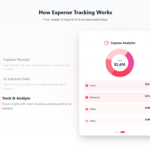
Track Every Expense Automatically Without Spreadsheets with AI Receipt Scanning

Create Professional Invoices in Seconds with Smart Invoice Creation

How Evo-AI Helps Small Businesses Make Smarter Decisions
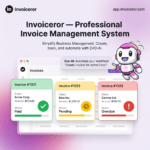
Monitor Invoice Status Instantly with Color Coding

Get a Real-Time View of Your Business Finances Dashboard

How to Use the Daily Activity Tracker in Invoiceror (Step-by-Step Guide)

How to Manage Invoices in the Documents Section of Invoiceror (Complete Step-by-Step Guide)

How to Send Invoices to Customers via WhatsApp, Email, or Download in Invoiceror

How the Invoice Color Status System Works in Invoiceror (Step-by-Step Guide)