

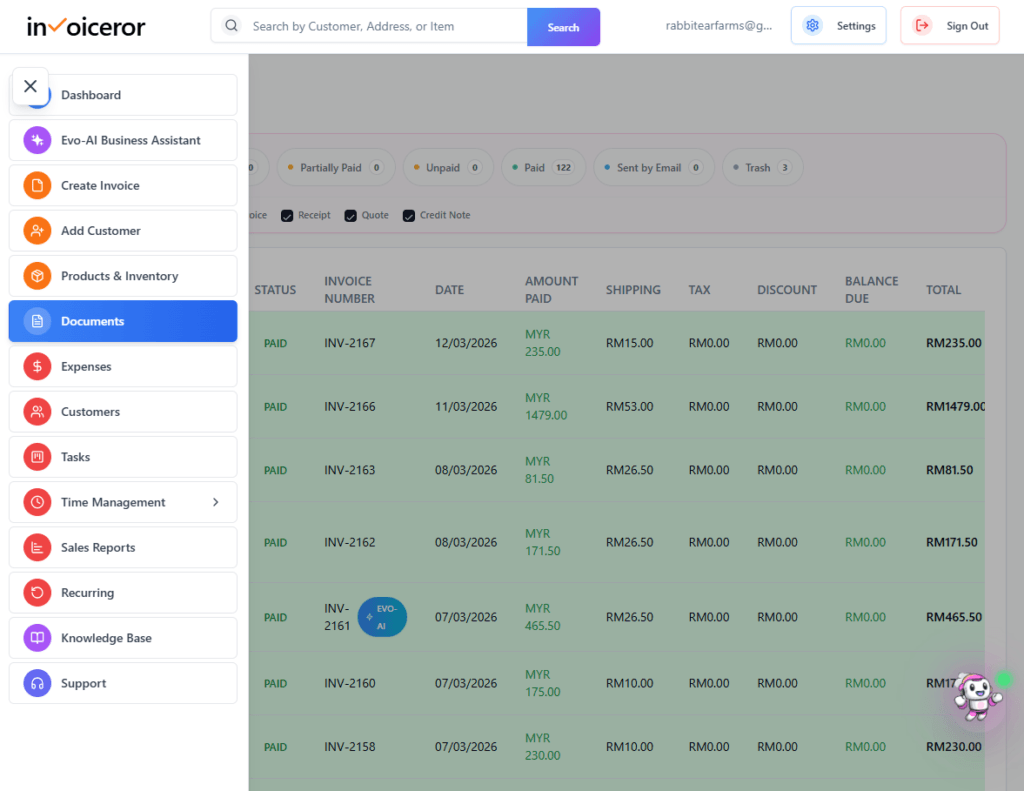
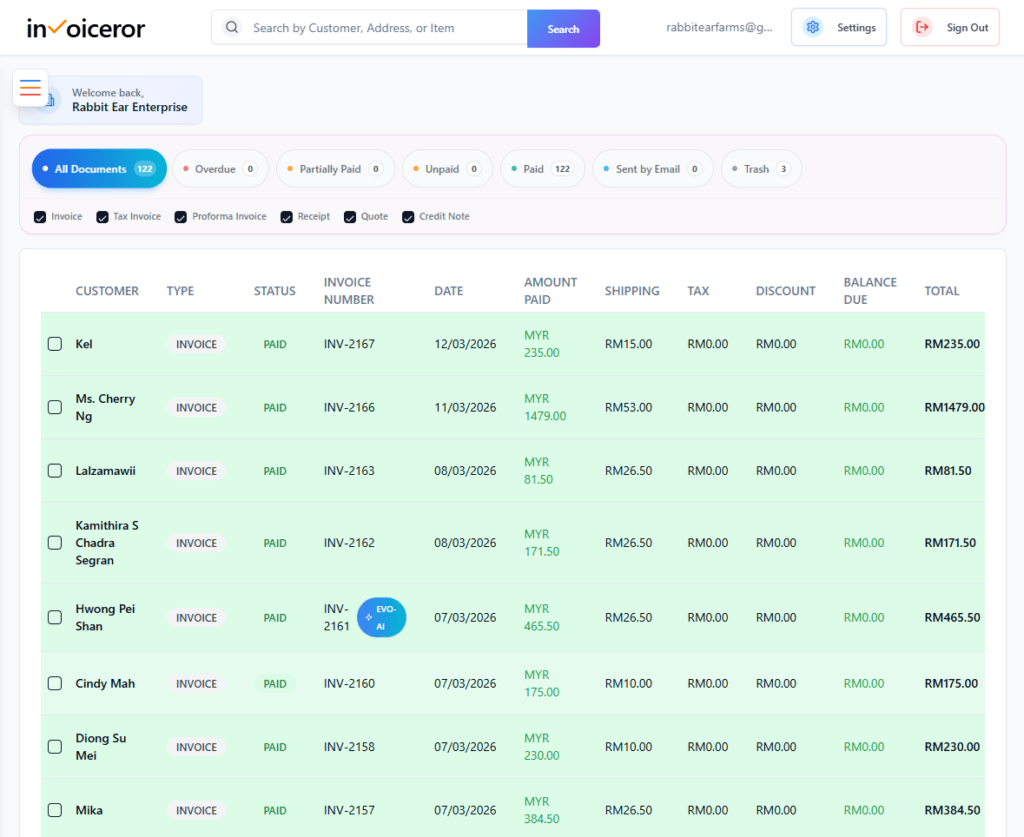
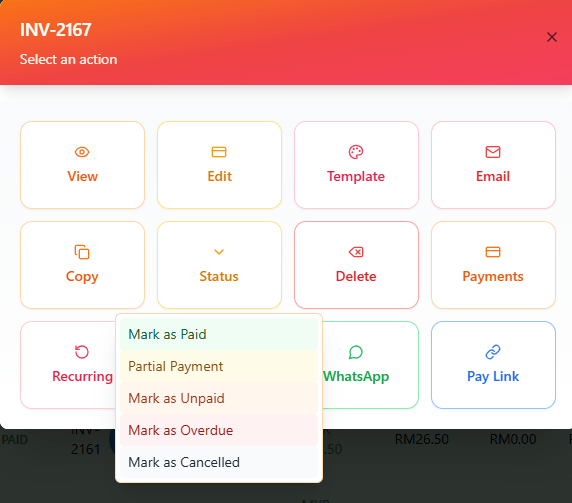
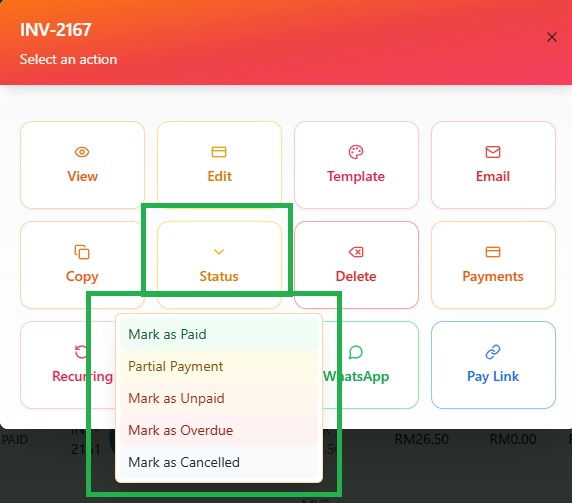
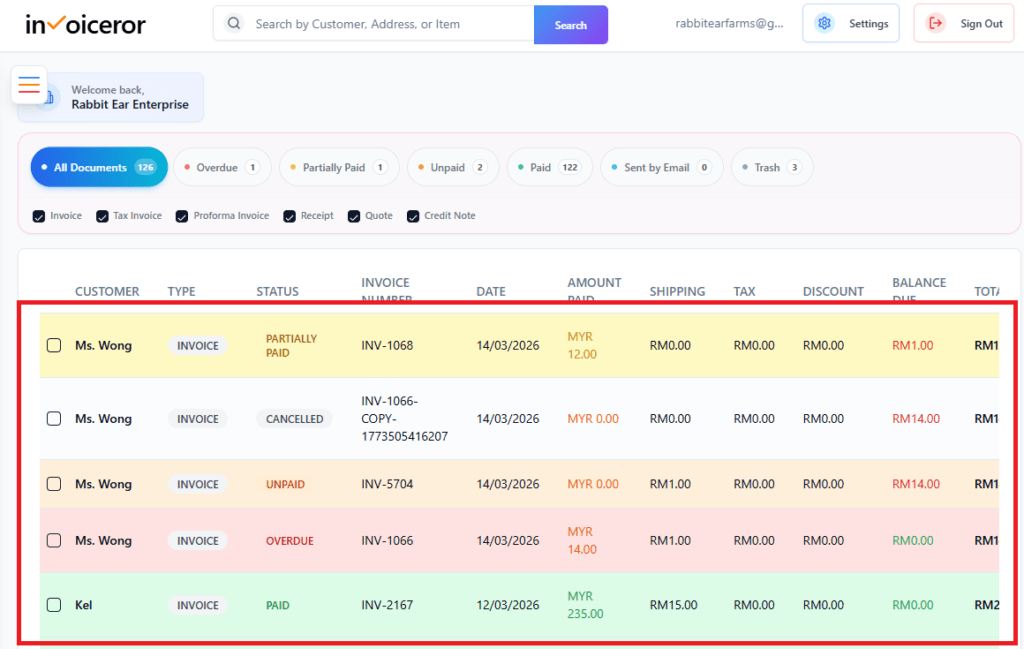
The platform uses visual color indicators to quickly identify invoice conditions.
 Green — Mark as Paid
When an invoice is fully paid, it appears green.
Meaning:
Payment received
No outstanding balance
Invoice completed
This helps you quickly identify completed transactions.
 Yellow — Partial Payment
Yellow indicates partial payment received.
Meaning:
Customer has paid part of the invoice
Remaining balance still pending
This helps businesses follow up on outstanding balances.
 Orange — Mark as Unpaid
Orange indicates the invoice has not been paid yet.
Meaning:
Invoice sent to customer
Payment still pending
This helps track invoices waiting for payment.
 Red — Mark as Overdue
Red indicates an invoice is past the due date.
Meaning:
Payment deadline has passed
Immediate follow-up required
Overdue invoices help businesses identify late payments quickly.
 White — Cancelled Invoice
White indicates the invoice has been cancelled.
Meaning:
Invoice no longer valid
Payment no longer required
Cancelled invoices remain stored for record-keeping purposes.
 Stay in Control of Your Inventory with Real-Time Updates
 Track Every Expense Automatically Without Spreadsheets with AI Receipt Scanning
 Create Professional Invoices in Seconds with Smart Invoice Creation
 How Evo-AI Helps Small Businesses Make Smarter Decisions
 Monitor Invoice Status Instantly with Color Coding
 Get a Real-Time View of Your Business Finances Dashboard
 How to Use the Task Tracker in Invoiceror (Step-by-Step Guide)
 How to Use the Daily Activity Tracker in Invoiceror (Step-by-Step Guide)
 How to Manage Invoices in the Documents Section of Invoiceror (Complete Step-by-Step Guide)
 How to Send Invoices to Customers via WhatsApp, Email, or Download in Invoiceror
Get in touch with our support team. We're available via email or WhatsApp to help you with any questions.
Send us an email and we'll get back to you within 24 hours on business days.
Chat with us directly on WhatsApp for quick responses and real-time support.