



Blog
Published:

How to Create an Invoice in Invoiceror (Step-by-Step Tutorial)

Book your demo today.

Running a business means making decisions every day. Evo-AI is built to guide you with real-time insights of your customers details, not guesses. With Evo-AI, your customer in one place and secure. ask AI to add and update whoever new customer on-board.

Creating professional invoices is one of the most important tasks for any business. With Invoiceror, you can quickly generate invoices, send them to clients, and track payments all in one platform.

This tutorial will guide you step by step on how to create an invoice using the Invoiceror system.


Step 1: Open the Create Invoice Page

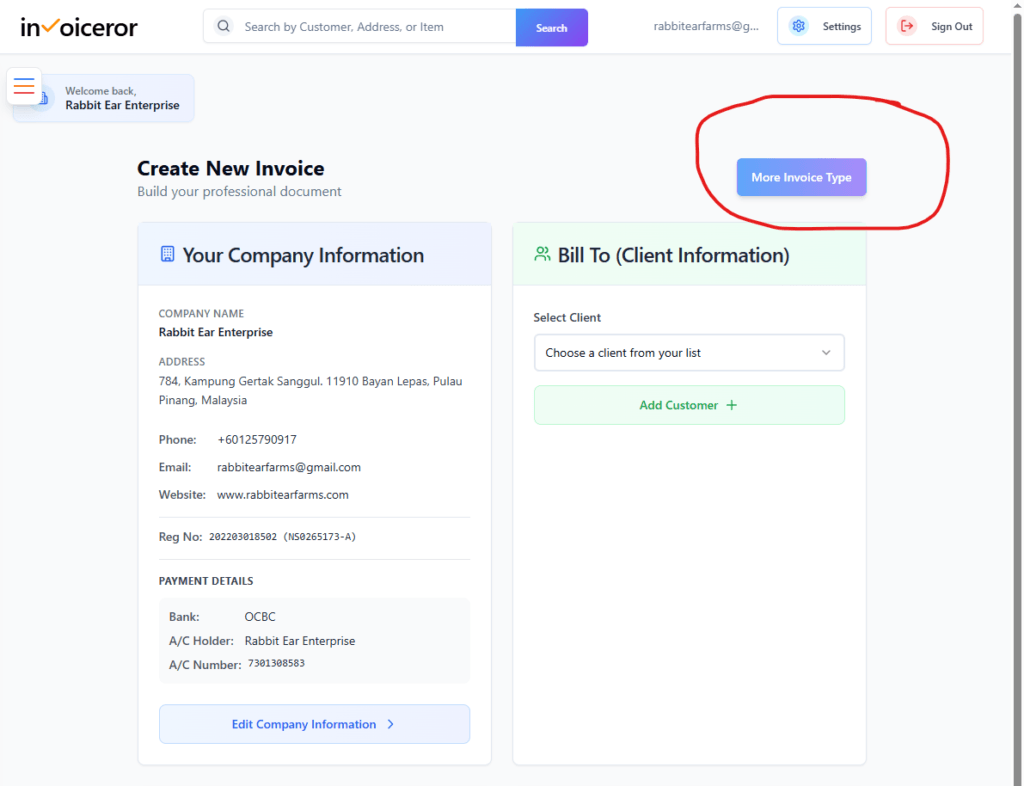
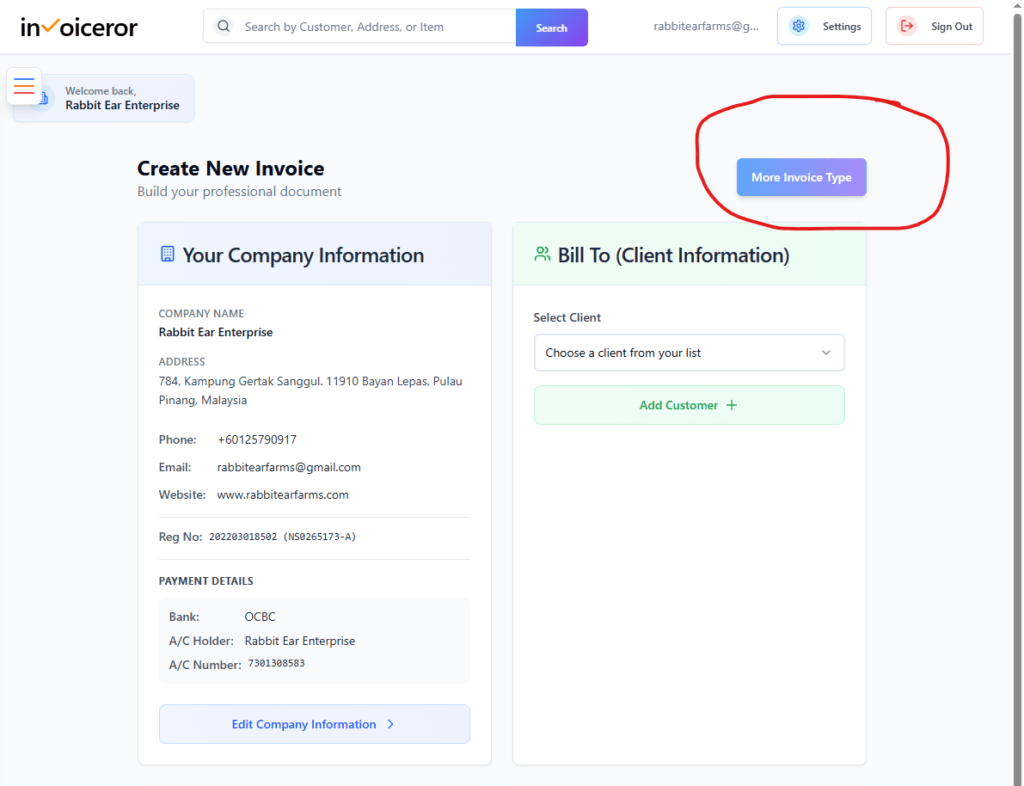
First, navigate to the Create New Invoice page.

How to access it:
  1. Log in to your Invoiceror dashboard

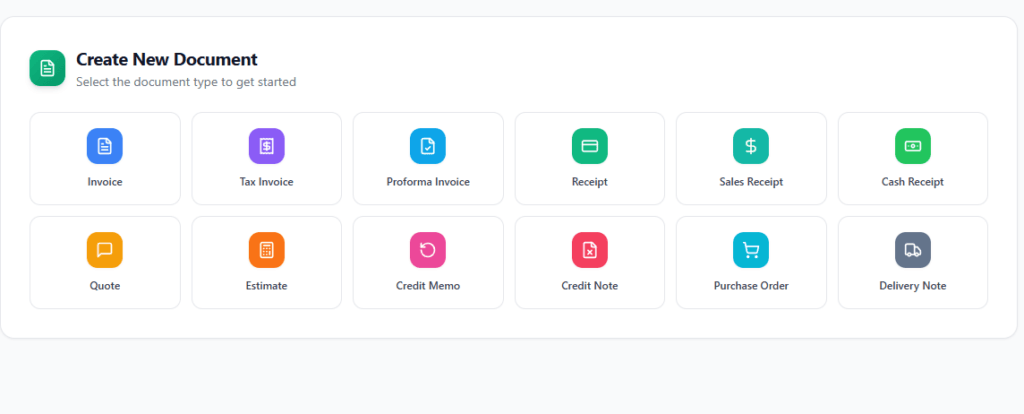
  2. Click Create Document or Create Invoice

  3. Select Invoice from the document type options

You will now see the invoice creation form where you can enter all necessary details.

To change invoice type, click More Invoice Type, Other available document types include:

  • Tax Invoice

  • Proforma Invoice

  • Receipt

  • Sales Receipt

  • Cash Receipt

  • Quote

  • Estimate

  • Credit Memo

  • Credit Note

  • Purchase Order

  • Delivery Note

Step 2: Verify Your Company Information

The Company Information section displays your business details that will appear on the invoice.

This includes:

  • Company name

  • Business address

  • Phone number

  • Email address

  • Website

  • Business registration number

  • Payment details (bank account)

If you need to update this information, click Edit Company Information.

Step 3: Add Client Information

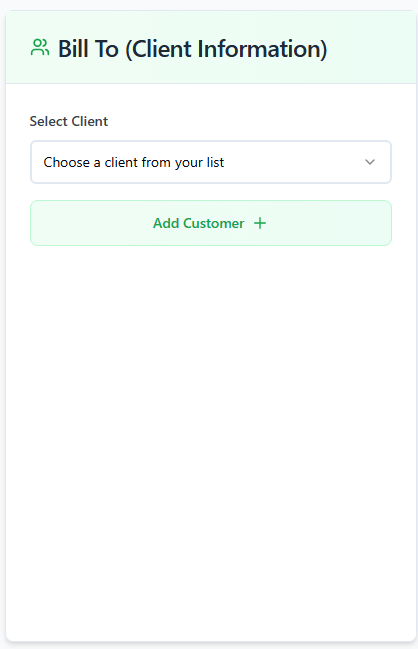
Next, you need to specify who the invoice is for.

Steps:
  1. Click Select Client

  2. Choose a customer from your customer list

  3. If the customer is new, click Add Customer

  4. Enter the customer details

This section ensures the invoice is sent to the correct client.


Step 4: Enter Invoice Details

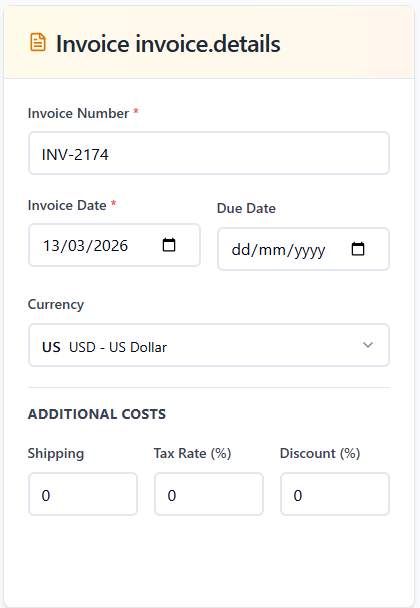
In the Invoice Details section, you will configure important invoice settings.


Required fields:

Invoice Number
Each invoice has a unique number for tracking.


Invoice Date
The date the invoice is issued.


Due Date
The payment deadline for the customer.


Currency
Select the currency for the invoice.


Additional costs

You can also add:

  • Shipping cost

  • Tax percentage

  • Discount percentage


These will automatically be included in the final invoice total.


Step 5: Add Your Company Logo and Signature

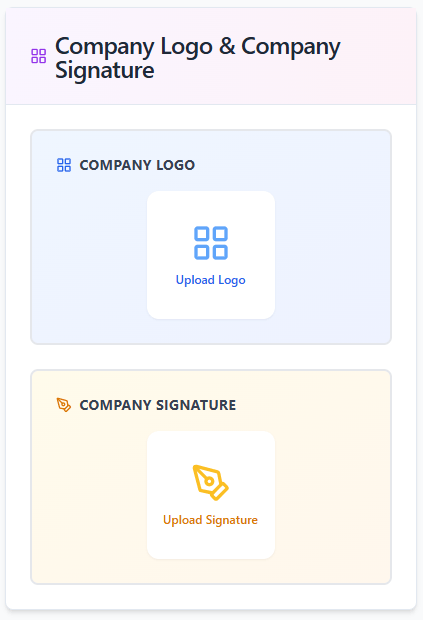
You can add branding elements to your invoice to make it look more professional.


Upload:

Company Logo

Displays your business logo on the invoice.


Company Signature
Adds an official signature to your document.


These elements help build trust and professionalism with clients.

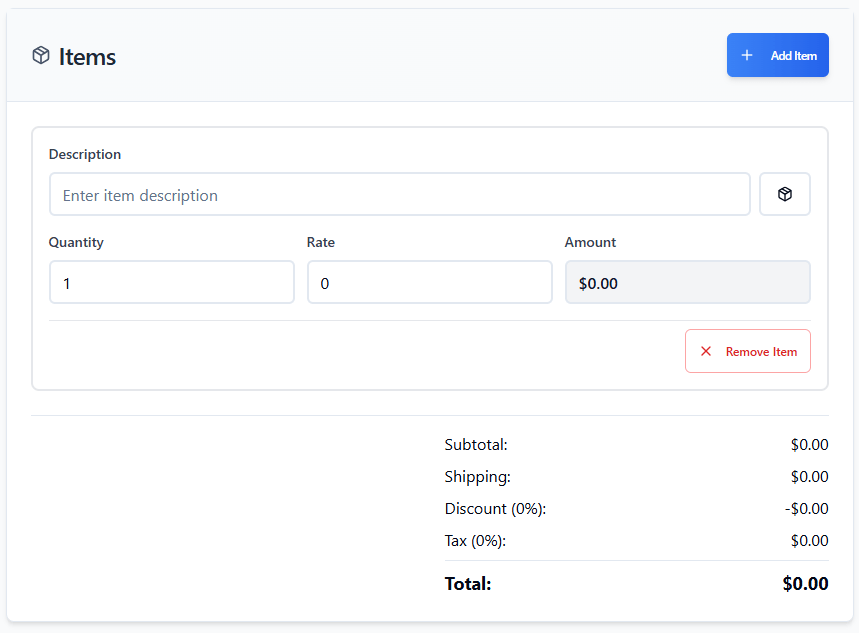
Step 6: Add Invoice Items

Now you can add the products or services being billed.

Steps:
  1. Click Add Item

  2. Enter the item description

  3. Enter the quantity

  4. Enter the rate or price


The system will automatically calculate the amount.


You can add multiple items if needed.


Step 7: Review the Invoice Summary

The system will automatically calculate the invoice totals.

The summary includes:


  • Subtotal

  • Shipping cost

  • Discount

  • Tax

  • Final total amount


This ensures the invoice is accurate before sending it to the client.


Step 8: Add Notes and Payment Terms

You can add additional information for the client.

Notes

Use this section for:

  • Payment instructions

  • Thank-you messages

  • Additional service details


Terms & Conditions

Specify your payment terms such as:

Example:

  • Payment due within 30 days

  • Late payment fees

  • Refund policies


This helps avoid misunderstandings with customers.


Step 9: Save or Send the Invoice

Once everything is completed, you can finalize the invoice.

Available actions include:


  • Draft
    Save the invoice without sending it.


  • Send
    Email the invoice directly to the client.


  • Preview
    Review the invoice before sending.


  • WhatsApp
    Send the invoice through WhatsApp.


  • PDF
    Download the invoice as a PDF file.


These options make it easy to deliver invoices through multiple channels.


Final Thoughts

Creating invoices with Invoiceror is fast, simple, and professional. The system helps businesses:

  • Generate invoices quickly

  • Manage customers efficiently

  • Track payments and outstanding invoices

  • Maintain professional documentation

Using this feature ensures your business gets paid faster and stays financially organized.


Pro Tip:
Save commonly used products or services in your product list so you can add them to invoices instantly.

We're Here to Help You

Get in touch with our support team. We're available via email or WhatsApp to help you with any questions.

WhatsApp Support

Chat with us directly on WhatsApp for quick responses and real-time support.

+60172438082
  • Instant messaging support
  • Quick questions and assistance
  • Share screenshots easily
Start WhatsApp Chat